





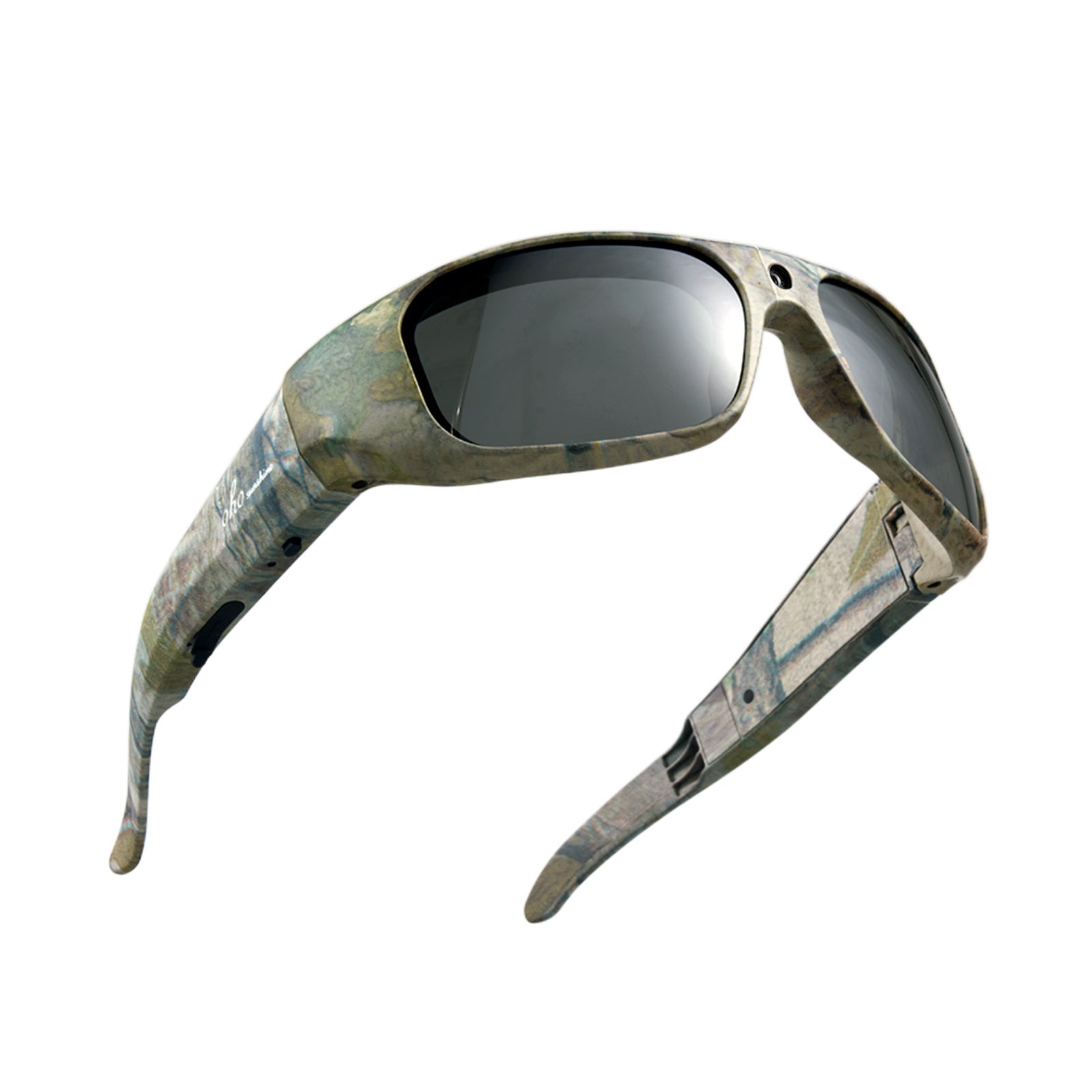


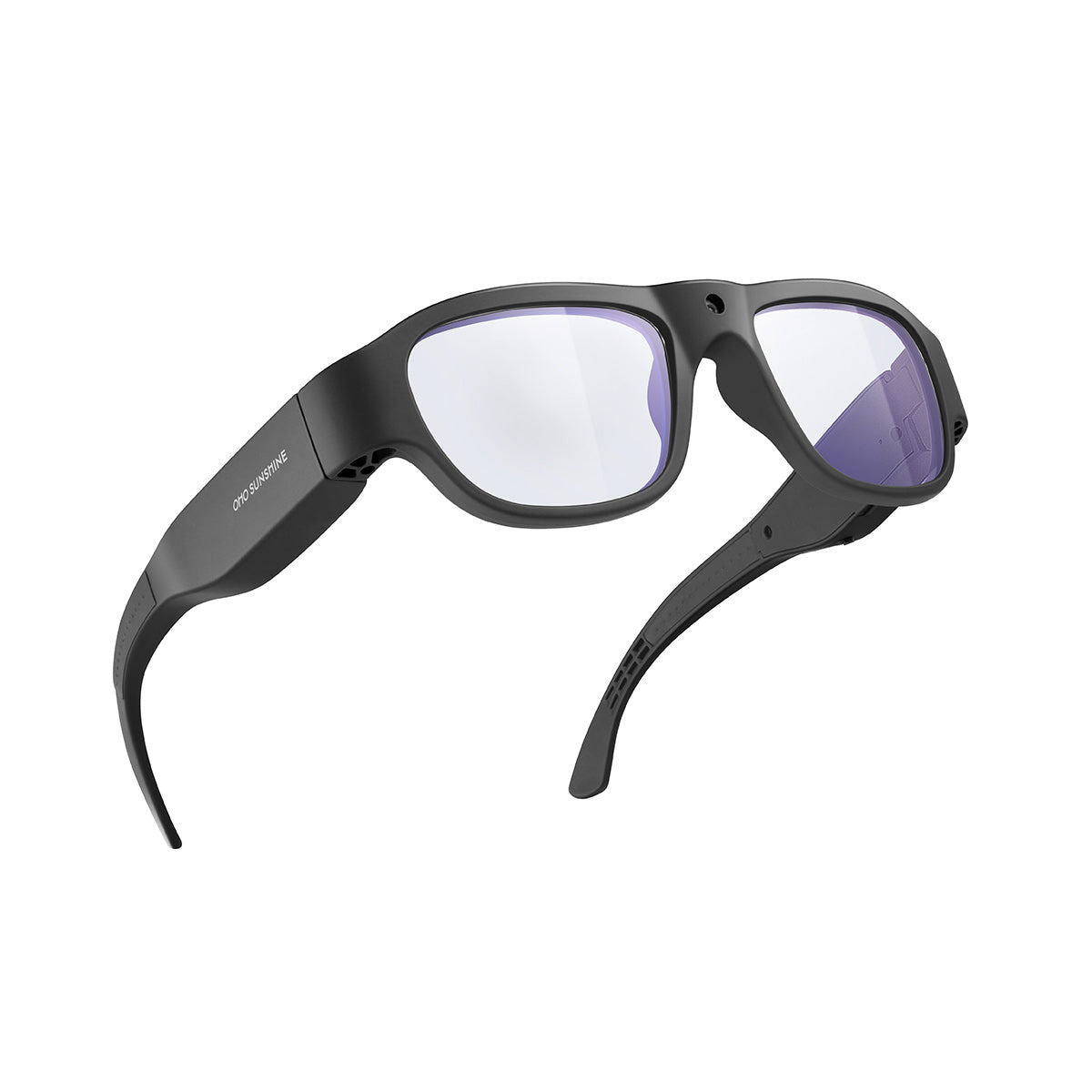
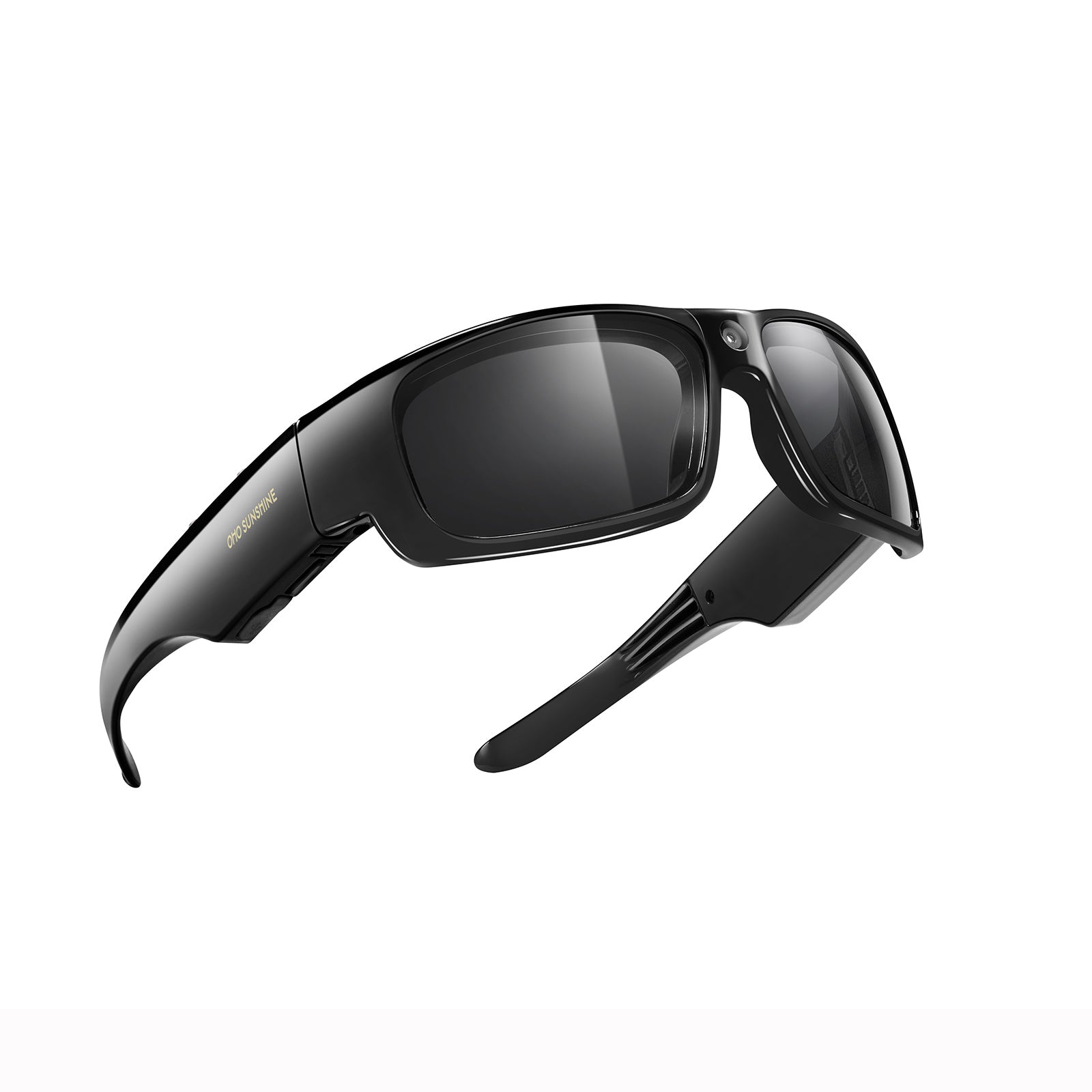


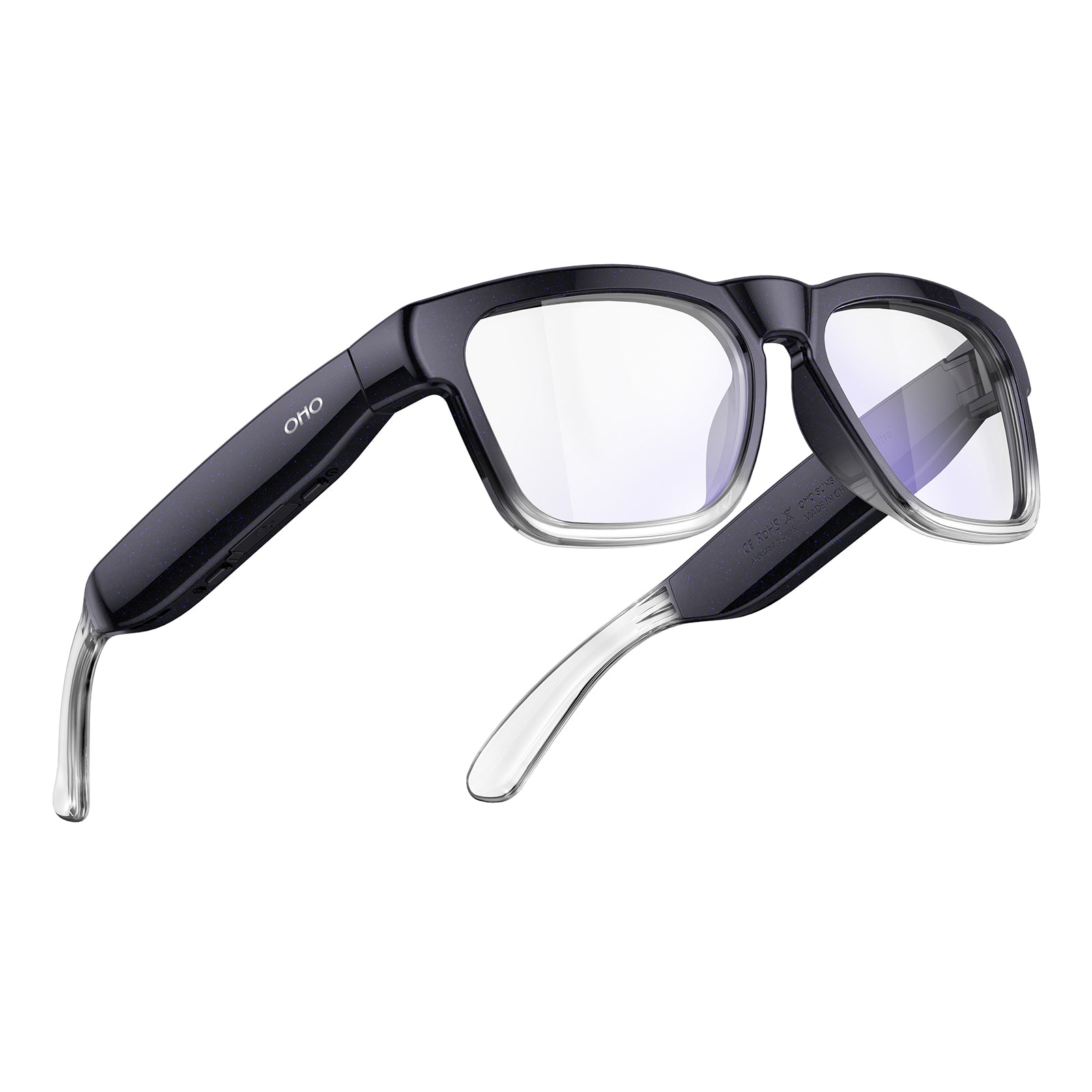







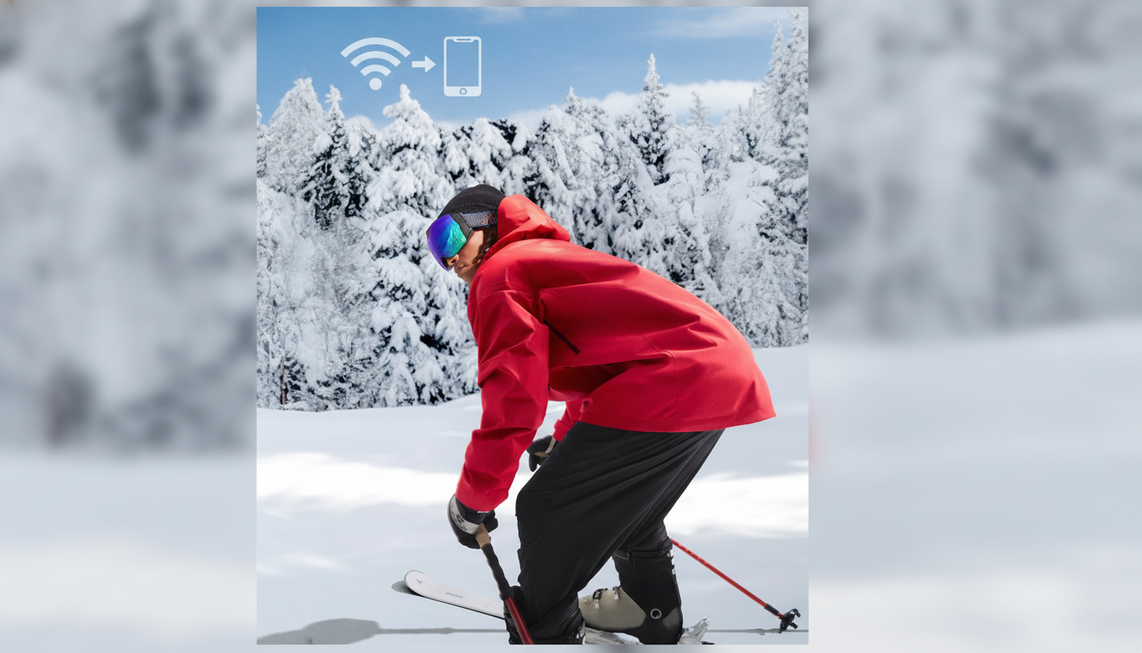
De veiligste manier om video's van een skibril naar je telefoon over te dragen, is door de originelen ongemoeid te laten, eerst één korte clip te kopiëren en deze van begin tot eind af te spelen. Gebruik voor een camerabril die verbinding maakt met je telefoon de gedocumenteerde wifi- of softwaremethode van de skibril voor geselecteerde draadloze downloads, of gebruik USB-C alleen wanneer de telefoon en kabel de skibril als opslag beschikbaar maken. Zodra één clip goed is afgespeeld, ga je verder in kleine, bijgehouden batches.
Begin met één clip en bescherm de originelen
Begin met een test van één clip in plaats van alle opnamen tegelijk te verplaatsen. Zo ontdek je problemen met koppelen, opslag of bestandstoegang terwijl de bronclips nog intact zijn.
- Bescherm de bron. Stop met opnemen en laat de clips op de skibril of het opslagmedium staan. Verwijder, formatteer, reset of overschrijf niets tijdens het testen.
- Bereid beide apparaten voor. Laad de skibril en telefoon op en controleer vervolgens of de telefoon voldoende vrije ruimte heeft voor de testclip. Als je de opslagcapaciteit vóór een reis wilt plannen, gebruik dan deze handleiding om de opnametijd en opslag te plannen.
- Test één clip en speel deze volledig af. Draag één korte, niet-essentiële clip over via een gedocumenteerde methode. Zoek het opgeslagen bestand op de telefoon en speel het van begin tot eind af voordat je meer overdraagt.
Een overdrachtsmelding of miniatuur is slechts een eerste aanwijzing. Volledig afspelen is de controle die aangeeft of je veilig kunt uitbreiden van één clip naar een batch.

Kies wifi of USB-C voor camerabril die verbinding maakt met je telefoon
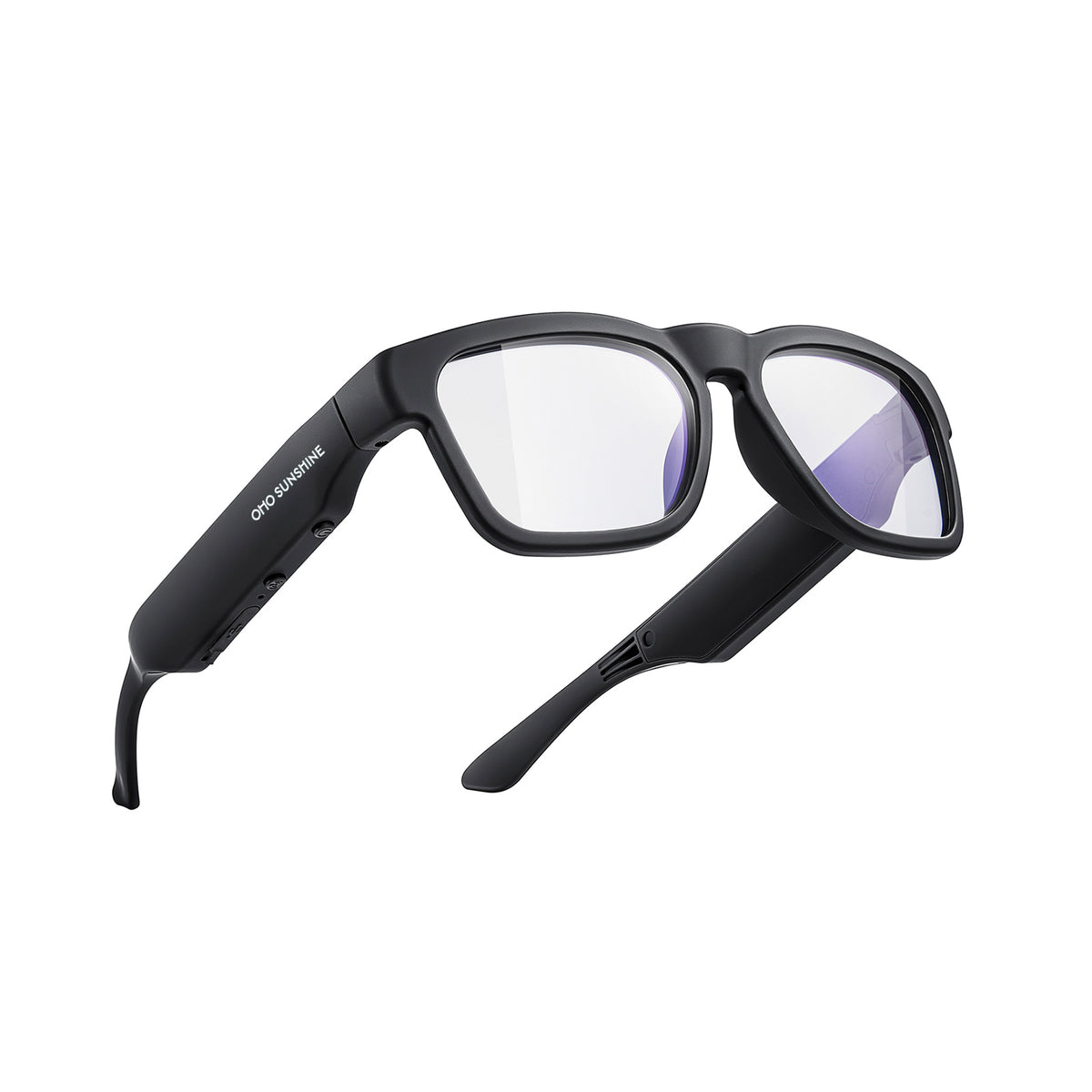
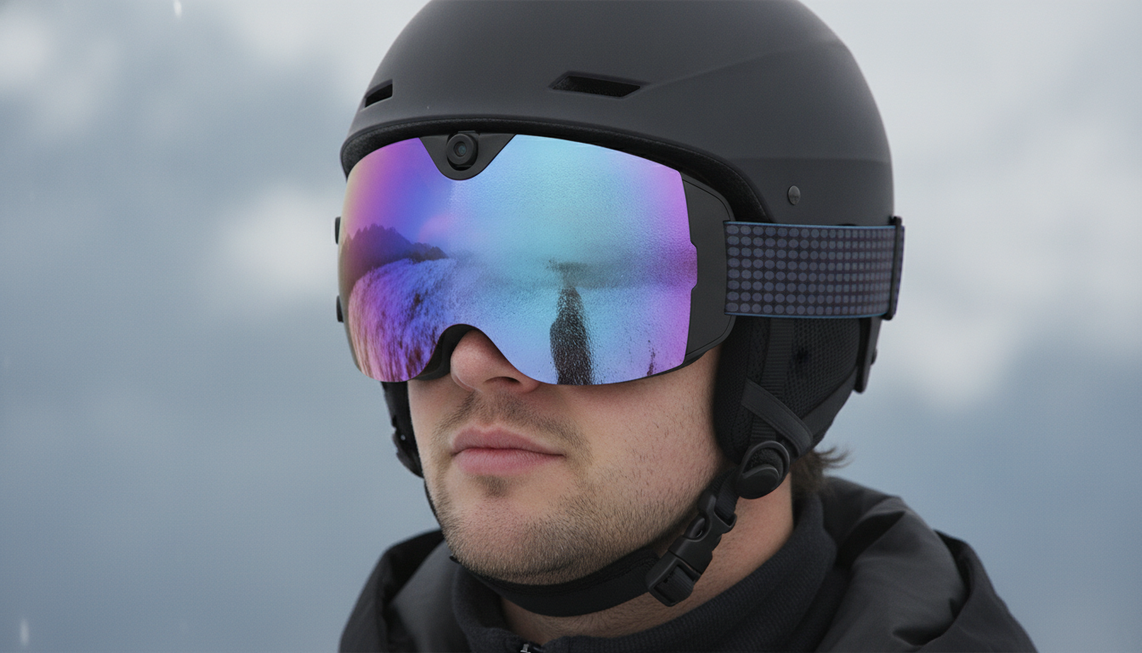
Kies wifi of software voor geselecteerde draadloze downloads wanneer de gedocumenteerde methode van de skibril op de telefoon verschijnt. Kies USB-C alleen voor directe bestandstoegang wanneer de skibril, kabel, telefoon en het besturingssysteem ondersteunde opslag beschikbaar maken. De OHO SUNSHINE 4K Camera Smart Ski Goggles with WiFi, 24M Photo, Anti-Fog documenteren zowel overdracht via wifi/software als het kopiëren van bestanden via USB, maar de exacte appnaam, map en werking op de telefoon zijn hier niet vastgesteld.
| Methode | Beste keuze | Te bevestigen voorwaarde |
|---|---|---|
| Wifi/software | Enkele geselecteerde clips of een draadloze videodownload van de skibril | De gedocumenteerde draadloze softwaremethode van de skibril maakt verbinding en geeft toegang tot de bestanden of overdrachtsopties. |
| USB-C/opslag | Directe kopieën of een grotere batch wanneer bekabelde toegang wordt ondersteund | De telefoon ziet de bril als opslag. Alleen een verbinding om op te laden is niet voldoende. |
| Schakel over of escaleer | Eén bevestigde route mislukt na een nieuwe poging met één clip | Blijf die stap niet herhalen en gebruik een andere gedocumenteerde route of de ondersteuningsinstructies voor het model. |

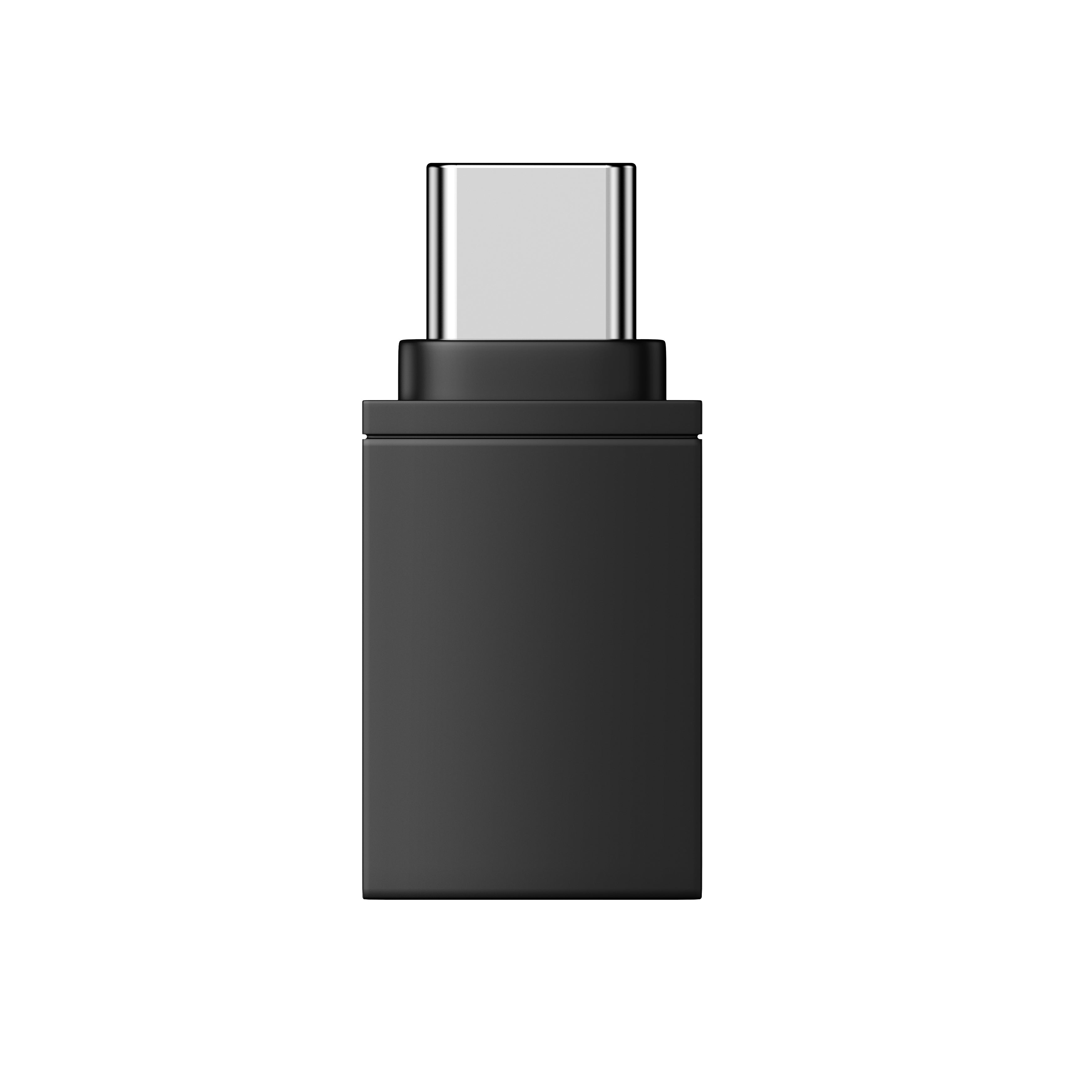
Ontgrendel bij Android de telefoon, kies Bestandsoverdracht wanneer de USB-melding verschijnt en gebruik een kabel die gegevens kan overdragen. Google vermeldt dat niet alle USB-kabels bestanden kunnen overdragen. Een USB-C-datakabel is daarom alleen relevant als deze gegevens ondersteunt en de telefoon de verbonden opslag zichtbaar maakt. De USB-modus Bestandsoverdracht van Android is een platformvoorwaarde en garandeert niet dat elke bril als opslag verschijnt.
Op een iPhone is bekabelde toegang afhankelijk van de omstandigheden. Voordat je die route kunt gebruiken, moet een compatibele connector of adapter en ondersteunde externe opslag zichtbaar zijn in Bestanden of Foto's. Gebruik compatibele opslag in Bestanden als zichtbaarheidstest, in plaats van ervan uit te gaan dat elke USB-C-verbinding de bril zichtbaar maakt. Wanneer draadloze toegang de beschikbare route is, blijft het overdrachtsproces voor camerabrillen modelspecifiek. Volg daarom de gedocumenteerde softwaremethode voor de bril zonder de naam van een app, een wachtwoord of een map te raden.
Controleer de kopie voordat je meer clips overzet
Beschouw een clip pas als overgezet nadat het opgeslagen bestand op de telefoon volledig opent en wordt afgespeeld. Zo wordt een gedeeltelijke download niet aangezien voor een bruikbare kopie.
- Bevestig dat het proces is voltooid. Wacht totdat de app of bestandsbewerking meldt dat de overdracht is voltooid.
- Zoek het bestand en speel het af. Open het vanaf de opgeslagen locatie op de telefoon en speel het van begin tot eind af. Alleen een miniatuur of voorbeeldweergave bewijst niet dat het bestand compleet is.
- Controleer clips. Markeer de clip als gecontroleerd met de bestandsnaam of een andere identificatie die op je telefoon beschikbaar is. Zet daarna de volgende kleine batch over in plaats van na een onderbreking de hele set opnieuw te starten.
Indicatoren voor bestandsnaam, duur, tijdstempel of bestandsgrootte kunnen extra zekerheid bieden wanneer je telefoon deze gegevens toont, maar die mogelijkheden verschillen. Als een clip niet wordt geopend of tijdens het afspelen stopt, beschouw deze dan als niet geverifieerd en bewaar de bronopname.
Houd geverifieerde kopieën en originelen gescheiden
Bewaar de bronopname totdat de kopie op de telefoon volledig wordt afgespeeld en belangrijke beelden een tweede veilige kopie hebben. Het kopiëren van het originele bestand is veiliger voor het behoud van de opgenomen kwaliteit dan vertrouwen op een bewerkte of gedeelde versie. In de productvermelding staat dat Skyshot-video MP4 is, dus bewaar het originele bestand voordat je het wijzigt in een editor of deelservice.
Gebruik voor een iPhone-workflow waarbij compatibele opslag beschikbaar is de optie voor het exporteren van het ongewijzigde origineel wanneer die beschikbaar is. Het exacte pad hangt af van het aangesloten apparaat en de adapter. Een gedeelde kopie kan een afgeleide versie zijn, dus houd deze gescheiden van het origineel in plaats van de bron te vervangen.
Als de opslagruimte op de telefoon tijdens een batch vol raakt, stop dan de overdracht en verplaats clips die volledig zijn afgespeeld naar een ondersteunde computer, externe schijf of back-upbestemming. Maak ruimte vrij op de telefoon en hervat daarna met één prioriteitsclip; houd die bij als een nieuwe geverifieerde kopie. Verwijder de bron niet alleen om ruimte te maken voordat de back-up veilig is.
Los de fout op in de fase waarin deze optreedt
Stem de oplossing af op de fase waarin de fout optrad. Laat de bronopnamen onaangeroerd, voer één nieuwe, schone poging met één clip uit en stop daarna met het herhalen van dezelfde bevestigde fout.
| Symptoom | Volgende actie | Stoppen of van voorwaarde wisselen |
|---|---|---|
| Kan niet koppelen of verbinden | Controleer opnieuw de beoogde wifi-/softwaremethode of het kabeltraject en probeer het daarna opnieuw met één korte clip. Houd app-, netwerk- en toestemmingsstappen voorwaardelijk, omdat de exacte Skyshot-volgorde niet is verstrekt. | Als dezelfde verbindingsfase opnieuw mislukt, schakel dan over op een andere gedocumenteerde methode of volg de ondersteuningsinstructies voor het model. |
| USB laadt op, maar bestanden verschijnen niet | Ontgrendel op Android de telefoon en selecteer Bestandsoverdracht. Gebruik een bekende kabel die geschikt is voor gegevensoverdracht en test een andere kabel of poort. In de USB-probleemoplossingsrichtlijnen van Google wordt aanbevolen een andere kabel te proberen en de poort met een ander apparaat te testen. | Opladen zonder zichtbare opslag is geen voltooide overdracht. Stop na één schone nieuwe poging met het beschouwen van die USB-route als beschikbaar. |
| Downloaden stopt of het bestand ontbreekt | Controleer of de bronclip nog steeds op de skibril kan worden afgespeeld, voer die ene clip opnieuw uit en controleer of hij volledig op de telefoon kan worden afgespeeld. | Als de tweede kopie op dezelfde stap nog steeds mislukt, schakel dan over naar een andere methode of gebruik de ondersteuningsroute voor het model. Formatteer de bron niet en verwijder deze niet. |
| Telefoonopslag is vol | Stop de batch, verplaats geverifieerde clips naar een ondersteunde back-uplocatie en maak ruimte vrij voordat je opnieuw start met één prioriteitsclip. | Ga pas verder nadat de nieuwe testclip voldoende ruimte heeft en volledig kan worden afgespeeld. |
De praktische stopregel is eenvoudig: los de vastgestelde verbindings- of opslagconditie op, probeer één clip opnieuw en controleer deze. Als die bevestigde stap opnieuw mislukt, schakel dan over naar de andere gedocumenteerde methode of neem contact op met de ondersteuning voor het model, in plaats van de originelen in gevaar te brengen.
Veelgestelde vragen
Hoe zet ik video's van mijn camerabril op mijn telefoon?
Gebruik de gedocumenteerde wifi- of softwaremethode van de skibril, of een USB-gegevensverbinding waarbij de skibril als opslag wordt weergegeven. Begin met één korte clip, zoek het opgeslagen bestand, speel het volledig af en ga daarna over op een bijgehouden batch. De exacte app, map en telefooninstellingen zijn afhankelijk van het model en de telefoon.
Waarom maken mijn camerabril en telefoon geen verbinding?
Houd het koppelen en de bestandstoegang gescheiden. Probeer voor draadloze overdracht de beoogde softwaremethode opnieuw met één clip. Ontgrendel voor USB op Android de telefoon, selecteer Bestandsoverdracht en gebruik een kabel die gegevensoverdracht ondersteunt. Als dezelfde bevestigde stap na één schone nieuwe poging mislukt, stop dan met herhalen en schakel over naar een andere gedocumenteerde methode of de ondersteuningsinstructies voor het model.
Hoe kan ik video's van mijn skibril verplaatsen zonder kwaliteitsverlies?
Kopieer het oorspronkelijke opnamebestand en controleer of het volledig kan worden afgespeeld voordat je het bewerkt of deelt. Bewaar de bron totdat de geverifieerde kopie een tweede veilige kopie heeft. Zo bescherm je het opgenomen bestand, maar dit garandeert niet dat elke berichten-, cloud-, sociale-media- of bewerkingsdienst dezelfde kwaliteit behoudt.
Kan ik video's van een skibril overzetten als mijn telefoon bijna geen opslagruimte meer heeft?
Ja, wanneer je stapsgewijs ruimte vrijmaakt. Stop de batch, verplaats clips die volledig zijn afgespeeld naar een ondersteunde back-uplocatie, maak ruimte vrij op de telefoon en start opnieuw met één prioriteitsclip. Verstuur de bron niet blind opnieuw en verwijder deze niet blind, omdat het dan moeilijker wordt om te bepalen welke bestanden veilig zijn.


Laat een reactie achter
Deze site wordt beschermd door hCaptcha en het privacybeleid en de servicevoorwaarden van hCaptcha zijn van toepassing.