











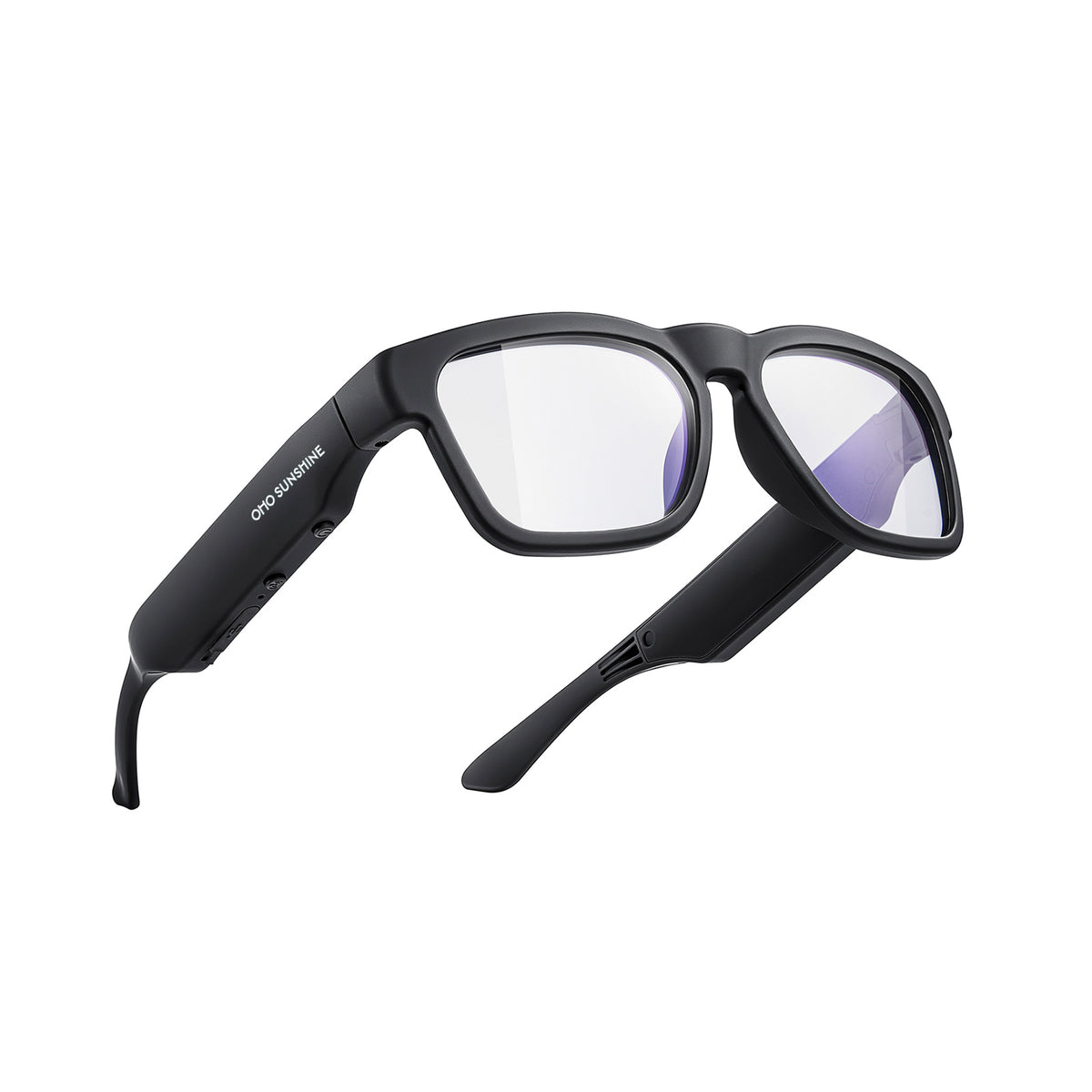



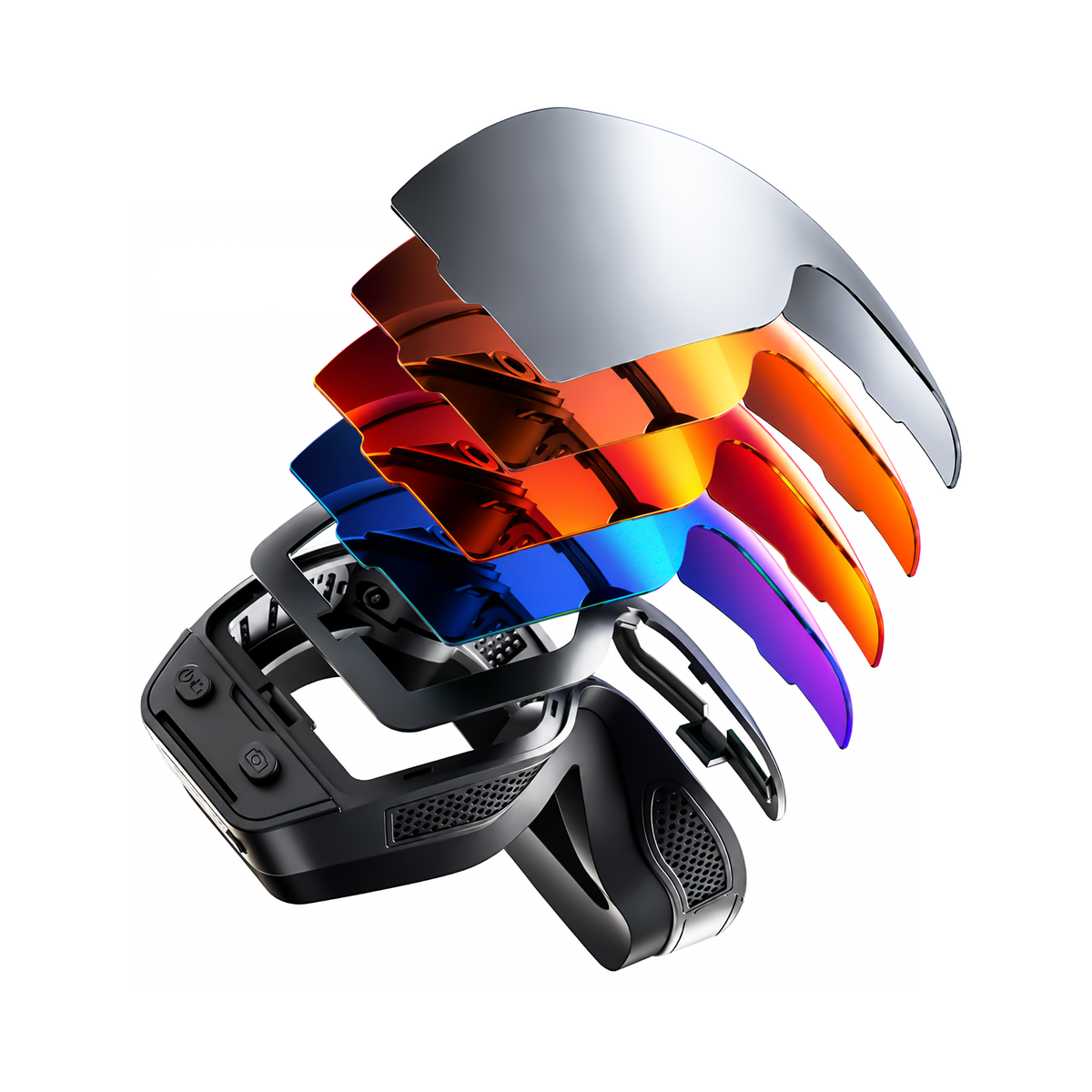




Sommige slimme brillen ondersteunen zonder internet basisfuncties zoals foto- en video-opname of het afspelen van lokaal opgeslagen audio, maar er is geen universele offlinemodus. Offline gebruik van slimme brillen hangt ervan af of de bril, een gekoppelde telefoon en een internetverbinding voor de taak nodig zijn.

Slimme bril offline: wat werkt
Offline gebruik van slimme brillen is het betrouwbaarst wanneer de bril de taak zelf uitvoert of de media lokaal wordt opgeslagen. Basisopname en lokaal afspelen werken op sommige modellen mogelijk wel, terwijl app-bediening, synchronisatie, cloudverwerking en veel AI-functies zonder verbinding kunnen uitvallen. Controleer de exacte handleiding op opslag, fysieke bediening, koppeling en het ophalen van bestanden voordat je een functie als geschikt voor offline gebruik beschouwt.
Zie connectiviteit als drie afzonderlijke lagen:

- Hardware van de bril: De camera, knoppen, luidsprekers, microfoon en lokale opslag kunnen een deel van een taak zonder netwerk uitvoeren.
- Bluetooth en telefoon: Een telefoon kan zorgen voor koppeling, machtigingen, app-bediening, downloads of export, zelfs als er geen internetverbinding is.
- Internet- of clouddiensten: Streaming, externe back-ups, livevertaling, cloud-AI en sommige updates zijn doorgaans afhankelijk van wifi of mobiele data, tenzij een offlinemodus expliciet wordt vermeld.
Dat betekent dat 'de bril gaat aan' niet hetzelfde is als 'de volledige taak werkt offline'. Vraag je bij een vlucht of een reis door een gebied zonder bereik af of je het apparaat kunt voorbereiden, de taak kunt uitvoeren en het resultaat kunt ophalen zonder live netwerk. Zie voor een bredere uitleg van de hardware- en verbindingslagen hoe slimme brillen werken.
Cameragebruik en audio zonder wifi
Camera- en audiofuncties kunnen zonder wifi werken als het model lokale opname- of afspeelmogelijkheden biedt. Controleer opslag, bediening, koppeling en overdracht afzonderlijk. Lokale opname betekent niet automatisch gebruik zonder telefoon, en Bluetooth betekent niet dat er internettoegang is.
Cameragebruik en lokale opslag
Een cameraworkflow is alleen echt offline bruikbaar als de opname zonder de app of een live netwerk kan worden gestart, voltooid en toegankelijk blijft. Controleer vóór aankoop:
- Opnamebediening: Kan de opname of fotografie worden gestart met een fysieke knop, of moet de bijbehorende app geopend zijn?
- Opslaglocatie: Worden bestanden opgeslagen in de bril, op een telefoon of in een vereist cloudaccount?
- Resterende capaciteit: Hoe controleer je de beschikbare ruimte wanneer de telefoon niet verbonden is?
- Bestandsophaling: Kun je bestanden later bekijken of overzetten via een kabel, OTG-verbinding, verwijderbare opslag of de bijbehorende app?
- Timing van overdracht: Kan export wachten tot je opnieuw verbinding maakt, of vereist de workflow de telefoon tijdens het opnemen?
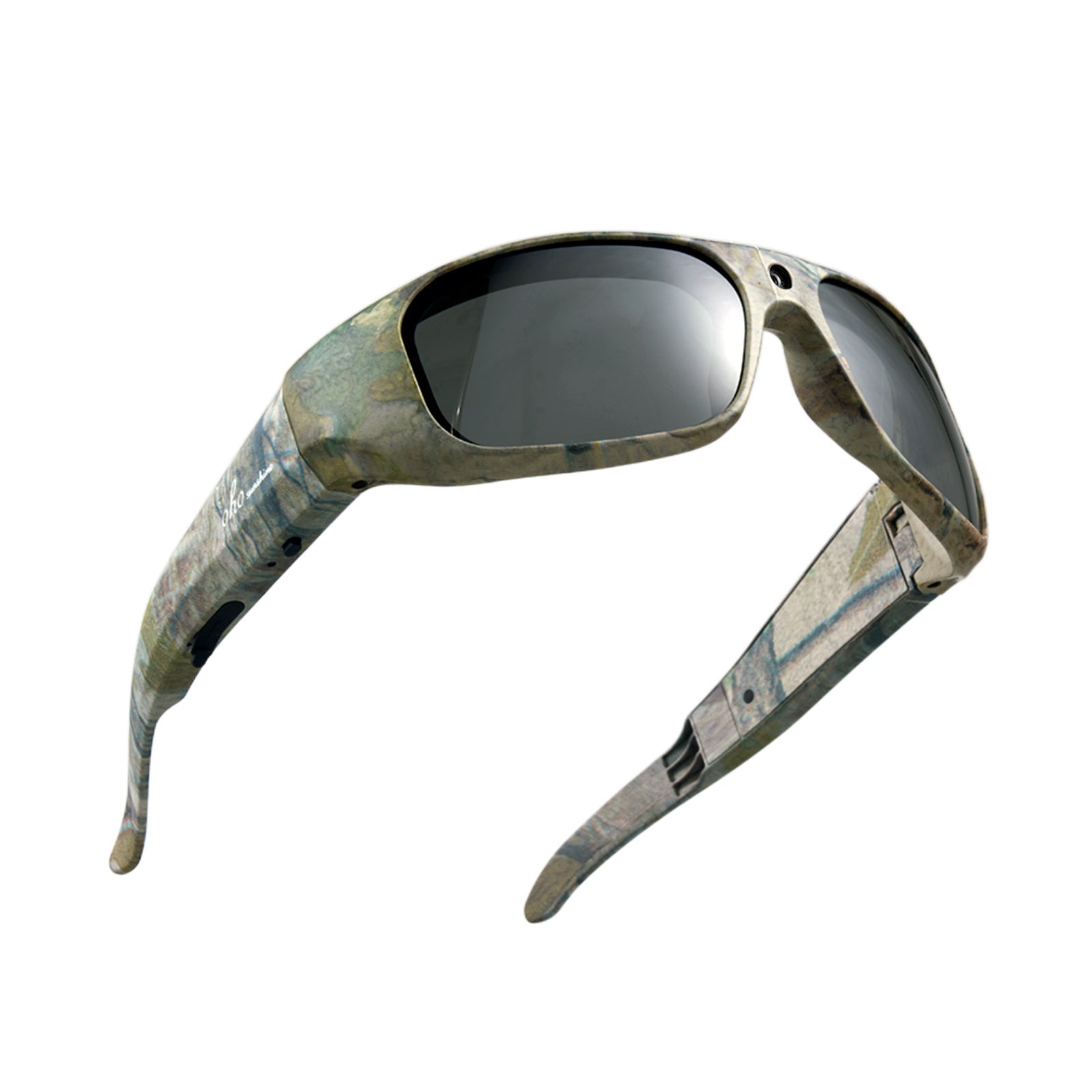
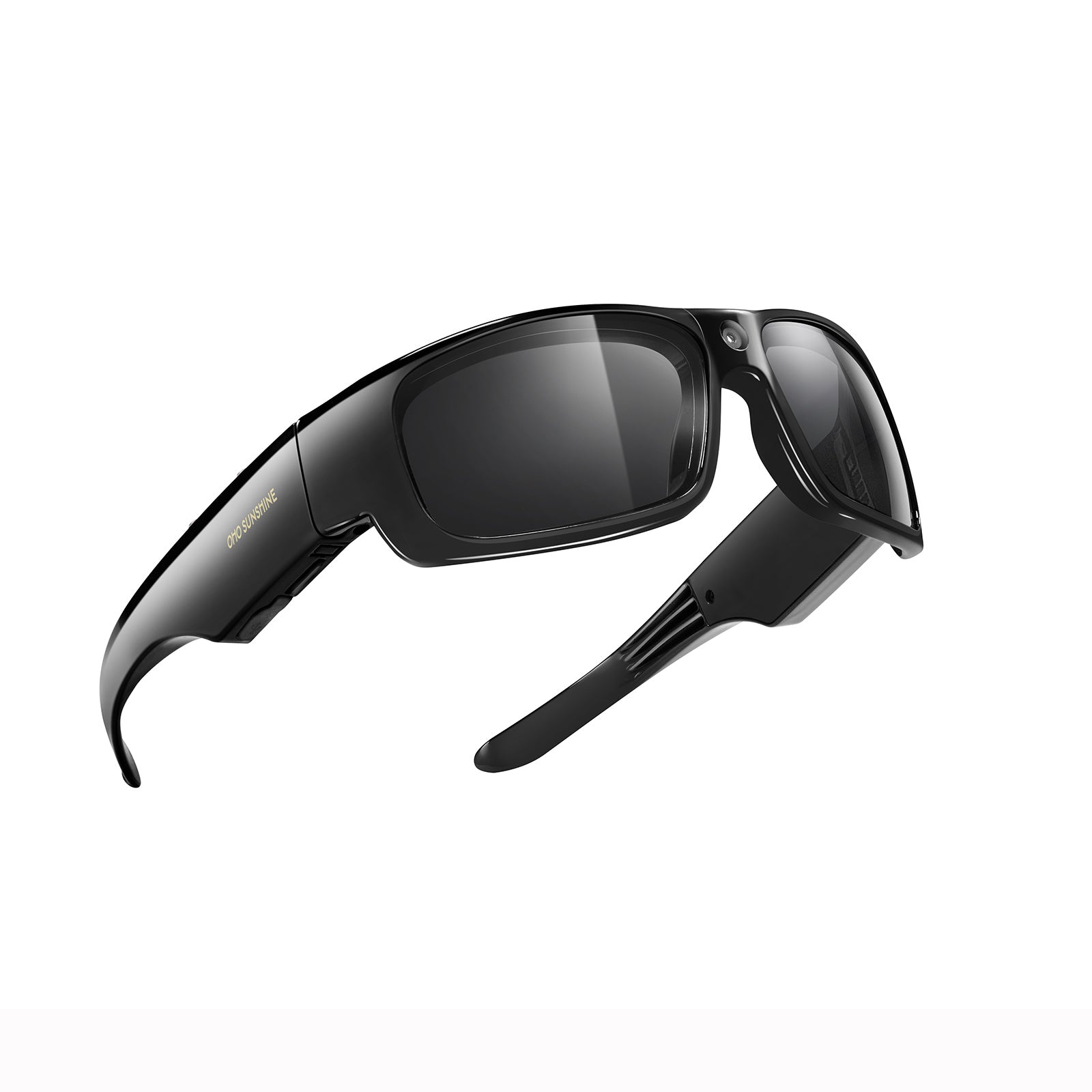
In de aangeleverde productinformatie van Primex staan video-opnamen, foto's, elektronische beeldstabilisatie en een ingebouwde microfoon vermeld. Daarmee zijn de Primex EIS-camerabrillen een productspecifiek camera-voorbeeld, geen bewijs dat elk cameramodel op dezelfde manier werkt. Controleer de exacte procedure voor opnemen en overzetten in de productdocumentatie voordat je erop vertrouwt in het veld.
Bluetooth-audio zonder internet
Bluetooth is een verbinding op korte afstand tussen apparaten; het is geen internetverbinding. Lokaal opgeslagen of gedownloade audio kan daarom zonder wifi bruikbaar zijn, maar het koppelen, de telefoonmachtigingen en de afspeelbediening verschillen nog steeds per model. Streamen via internet, spraakassistenten in de cloud en diensten die inhoud op aanvraag ophalen, zijn andere gevallen.
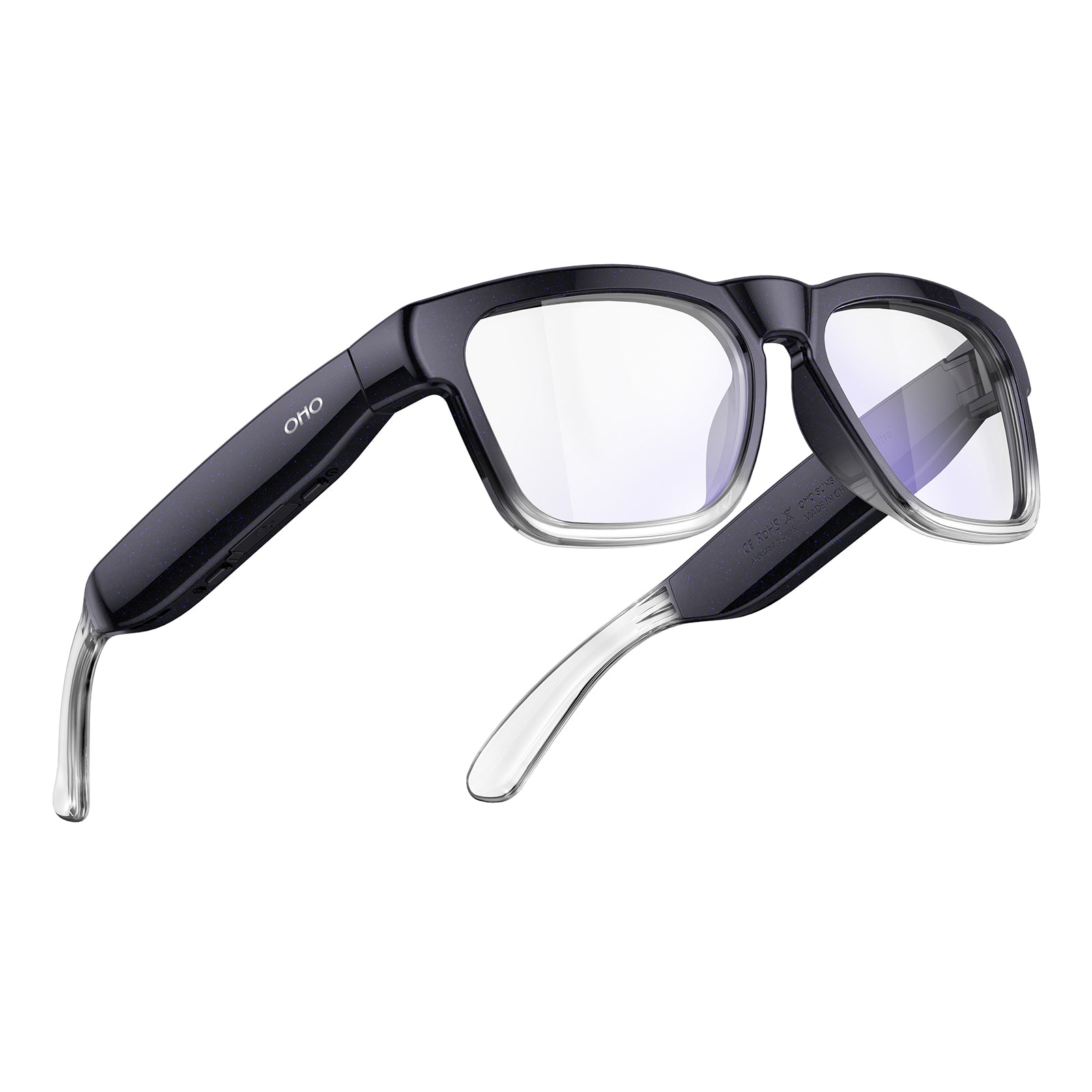
In de aangeleverde productinformatie van Sunblazer staat expliciet dat de ingebouwde lokale opslag offline afspelen van mp3-bestanden ondersteunt. De Sunblazer Bluetooth-bril is daarom een productspecifiek voorbeeld van audio die zonder internet kan werken wanneer de media al lokaal is opgeslagen en het apparaat is ingeschakeld. Beschouw dit voorbeeld niet als een algemene belofte voor alle Bluetooth-brillen.
Test voor dagelijks luisteren de volledige reeks: laad de media terwijl je verbonden bent of kopieer deze, verbreek de verbinding met wifi en mobiele data, koppel indien nodig Bluetooth, start het afspelen en controleer wat er gebeurt wanneer de telefoon niet beschikbaar is. Als je vooral lokaal opgeslagen of gedownloade audio wilt beluisteren, bekijk dan Bluetooth-audiobril en controleer vervolgens de afspeelinstructies van elk model.
Wanneer een telefoon nog steeds vereist is
‘Zonder internet’, ‘zonder telefoon’ en ‘zonder Bluetooth’ beschrijven verschillende configuraties. Een bril kan één offline stap uitvoeren en toch afhankelijk blijven van een telefoon voor de configuratie, machtigingen, app-bediening, updates, overdracht of export. Test de volledige workflow in plaats van alleen te controleren of de bril wordt ingeschakeld.
- Bereid alles voor en koppel terwijl je verbonden bent. Installeer de vereiste app, verleen machtigingen, koppel de bril, laad lokale media en controleer de opslag- of opname-instellingen. Als het apparaat een telefoon in de buurt nodig heeft voor de bediening, noteer die beperking voordat je buiten bereik gaat.
- Voer de exacte taak offline uit. Verbreek de wifi- en mobiele dataverbinding of gebruik de vliegtuigmodus met Bluetooth bewust opnieuw ingeschakeld als de telefoon en bril dit nodig hebben. Neem een korte clip op, maak een foto of speel de specifieke media af die je wilt gebruiken. Controleer of de taak zonder de app of het netwerk kan worden gestart en voltooid.
- Maak opnieuw verbinding en controleer het resultaat. Herstel de verbinding en controleer of bestanden worden overgezet, instellingen opgeslagen blijven en eventuele wachtende synchronisatie of export werkt. Een geslaagde offlineopname is niet voldoende als de beelden daarna je telefoon of computer niet kunnen bereiken.
Gebruik dezelfde telefoon, machtigingen, mediabestanden en accessoires die je dagelijks verwacht te gebruiken. Deze controle in drie fasen is vooral belangrijk voor een telefoonarme workflow voor creators: lokale opslag kan de behoefte aan een liveverbinding verminderen, maar het exporteren kan nog steeds afhankelijk zijn van een app of kabel. Bekijk voor een bredere functievergelijking deze functies van handsfree brillen.
Wifi- en cloudfuncties die offline gaan
Cloud-AI, livevertaling, internetstreaming, externe back-ups, synchronisatie en updates moeten als niet beschikbaar of beperkt worden beschouwd, tenzij de documentatie van het exacte model een ondersteunde offlinemodus bevestigt. Gedownloade media of taalbronnen kunnen het resultaat veranderen, maar ‘gedownload’ is niet hetzelfde als ‘gedocumenteerd voor offlinegebruik’.
| Functie | Waarschijnlijk offline beschikbaar | Wat je moet controleren |
|---|---|---|
| Cloud-AI-assistent | Beperkt of niet beschikbaar | Of de verwerking lokaal plaatsvindt of een server, account, app of dataverbinding vereist |
| Realtimevertaling | Ga ervan uit dat dit verbindingsafhankelijk is, tenzij anders gedocumenteerd | Exact model, ondersteunde taal, gedownload taalpakket, app en netwerkvereisten |
| Live streaming | Meestal niet beschikbaar zonder netwerkverbinding | Wifi- of mobiele verbinding, routering via de telefoon, accounttoegang en app-ondersteuning |
| Externe synchronisatie of back-up | Uitgesteld tot opnieuw verbinden | Waar bestanden eerst worden opgeslagen en of lokale kopieën toegankelijk blijven |
| Firmware-updates | Meestal is opnieuw verbinden vereist | Vereiste app, account, wifi en of updates later kunnen worden geïnstalleerd |
| Streaming van internetmedia | Niet beschikbaar zonder internet | Of de content lokaal is gedownload en of de speler offline werkt |
AI-brillen kunnen spraakbediening of realtimevertaling aanprijzen zonder uit te leggen welke onderdelen lokaal worden uitgevoerd. In de productinformatie van de Edge Pro staan camerabeelden maken, Bluetooth en realtimevertaling in twee richtingen vermeld. Deze genoemde functies bevestigen geen offline vertaalmodus of downloadbare taalpakketten. Ga er daarom van uit dat vertaling en verwerking op afstand afhankelijk zijn van een verbinding, totdat de exacte documentatie anders vermeldt. Je kunt de categorie vergelijken via AI-vertaalbrillen, maar ga er niet van uit dat het collectielabel offline gebruik bewijst.
Dezelfde regel geldt voor liveondersteuning tijdens reizen. Als vertaling of cloudhulp de belangrijkste reden is om een aankoop te doen, is een niet-gedocumenteerde offline modus een reden om ervan af te zien voor vluchten, werk op het platteland of andere gebieden zonder bereik. Als lokale opnamen of audio de prioriteit hebben, kies dan in plaats daarvan een model waarvan je de lokale werkwijze kunt testen.
Kies een offline configuratie die bij je workflow past
Kies eerst de taak die offline moet werken en controleer daarna elke afhankelijkheid die kan voorkomen dat je deze voltooit of de resultaten ervan ophaalt. Een model dat uitstekend is voor lokale audio is mogelijk niet geschikt voor offline vertaling, en een camera met lokale opslag heeft mogelijk nog steeds een telefoon of accessoire nodig om bestanden te exporteren.
- Primaire taak: Bepaal of camerabeelden maken, lokale audio, gebruik met minimale telefoonafhankelijkheid, vertaling of cloudondersteuning de prioriteit heeft. Gebruik een algemene AI-aanduiding niet als vervanging voor deze keuze.
- Lokale opslag: Controleer of foto's, video of audio op de bril, een telefoon of een verwisselbaar apparaat worden opgeslagen. Controleer hoe de resterende capaciteit wordt weergegeven.
- Fysieke bediening: Zoek naar gedocumenteerde knoppen of bedieningselementen waarmee je de taak kunt starten, stoppen, overslaan of aanpassen zonder een app te openen.
- Bluetooth- en telefoonvereisten: Bepaal of Bluetooth vereist is voor afspelen of bediening, of de telefoon in de buurt moet blijven en of machtigingen het gebruik beïnvloeden.
- Netwerk- en cloudvereisten: Ga ervan uit dat streaming, livevertaling, cloud-AI, back-ups op afstand en updates afhankelijk zijn van een verbinding, totdat de handleiding anders vermeldt.
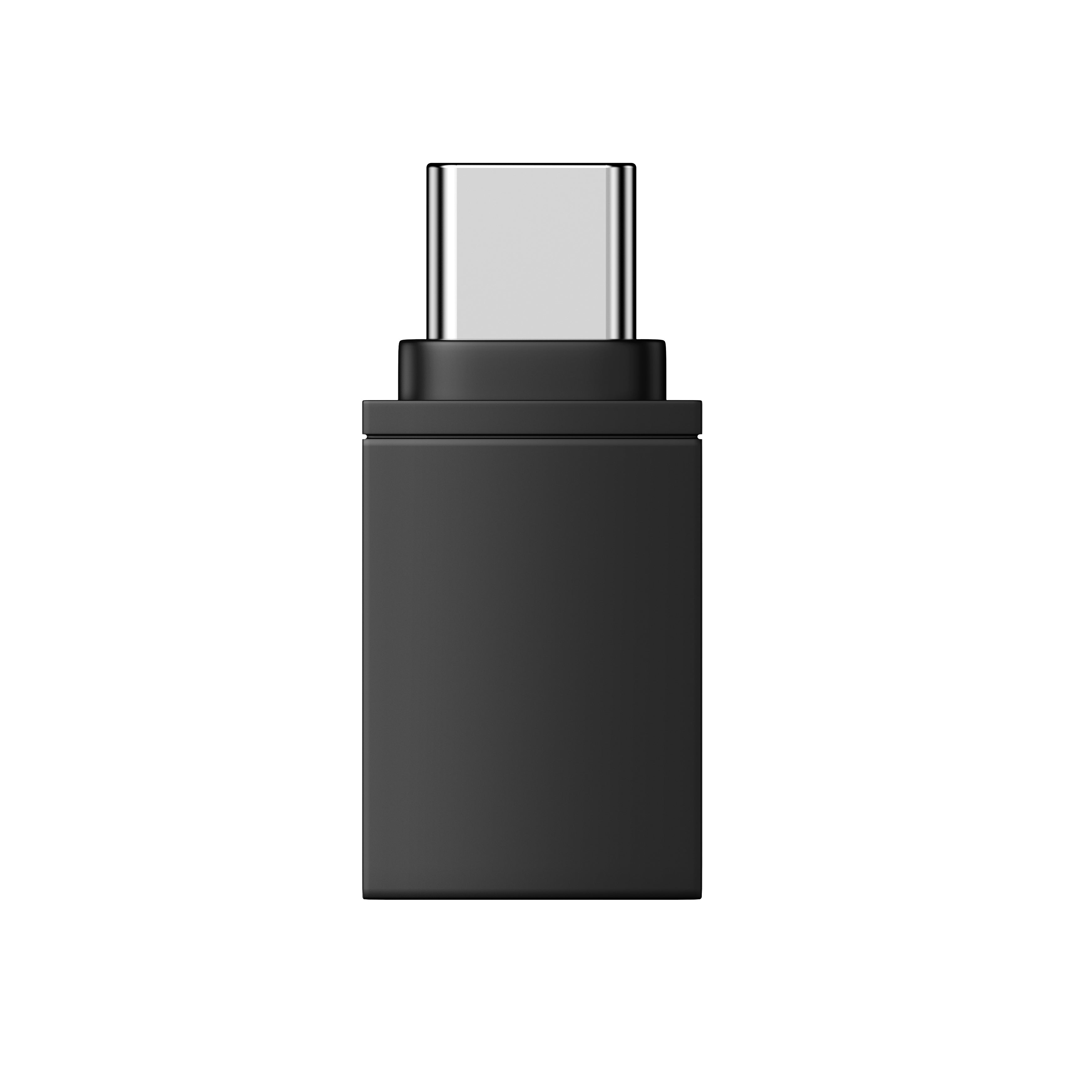
- Overdrachtsmethode: Controleer hoe bestanden na het maken van opnamen op een telefoon of computer terechtkomen. Mogelijk zijn een OTG-connector, kabel, export via een app of een andere methode vereist.
- Gedocumenteerde offline modi: Vereis expliciete, modelspecifieke informatie over offline vertaling, lokale verwerking door de assistent of gedownloade taalpakketten. Als de documentatie niets vermeldt, koop dan niet in de veronderstelling dat de functie offline werkt.
- Test in vliegtuigmodus of binnen de retourtermijn: Verbreek vóór een reis of veldwerk de netwerkverbinding en voer de exacte taak uit. Houd de aankoop binnen de retourtermijn totdat vaststaat dat vastleggen, afspelen en ophalen naar verwachting werken.
Kijk bij een cameragerichte workflow eerst naar lokale opnamebediening, opslag en export voordat je AI-functies bekijkt. Controleer bij audiogestuurd gebruik of media lokaal beschikbaar is en of Bluetooth-koppeling werkt zoals verwacht met de verbindingsinstellingen van de telefoon. Bij een vertaalgerichte workflow is niet-gedocumenteerde offlineondersteuning een reden om verder te vergelijken, geen onbelangrijk detail.
Op onze productpagina's kun je verschillende uitgangspunten vergelijken: Edge Pro AI-bril voor de vermelde camera-, Bluetooth- en vertaalfuncties; Sunblazer Bluetooth-brillen voor het gedocumenteerde lokale MP3-voorbeeld; en Primex EIS-camerabrillen voor de vermelde camera- en opnamefuncties. Controleer de actuele handleiding en test de exacte offline taak voordat je op een configuratie vertrouwt.
Veelgestelde vragen
Gebruik deze snelle controles om offline gebruik te onderscheiden van een telefoonafhankelijke configuratie, bestandsoverdracht en modelspecifieke functies. Het exacte gedrag hangt af van het model, de app, de telefoon en de gedocumenteerde offline modus.
Kunnen slimme brillen vóór een vlucht worden ingesteld?
Ja. Installeer de app, geef toestemming, koppel de bril, laad lokale media en test de taak terwijl je verbonden bent. Exporteren of synchroniseren vereist mogelijk later opnieuw verbinding.
Waar worden offlinefoto's en -video's opgeslagen?
Ze kunnen in het ingebouwde geheugen blijven staan, via een telefoon worden doorgestuurd of een kabel of OTG-accessoire vereisen. Maak een testopname en controleer waar deze wordt opgeslagen en hoe je die kunt ophalen.
Zorgt de vliegtuigmodus ervoor dat een Bluetooth-bril niet meer werkt?
Niet per se. Bluetooth kan afzonderlijk weer worden ingeschakeld, maar het koppelen, de rechten, de locatie van media en het gedrag van het model verschillen. Test de bril met je telefoon en gedownloade media voordat je op reis gaat.
Kunnen vertaalbrillen werken met gedownloade taalpakketten?
Alleen als de fabrikant offline vertaling documenteert voor het exacte model en de exacte taal. Alleen een vertaalfunctie of gedownloade bron bewijst niet dat de verwerking zonder internet werkt.



Laat een reactie achter
Deze site wordt beschermd door hCaptcha en het privacybeleid en de servicevoorwaarden van hCaptcha zijn van toepassing.