


















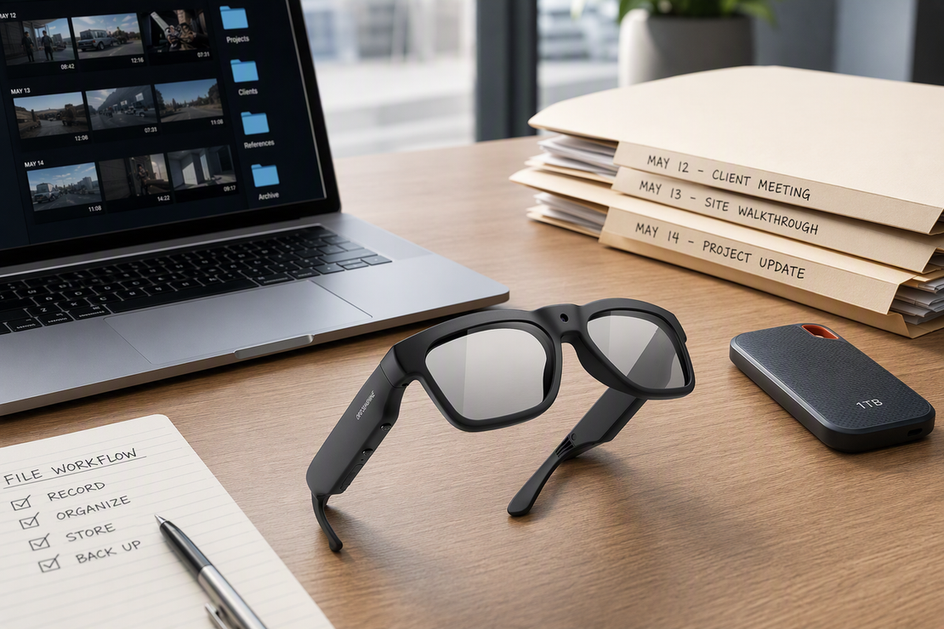
Managing camera glasses files across repeated workdays comes down to one routine: measure your actual clip volume, transfer footage on a fixed schedule, organize it with a searchable naming system, keep a verified backup separate from your working copy, and delete files only after a defined review checkpoint. Generic recording estimates will not fit your habits. Your own daily file output should drive every storage, backup, and retention decision that follows. This smart glasses video file management routine ties transfer, naming, backup, and deletion together into one repeatable workday habit.
Estimate Your Camera-Glasses File Volume
Plan your camera glasses storage for work videos from your own measured clip output, not from a generic recording estimate. This applies whether you use camera glasses, smart glasses with a camera, or any other glasses with a video camera for repeated workdays.

Measure One Representative Workday
- Record the number of clips and the total file size from one normal workday of recording.
- If clip lengths vary a lot, measure several representative clips instead of relying on just one.
- Keep the measurement tied to the actual device and video setting you use, since resolution and frame rate change file size.
Turn the Result Into a Daily and Weekly Estimate
Once you have a measured workday, turn it into two numbers. Daily volume is the sum of your actual clip sizes. If you use an average, multiply the average clip size by the number of clips per day. Daily volume multiplied by planned workdays equals your weekly volume. Add a headroom margin that you choose for the buffer you want. For example, if a workday produces roughly 2 GB and you record on four workdays a week, that works out to about 8 GB before headroom. This is an illustrative example only, not a typical value for every routine. Keep active working space separate from the space you reserve for backups and archives.
Use the Baseline to Screen Capture Options
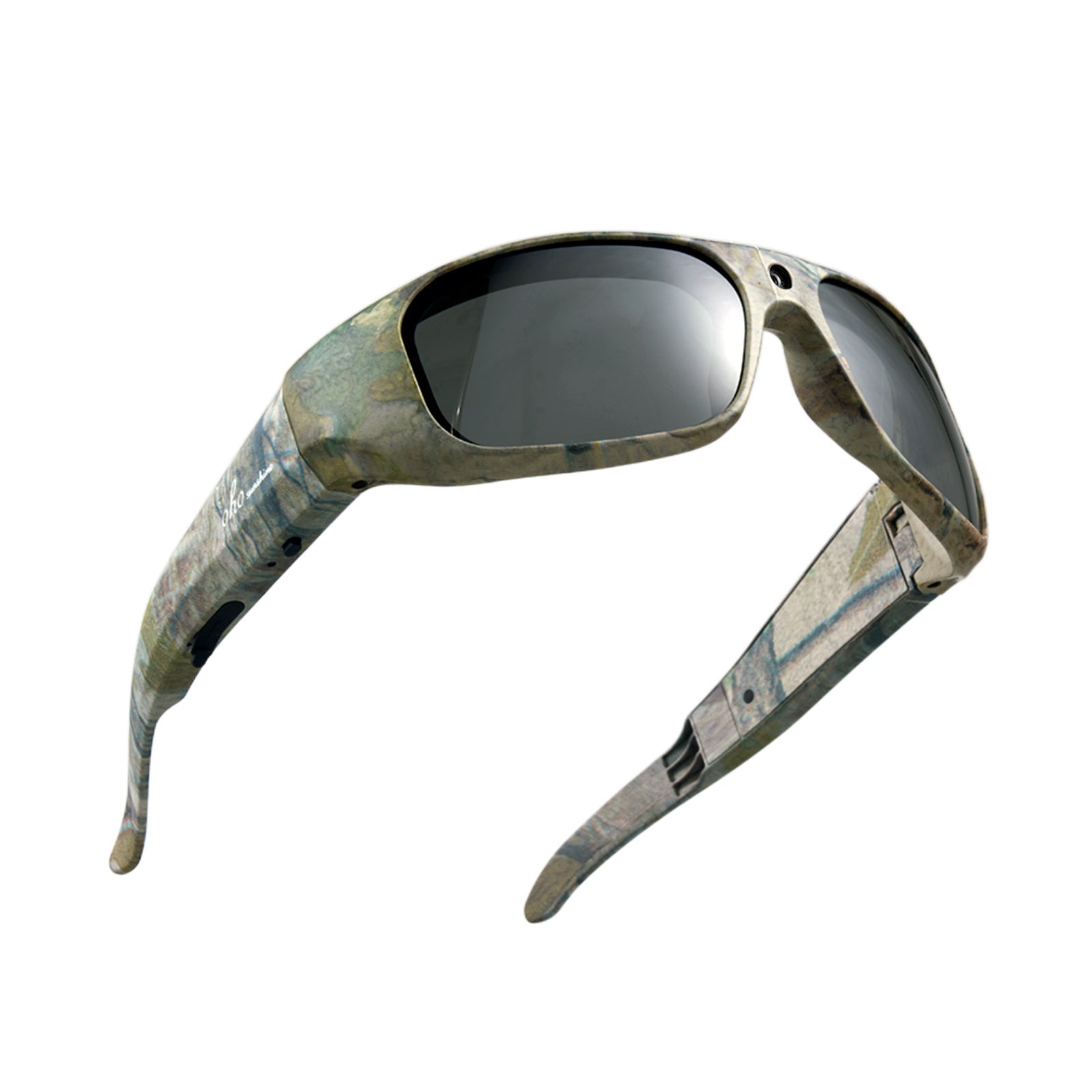
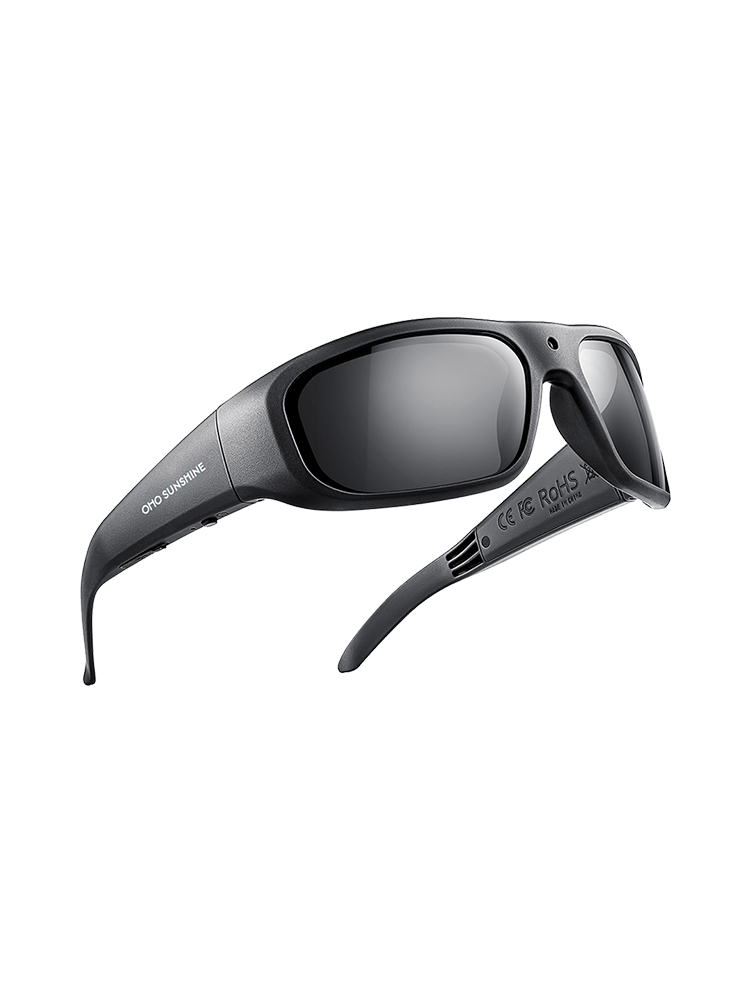
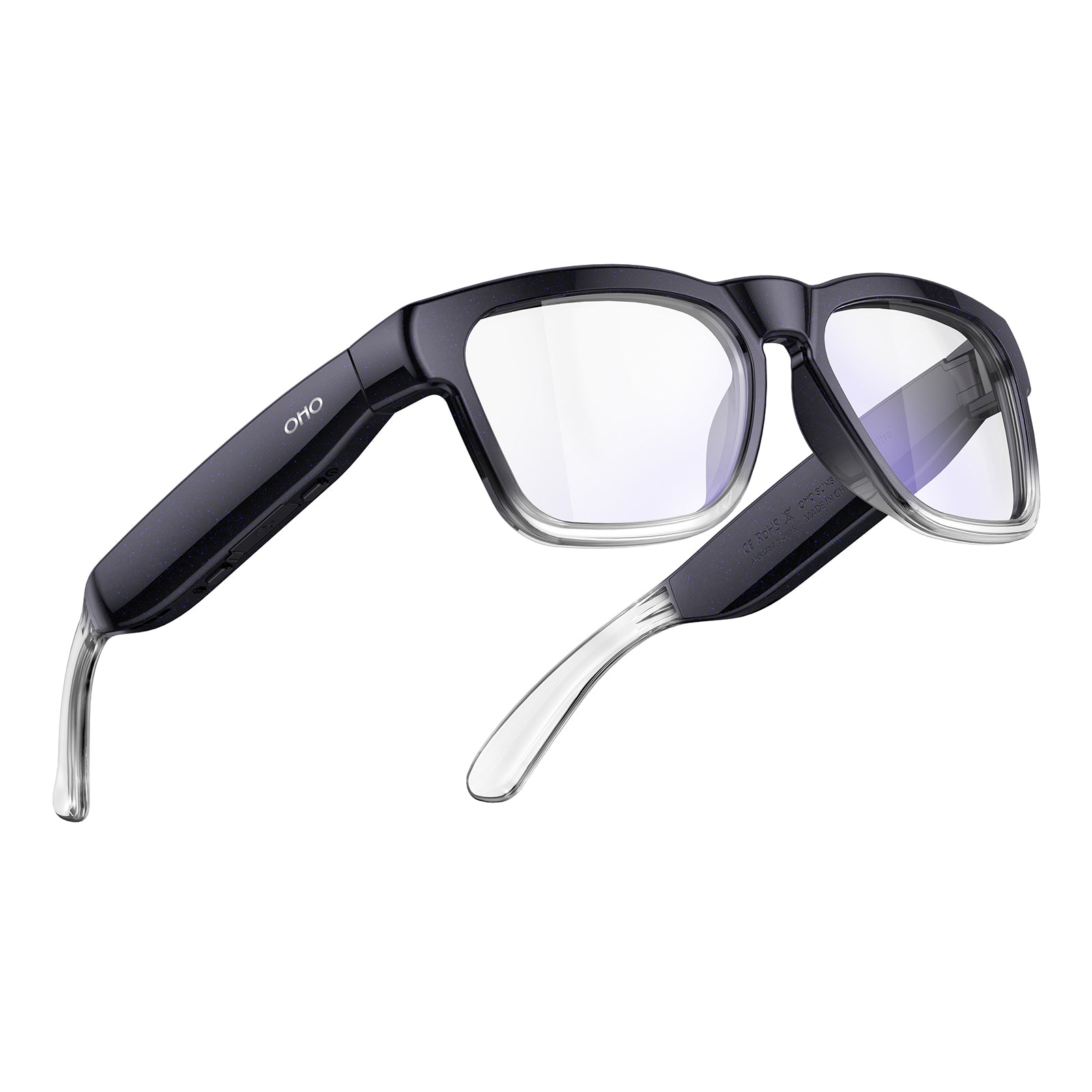
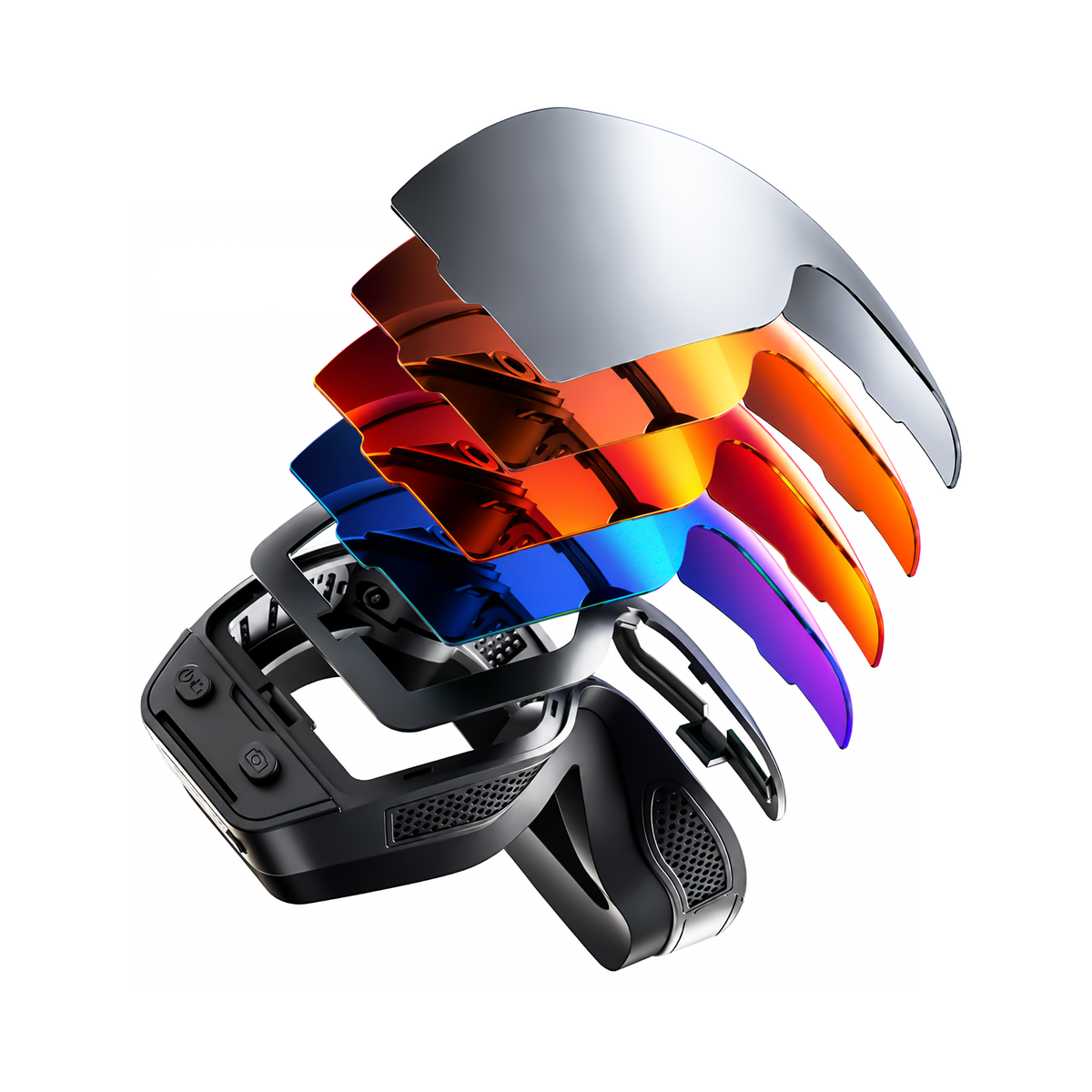
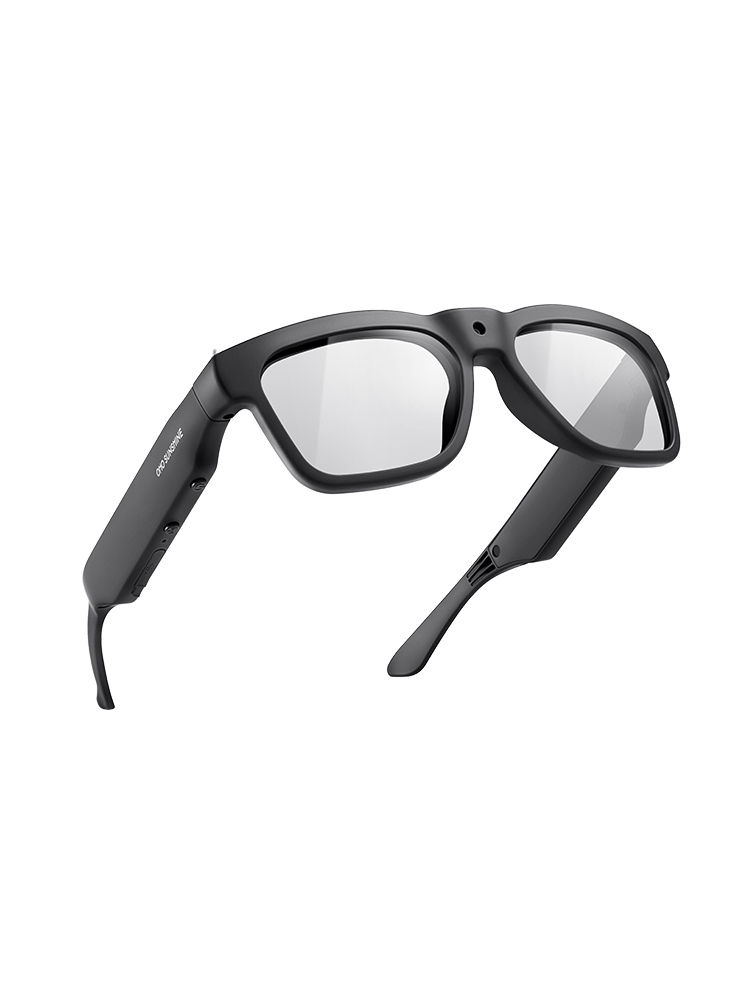
With a measured baseline in hand, you can screen camera glasses hardware by how well it fits your actual output, not by headline specs alone. For detail-heavy documentation, where sharper frame detail matters for inspections or tutorials, the OHO SUNSHINE Edge Pro 4K camera glasses list 4K/30 fps video alongside 64GB, 128GB, and 256GB storage options. Edge Pro also doubles as camera-equipped AI translation glasses, useful if your workday spans languages, and it pairs over Bluetooth 5.3 for a bluetooth smart glasses setup with open-ear audio. For movement-heavy repeated capture, the OHO SUNSHINE Primex EIS camera glasses list electronic image stabilization, which is the supported feature to consider when steadier footage matters. Their built-in storage is a separate storage detail and does not replace measuring actual output. Either candidate still needs your measured file-volume math and a scheduled transfer and backup routine; listed capacity is a starting point, not a substitute for planning.
Transfer Clips on a Fixed Workday Cadence
Knowing how to manage camera glasses files every day starts with a fixed transfer checkpoint, not a low-storage emergency. Copy footage first, then confirm it arrived before you record again.

Choose the First Reliable Transfer Checkpoint
- End of each workday, once recording is finished for the day.
- End of a shift or project block, if you record across multiple locations.
- First reliable connection after returning to a base location, such as your home or office.
Pick whichever checkpoint you can repeat every workday without skipping it, and move clips often enough that one bad session never holds all of your recent footage.
Copy Into the Dated Work Folder
- Connect your camera glasses using whatever transfer path the device supports, such as a cable, companion app, or Wi-Fi transfer, and check this guide on transferring clips without losing them if you are new to the process.
- Copy the day's clips into your dated work folder.
- Avoid renaming or organizing files directly on the glasses; do that work after the clips are safely on your working device.
Check Transfer Completeness Before the Next Capture Cycle
- Compare the number of clips on the glasses with the number that landed in the destination folder.
- Open one representative clip and play it through to confirm it is not corrupted or cut short.
Use a Naming and Folder System You Can Search
A folder and filename pattern built around dates and project codes keeps months of short clips searchable. Set the pattern once and reuse it every workday.
Build Folders Around Projects and Dates
Start each project with a stable code, such as a client abbreviation or job number, then nest dated work folders inside it. Keep active project folders separate from folders holding completed deliverables, so you are not searching through finished work while looking for something current. When a filename could be shared or seen by others, use a location or subject code instead of a specific address or client name to keep footage privacy-safe by default.
Name Each Clip With the Same Fields
Use the same three fields on every clip: date, a project or location code, and a clip identifier, for example 2026-03-14_siteA_clip07. Zero-pad the identifier, like clip007, once you are sorting more than a handful of files a day, so they sort correctly in order. The National Archives guidance for federal audiovisual records provides background on consistent identification fields. It is not a universal consumer or employer filing rule. Avoid renaming original files in a way that erases their link to the source device unless you keep a separate reference list.
Separate Originals, Working Edits, and Deliverables
- Keep untouched source clips in an Originals subfolder you never edit directly.
- Place edited exports in a separate Working or Deliverables subfolder using the same project code.
- Mark likely duplicates for later review instead of deleting them during a rushed transfer session.
Create and Verify Primary and Backup Copies
A copied file is not a backup until you have tested that it actually opens from somewhere else. Together with the retention rules ahead, this forms a camera glasses backup and retention plan you can repeat every workday.
Assign a Role to Every Copy
Your working copy is the version you search, tag, and edit day to day. Your backup copy is a separate copy stored apart from that same system, not just another folder on the same drive or account that could fail together with the original. If a project needs a final deliverable or long-term record, keep that copy distinct from your active editing files so you are not mixing footage that is still changing with footage that is done.
| Copy Role | Where It Lives | When You Rely On It |
|---|---|---|
| Working primary | Your everyday device or working folder | Daily search, editing, and quick access |
| Local backup | A separate drive or account, not the same failure point | Recovering after your working device fails |
| Remote/off-site copy | A cloud or off-site location, where appropriate | Recovering after local loss, such as theft or damage |
| Restore check | A completed sample restore of one real clip | Confirming the backup is actually usable before deletion |
Use Local and Remote Protection Deliberately
- Keep at least one backup physically or operationally separate from your everyday working device, so a single failure cannot take out both copies.
- The Cybersecurity and Infrastructure Security Agency frames a separate working copy and backup as secure copies stored apart from primary systems, and recommends testing full or partial restoration before relying on them, a useful reference point even though it targets business data broadly rather than any specific camera glasses model.
- Use cloud storage as a deliberate backup or collaboration role, chosen for its own reasons, such as remote access or sharing, rather than treating it as your only copy by default.
Verify the Backup Before Deleting Source Files
- Pick one real, recent clip from your backup location, not a test file.
- Open or restore it and play it from start to finish to confirm it is complete.
- If the file is missing, incomplete, or will not open, stop deleting anything until you fix the backup path; a copy you cannot restore is not a working backup.
Set Retention and Deletion Checkpoints by Purpose
There is no universal retention period for camera glasses footage. Instead, assign each clip a status and a project-specific review date.
Separate Active Footage From Completed Records
- Active: clips you are still reviewing, editing, or using for an ongoing project.
- Retained record: completed deliverables or footage a client, employer, or project requires you to keep.
- Delete-review: footage whose purpose has ended and that has no other reason to stay, including extra backup duplicates you no longer need once the working purpose is done.
Set a Project-Specific Review Date
Set the review date when the project or purpose actually ends, not by a fixed calendar rule. First, check the client's instructions and your employer's policy. Next, use your own project closeout step if no outside requirement sets the trigger. Finally, add a calendar reminder tied to that milestone. If no client or employer requirement applies, choose your own review point instead of assuming a standard number of days, months, or years. A completed one-off job might warrant review within weeks, while a documentation project with possible follow-up work might warrant a longer window.
Delete Only After the Review Checkpoint
- Confirm that the work purpose has ended or the required deliverable has been produced and stored.
- Remove unnecessary duplicates and low-quality takes once you have authorized that step for that project.
- Note any exception, such as footage tied to an ongoing dispute or open project, and hold that clip past its normal review date without inventing a formal legal rule for it.
Control Privacy and Cloud Dependence
Where you store camera glasses footage should depend on what is in the clip, not just on convenience. Sort footage by sensitivity before it ever reaches a cloud account.
Classify Footage Before Uploading It
- Flag clips that show people's faces, private homes or workspaces, documents, addresses, or client information.
- Use less identifying filenames and narrower sharing permissions once a clip is flagged as sensitive.
- Skip uploading footage that has no current work purpose, rather than storing it in the cloud by default.
Choose Local, Cloud, or Hybrid Storage Roles
Favor local-only storage when you need offline access or want to reduce how much you depend on any single account. Favor cloud storage when you need collaboration or remote access. That choice does not make a particular provider inherently secure. Choose a hybrid setup when you need cloud access but also want a local path back to a lost file. Keep the cloud copy from being your only recovery path. The National Institute of Standards and Technology recommends minimizing the collection and retention of identifiable footage to what your work purpose actually requires, a useful principle for deciding what belongs in a shared or cloud folder at all.
Review Access and Shared Copies
- Share only the specific folder or clips a collaborator actually needs, not your entire working folder.
- Remove shared or cloud copies once the project purpose ends, subject to any client or employer requirement to retain them.
- Apply the same review and deletion checkpoint from your retention plan to cloud and shared copies, not just local files. Use a secure work recording checklist when deciding who should access sensitive clips.
Run a Recovery Test Before You Need It
The fastest way to confirm your routine works is to run one recovery test using a real file, not a hypothetical one. Do this once your backup is set up, then repeat it periodically.
- Pick one recent, representative clip from your backup location, not a file created just for this check.
- Restore or copy it to a clean temporary folder or a different device than the one holding your working copy.
- Open it and play it from beginning to end, checking that the filename, length, and visible footage look correct and continuous.
- Record whether the test passed or failed, along with any fix needed for the transfer or backup path.
FAQs
How do you back up camera-glasses videos?
Copy each workday's clips into your working folder, then create a separate backup copy stored apart from that same system. Before deleting anything from your camera glasses or working folder, open or restore one real sample clip from the backup and confirm it plays completely. If that sample is missing or incomplete, treat it as a signal to fix the backup path rather than deleting your source footage.
How long should you keep camera-glasses files?
There is no universal retention period. Keep a clip as long as its project purpose or an applicable client, employer, or organizational requirement remains active, then review it at a project-specific checkpoint rather than a fixed calendar date. At that review, remove duplicates and footage whose purpose has ended, while holding exceptions like open disputes past their normal review point.
Where should work videos from camera glasses be stored?
Keep a working copy on the device you use for daily search and editing, plus a separate local or off-site backup copy that does not share the same failure point. Add a cloud copy only when you specifically need remote access or collaboration, and choose local-only, hybrid, or cloud storage based on how sensitive the footage is, who needs access, and how much you want to depend on one account or connection.



Laat een reactie achter
Deze site wordt beschermd door hCaptcha en het privacybeleid en de servicevoorwaarden van hCaptcha zijn van toepassing.