





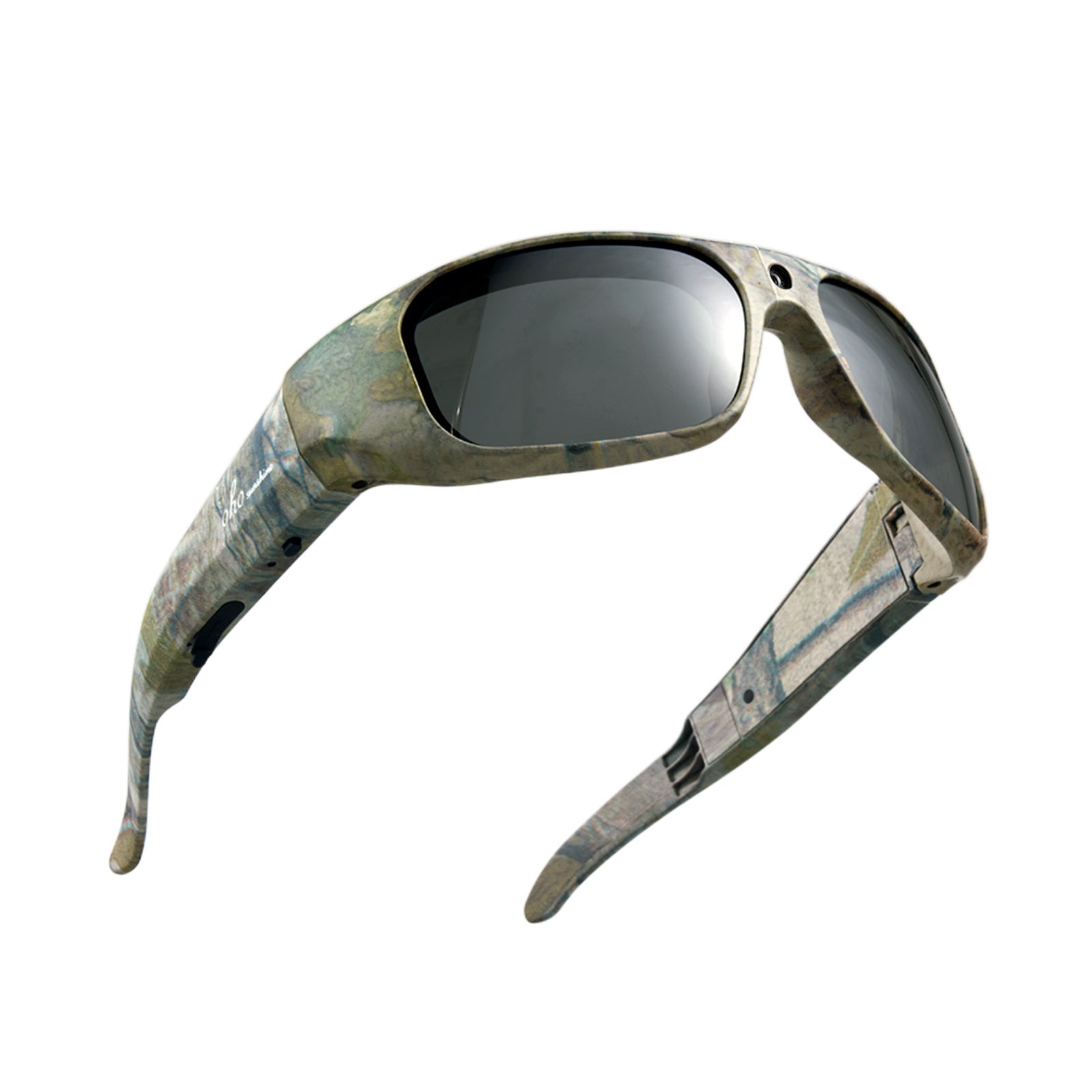


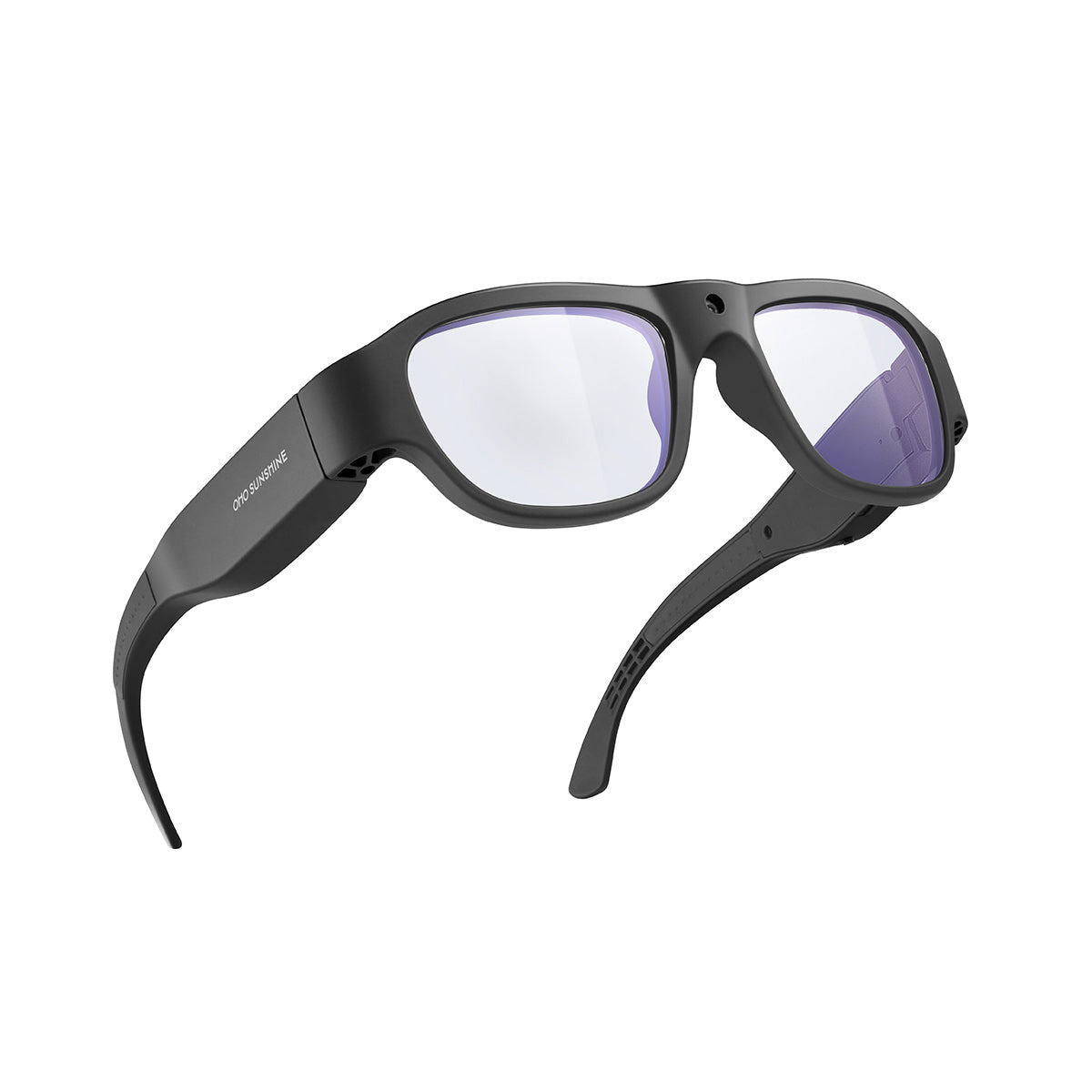

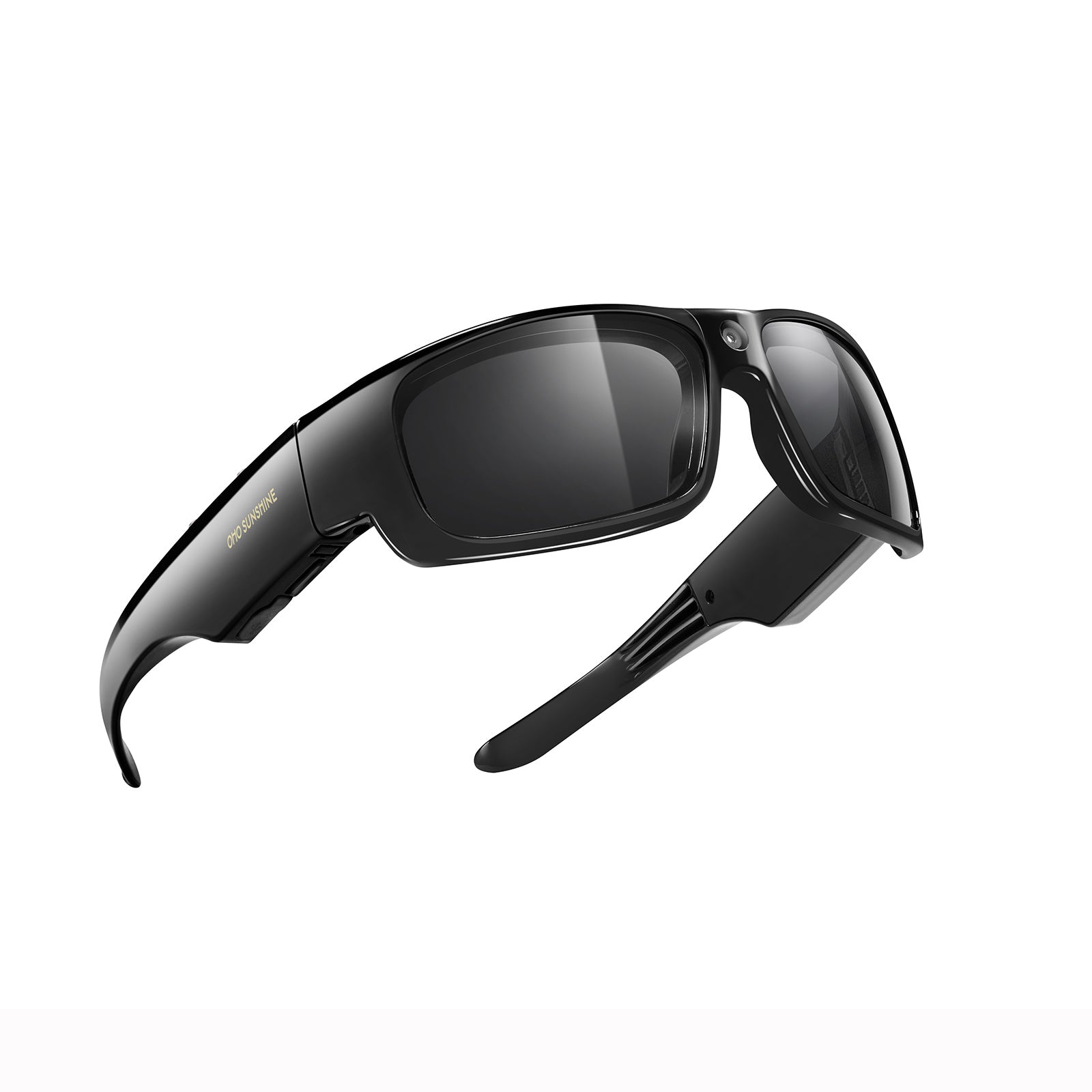


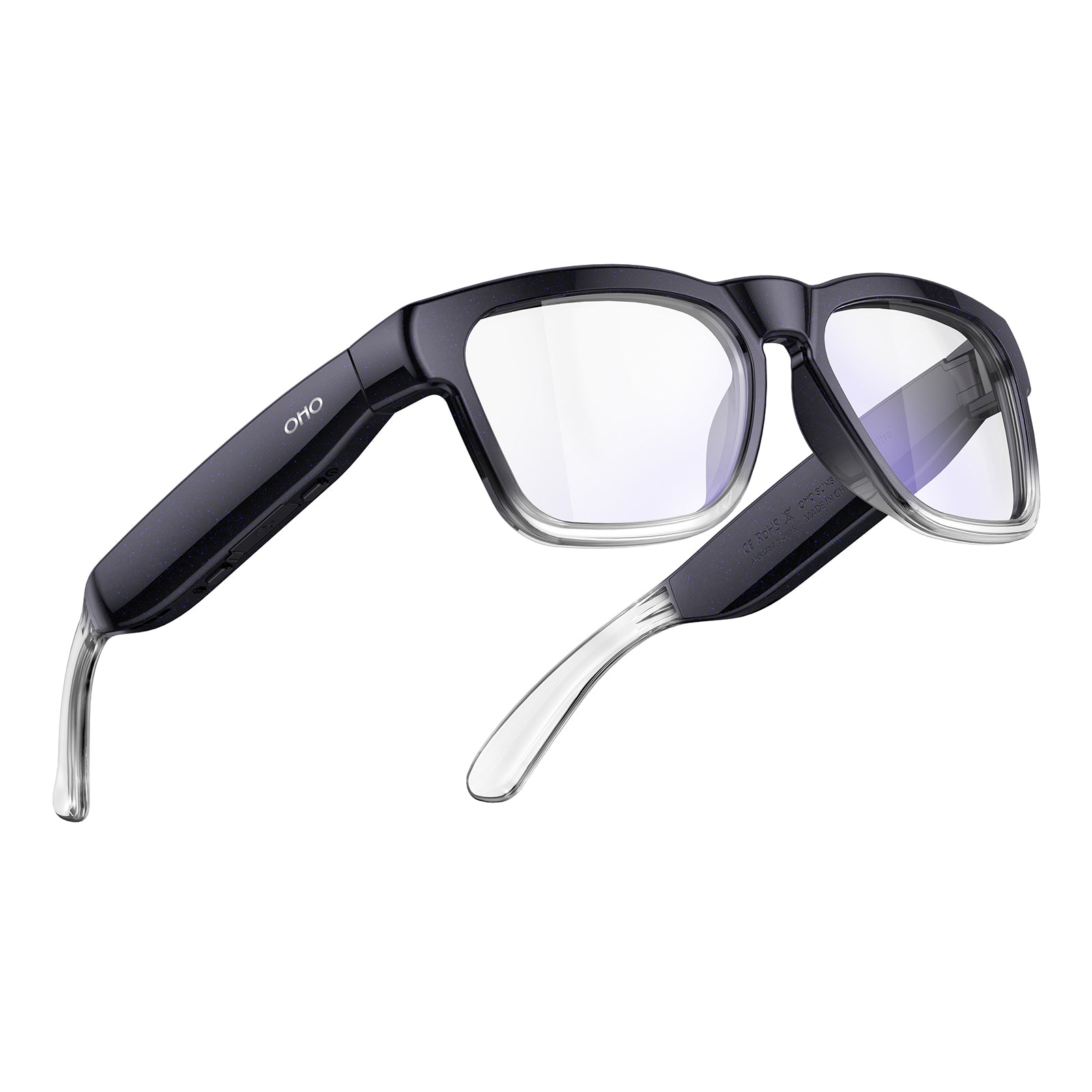







Merci de nous avoir choisis
Guide de l’utilisateur
Avant de commencer, prenez un moment pour lire les instructions correspondant à votre modèle. Elles couvrent l’installation, l’utilisation, l’entretien et la sécurité - vous pourrez ainsi éviter les erreurs courantes, obtenir les meilleures performances et conserver vos lunettes en excellent état sur le long terme.
Commencez en quelques minutes
Manuel d’utilisation
Trouvez le manuel correspondant à votre modèle à droite. Appuyez sur la flèche à côté du nom de votre produit pour afficher le PDF. Si vous ne savez pas quel modèle vous possédez, consultez l’emballage d’origine ou le magasin où vous l’avez acheté.
Vous ne trouvez pas votre modèle ?
Recherchez sur cette page avec Ctrl+F (PC) ou « Rechercher dans la page » (mobile).
Lunettes caméra Brave-4K
Lunettes de traduction Edge Pro avec caméra et IA
Lunettes de traduction GlobeEarAI
Lunettes caméra Primex EIS-2K & EIS
Caméra Edge et lunettes Bluetooth
Lunettes caméra Full HD Vidsoul
Lunettes audio Bluetooth Elite
Lunettes audio Bluetooth Pulse
Lunettes de traduction IA Elingo
Focus-Lunettes caméra Full HD
- ee
- ee
- ee
Lunettes caméra Livi Full HD
Lunettes audio Bluetooth Ease
Lunettes audio Bluetooth Sunblazer
Lunettes de ski caméra Skyshot-4K
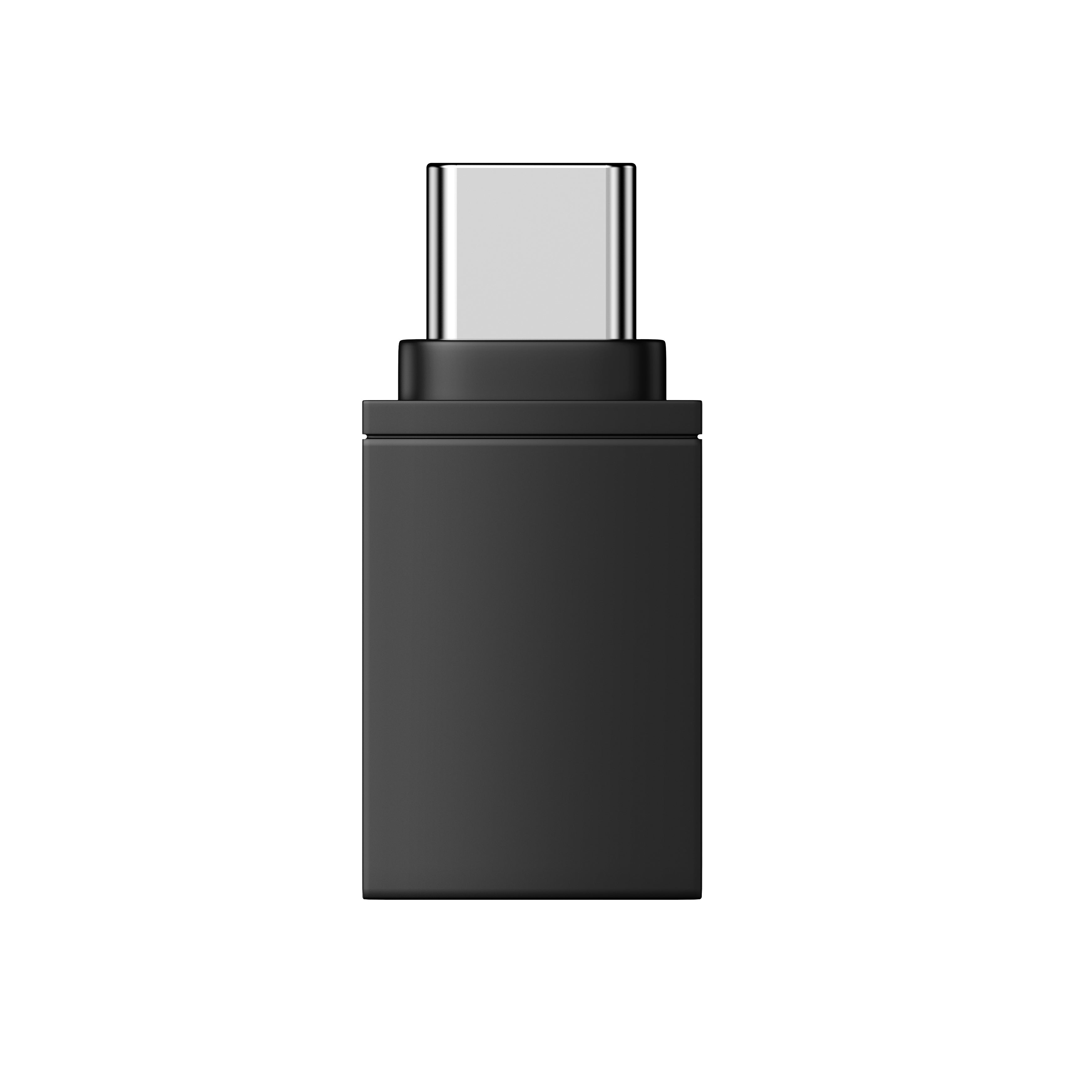
Adaptateur OTG pour lunettes OHO SUNSHINE
Vidéos pratiques
Fonctionnement général


Trouvez votre modèle. Regardez et apprenez.
Guides vidéo par modèle
Sélectionnez votre produit ci-dessous pour voir des tutoriels vidéo étape par étape conçus spécifiquement pour ce modèle. De la configuration aux fonctionnalités avancées, chaque guide vous accompagne dans la découverte de tout ce que vos lunettes peuvent faire.


Dépannage
Si votre fichier config.txt s’ouvre avec des symboles illisibles ou des langues mélangées, le problème ne vient généralement pas du fichier lui-même. Le Bloc-notes affiche parfois incorrectement la mise en forme.
Essayez ceci :
- Ouvrez plutôt le fichier avec WordPad (Windows) ou TextEdit (Mac).
- Le contenu devrait s’afficher normalement.
Il s’agit simplement d’un problème d’affichage - vos paramètres de configuration sont intacts.
L’iPhone 13 Pro Max utilise un port Lightning, tandis que nos lunettes et le câble fourni utilisent l’USB-C. Pour les connecter, vous aurez besoin d’un adaptateur OTG Lightning vers USB-C - disponible dans la plupart des magasins d’électronique ou en ligne.
Une fois l’adaptateur en votre possession :
- Branchez l’extrémité USB-C de notre câble sur vos lunettes.
- Connectez l’autre extrémité à l’adaptateur OTG.
- Branchez l’adaptateur à votre iPhone.
Votre iPhone reconnaîtra les lunettes, et vous pourrez accéder à vos fichiers via l’app Fichiers.
Les lunettes OHO Sunshine disposent d’un stockage intégré, ce qui vous permet de capturer et d’enregistrer des vidéos sans avoir besoin d’un téléphone à proximité. Pour consulter et transférer ces fichiers multimédias, vous pouvez utiliser la fonction OTG (On-The-Go), qui permet à votre smartphone de reconnaître les lunettes comme une clé USB standard.
Cette méthode ne nécessite aucune application, aucune connexion Wi-Fi ni aucun ordinateur - seulement le câble fourni et un smartphone compatible.
Vérification de la compatibilité :
Avant de commencer, assurez-vous de disposer d’un appareil compatible. Cette fonction fonctionne avec les téléphones Android équipés d’un port USB-C et les modèles d’iPhone 15 ou ultérieurs
Instructions étape par étape :
1. Connecter les lunettesPrenez le câble USB-C fourni et branchez-le fermement sur le port de vos lunettes OHO Sunshine.
2. Fixer l’adaptateur OTGInsérez l’autre extrémité du câble (le connecteur USB standard) dans l’adaptateur OTG.
3. Connecter votre téléphoneBranchez directement l’adaptateur OTG sur le port de charge de votre smartphone. Votre téléphone devrait reconnaître les lunettes comme un espace de stockage externe et ouvrir automatiquement une application d’exploration de fichiers.
4. Accéder à vos fichiers multimédiasSi l’explorateur de fichiers ne s’ouvre pas automatiquement, ouvrez manuellement l’application Fichiers de votre téléphone. Accédez au dossier DCIM, puis sélectionnez le dossier Movie. Vous pourrez alors consulter, copier ou transférer directement sur votre appareil les contenus que vous avez enregistrés.

Le modèle Elite ne dispose pas de fonctionnalités d’IA ou de traduction et n’a donc pas besoin de se connecter à l’application OHO. Aucun code d’appairage n’est requis.
L’application OHO est conçue pour nos lunettes de traduction IA (Elingo, GlobeEar, Edge Pro). Si vous utilisez Elite, vous pouvez vous passer complètement de l’application.
Voici le guide vidéo.

Votre fichier vidéo n’est pas corrompu. Nos lunettes enregistrent avec un codec haute efficacité (H.265/HEVC) que certains lecteurs multimédias par défaut - comme le Lecteur Windows Media ou QuickTime - ne parviennent pas à décoder correctement. C’est pourquoi vous entendez le son, mais ne voyez qu’un écran noir.
La solution est simple : utilisez VLC Media Player. Il est gratuit, fonctionne sous Windows et Mac, et prend en charge tous les codecs vidéo courants dès l’installation.
Téléchargez-le ici : https://www.videolan.org/vlc/
Une fois installé, ouvrez votre vidéo avec VLC : elle devrait être lue normalement, avec l’image et le son.
Suivez ces étapes pour connecter vos lunettes Livi et diffuser des vidéos en direct sur votre téléphone :
- Télécharger l’application — Installez d’abord Vizen Cam sur votre téléphone.
- Allumer — Allumez vos lunettes. La LED rouge clignotera.
- Activer le Wi-Fi — Appuyez deux fois sur le bouton d’alimentation/fonction. La LED bleue restera allumée, indiquant que le mode Wi-Fi est actif.
- Connecter votre téléphone — Accédez aux réglages Wi-Fi de votre téléphone, recherchez un réseau nommé "Sunglasses_xxxx", puis connectez-vous-y.
- Diffuser — Ouvrez l’application Vizen Cam. Vous verrez alors une vue en direct de vos lunettes sur votre téléphone.
Pour corriger l’heure et la date de vos enregistrements, suivez ces étapes :
- Connectez vos lunettes à votre ordinateur à l’aide du câble USB fourni.
- Ouvrez le lecteur nommé "glasses" et recherchez le fichier config.txt.
- Ouvrez-le avec un éditeur de texte comme le Bloc-notes.
- Remplacez la première ligne par N à Y pour activer le mode d’édition.
- Mettez à jour la deuxième ligne avec la date et l’heure correctes. Utilisez ce format :
YYYYMMDD HHMMSS (Exemple : 20260115 143000) - Enregistrez le fichier et éjectez la clé USB en toute sécurité.
- Éteignez puis rallumez vos lunettes. L’heure correcte apparaîtra désormais sur tous les nouveaux enregistrements.
Nous contacter
Vous avez encore besoin d’aide ?
Nous sommes là pour vous. Contactez-nous à tout moment.


