





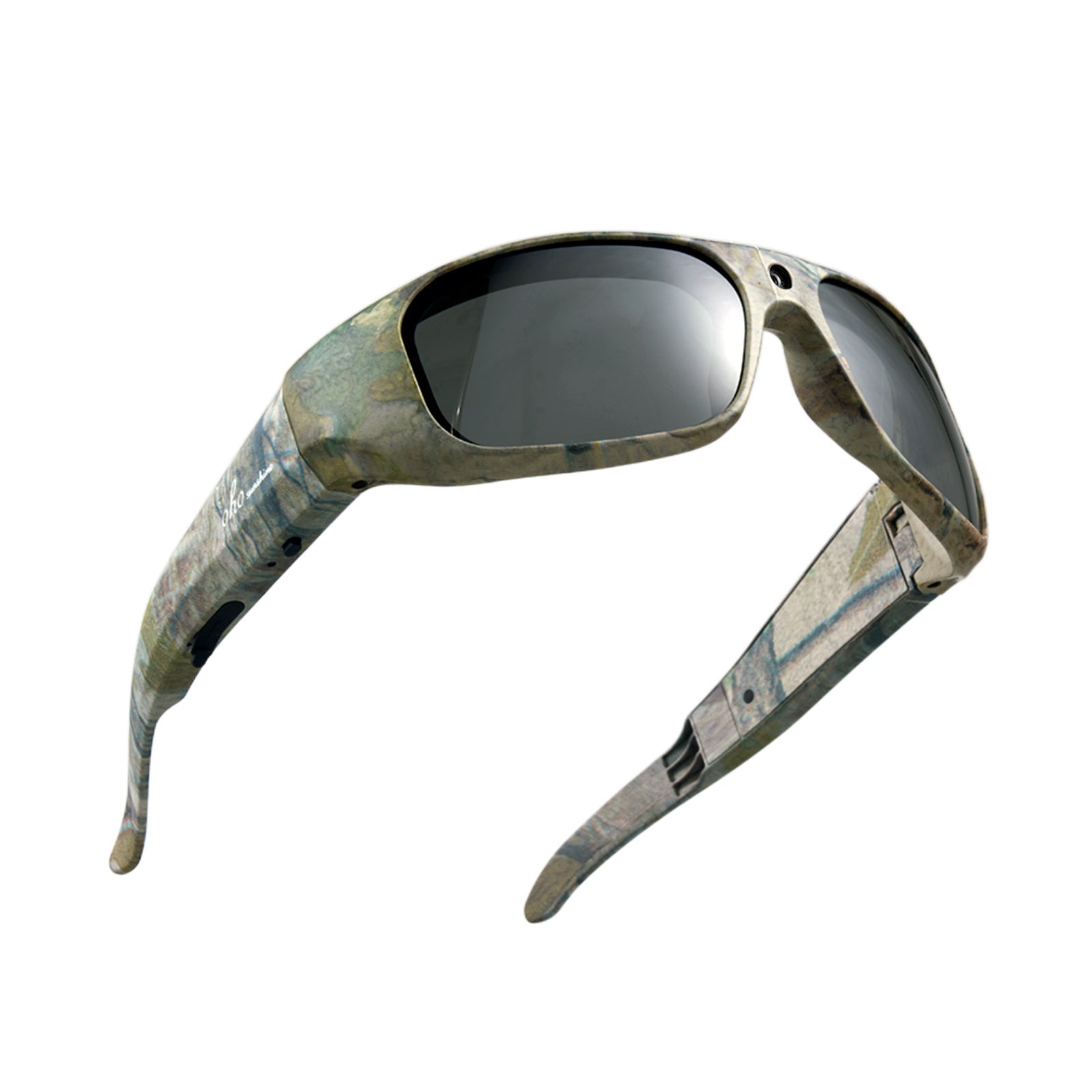


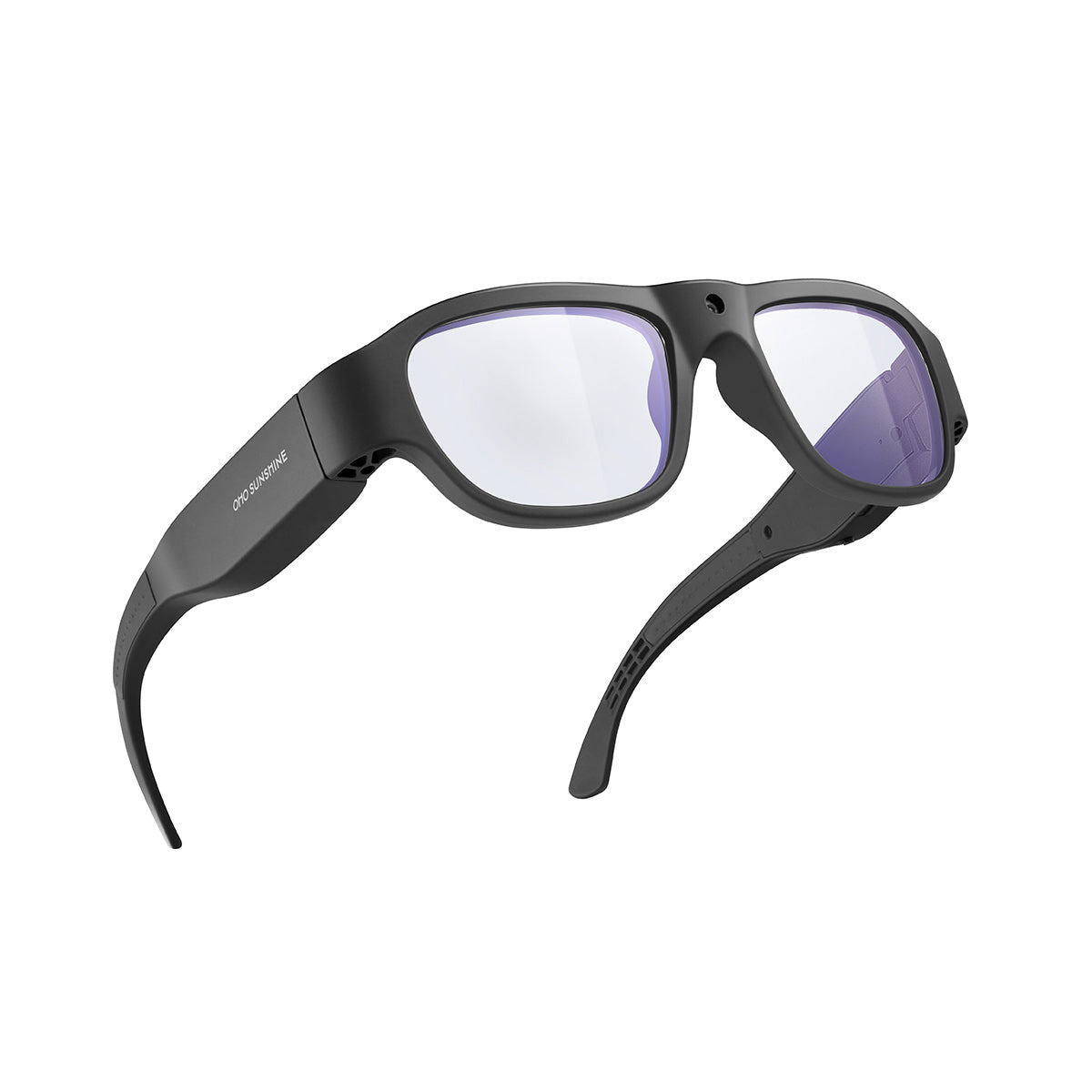
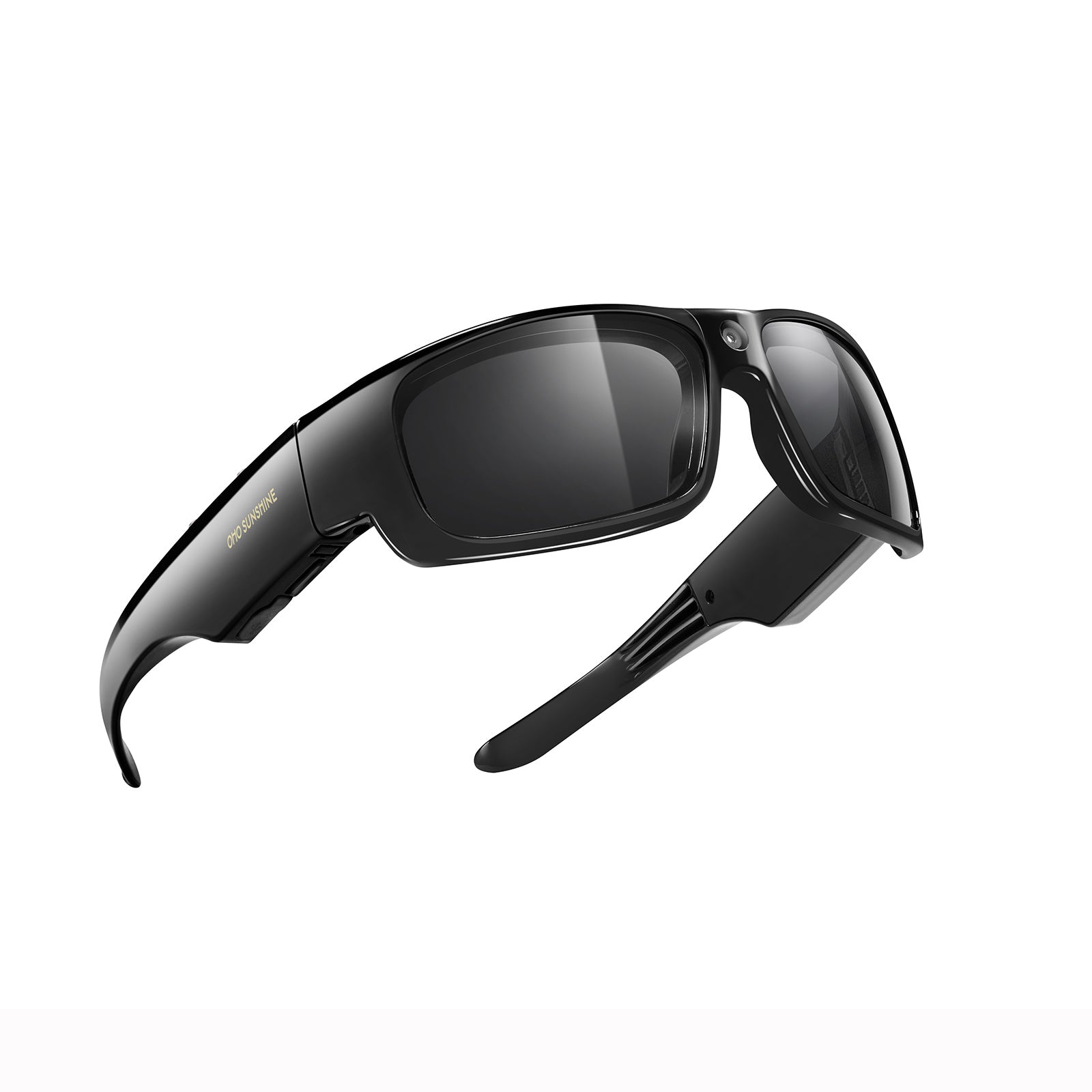


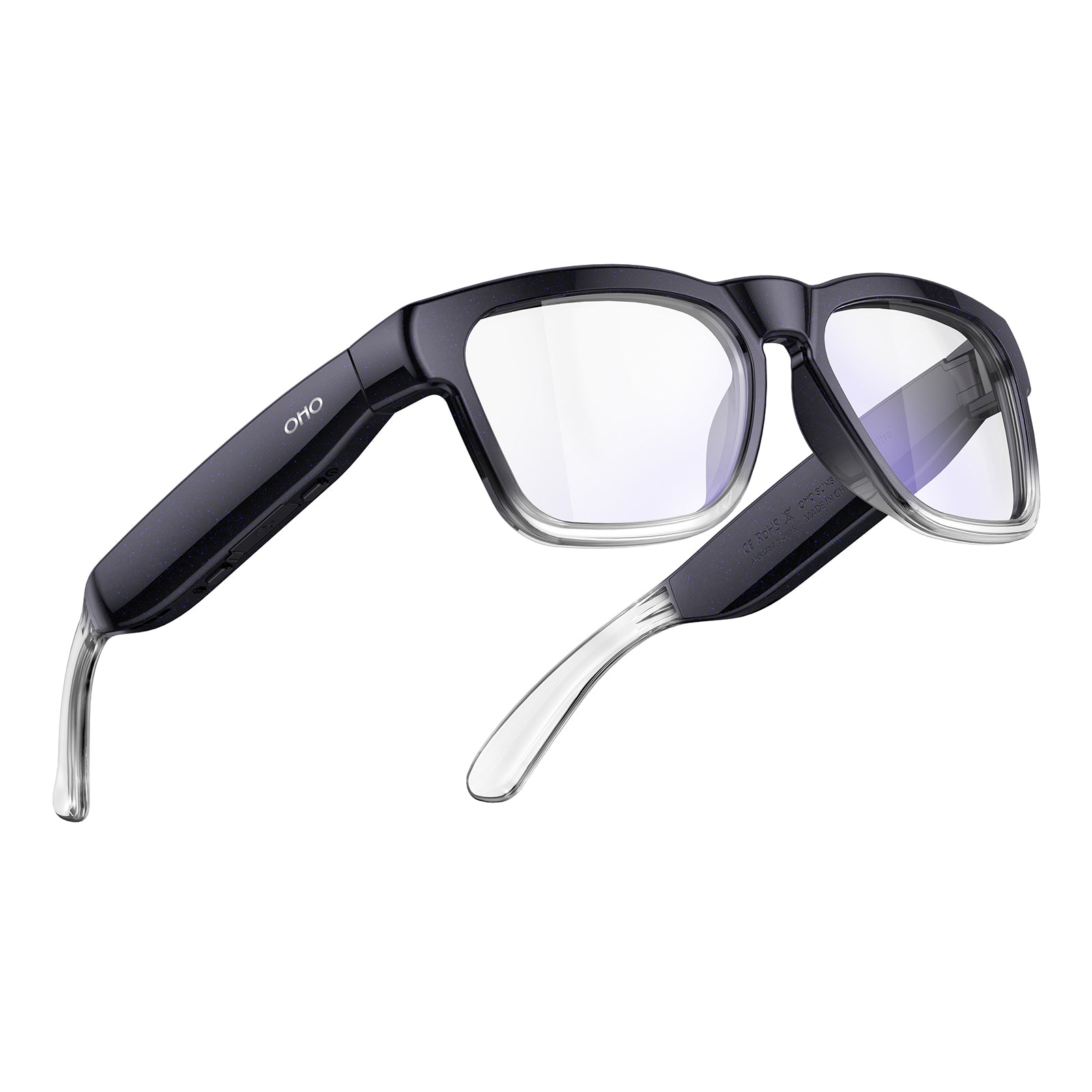


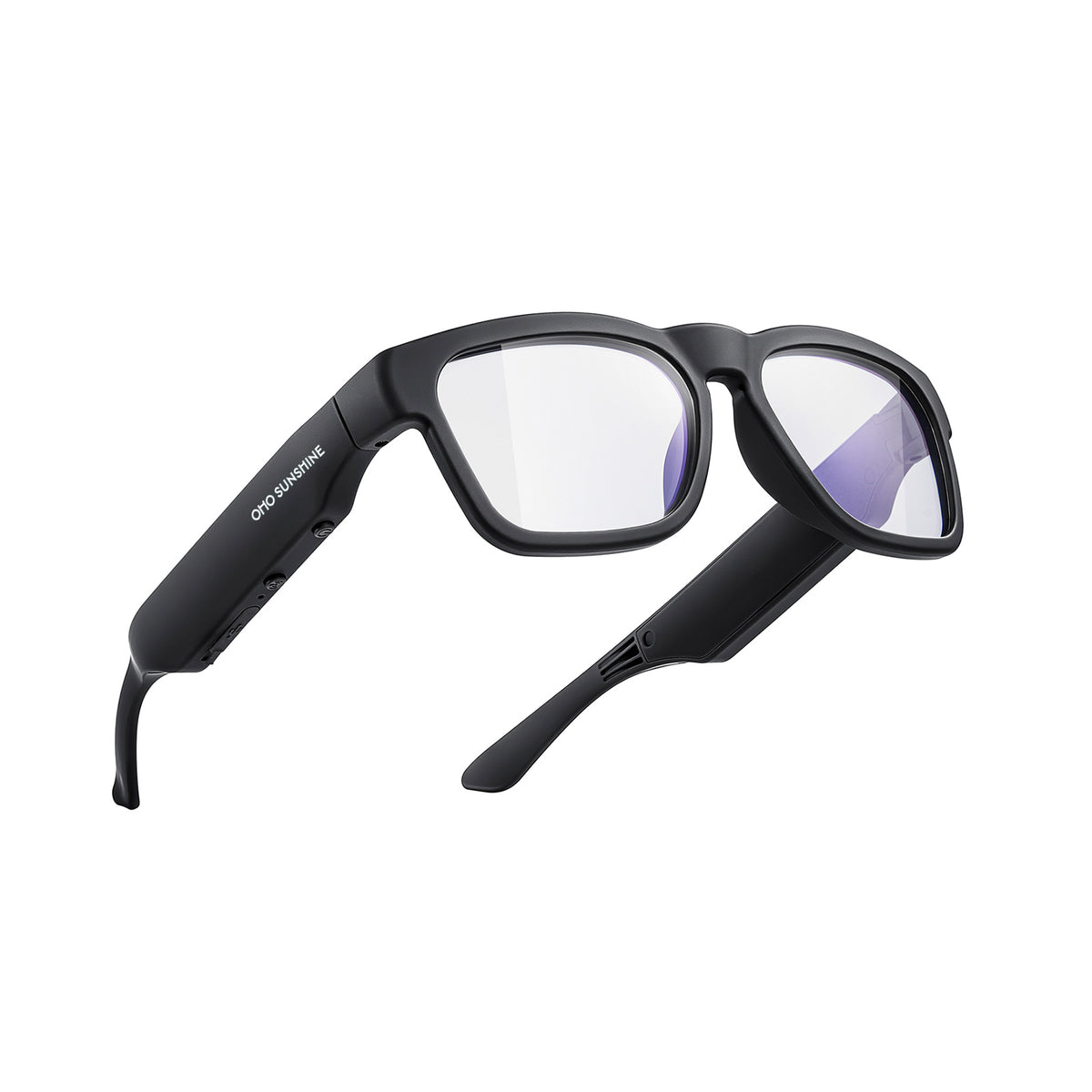





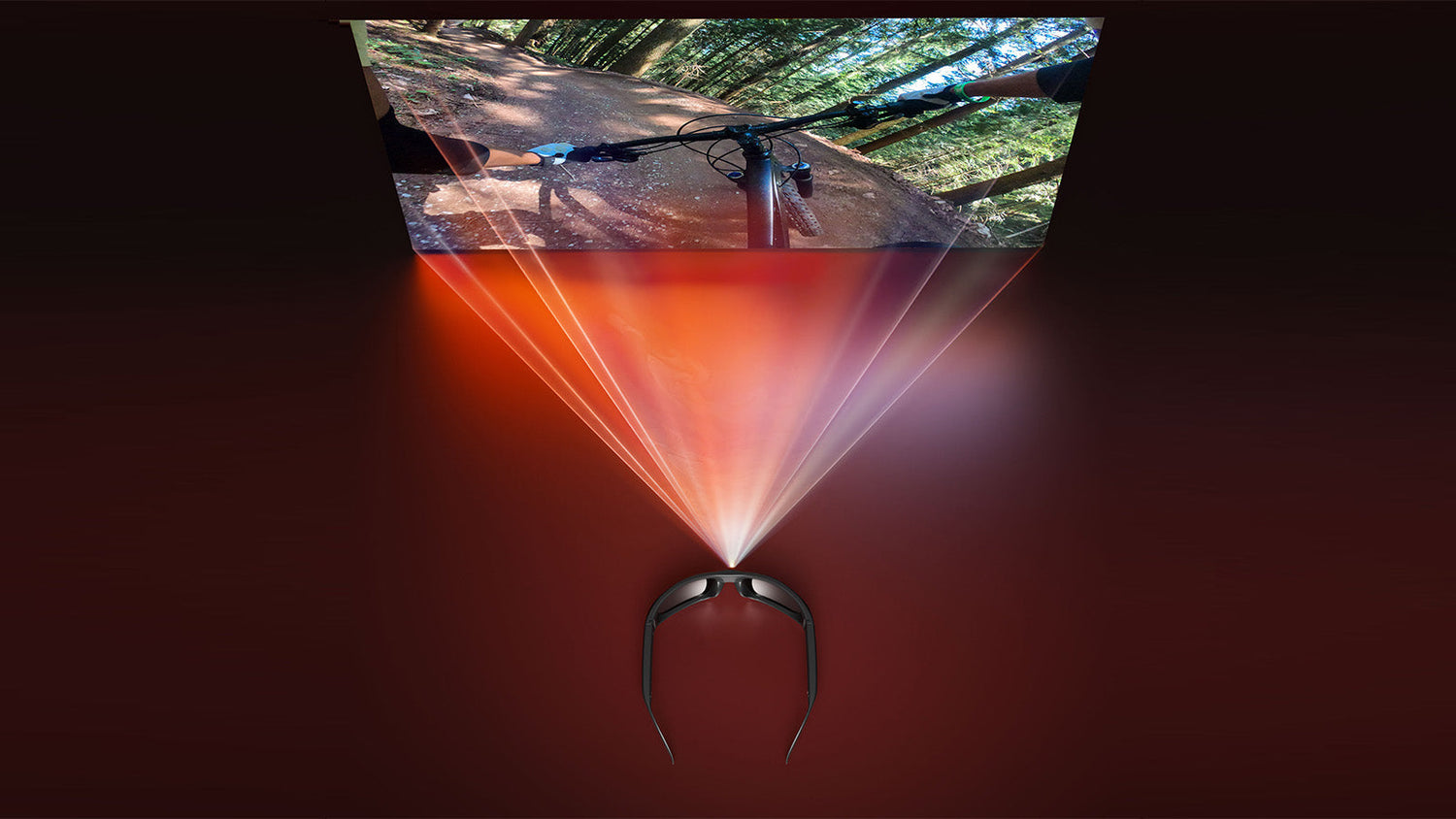
Your new camera glasses just arrived, and you're eager to capture life from your perspective. These wearable devices transform everyday moments into shareable POV content without holding a camera. Whether you're biking through trails or documenting daily adventures, smart glasses with camera technology put recording at eye level. Let's get you filming in minutes.

Initial Setup for Your Camera Glasses
Before capturing your first POV video, you need to prepare your video recording glasses. The initial setup takes just a few minutes and ensures everything works smoothly.
Charge Your Smart Glasses with Camera
Locate the USB port on your camera glasses (typically found on the temple arms). Connect the USB cable and plug it into a computer or compatible USB charging adapter. Connect the USB cable and plug it into a computer or compatible USB charging adapter.
The Charging LED will light up during charging (often red or other colors depending on the model) and turn off when charging is complete. A full charge typically takes 60-120 minutes, giving you approximately 30-90 minutes of continuous video recording time depending on your model and settings. Always charge fully before first use.
Power On and Test Your Device
Press the Power/Record Button to turn on your camera glasses. The indicator light will light up, confirming the device is ready to use.
Quick checks before recording:
- Check that the lens is clean and unobstructed
- Ensure the device is fully charged
- Verify the device powers on and responds to button controls
- Test a quick recording to ensure everything functions properly
Adjust the Fit for Comfortable Use
Your glasses with camera should sit comfortably on your nose and ears without pinching. The HD camera lens needs a clear line of sight for optimal recording.
Bend the temple arms gently if they're too tight or loose. Adjust nose pads for stable positioning. Make sure the camera lens isn't blocked by hair or accessories. A stable fit prevents shaky footage and keeps your video recording glasses secure during movement.
How to Record Video with Camera Glasses
Your video recording glasses use simple button controls for all operations. Most models use a single multi-function button (commonly called the Power/Record Button) to handle both video recording and photo capture.
To start recording, press the Power/Record Button (refer to your model's instructions for specific operation). An indicator light will respond to confirm active recording. This may flash, stay lit, or display other patterns depending on your device.
To stop recording, press the button again. The indicator will change to confirm your video has been saved.
Some models feature a dedicated photo button, while others use the same control button with different press patterns. Check your specific model's instructions for photo capture functionality. To ensure the best quality, consider stopping video recording before taking photos if your model doesn't support simultaneous capture.
How to Transfer and View Your Camera Glasses Footage
After recording, you'll want to watch and share your POV videos. Camera glasses connect directly to your computer for quick file transfers.
Power Off Your Camera Glasses
Before connecting to your computer, properly power off your video recording glasses. Press and hold the Power/Record Button for 2-3 seconds. The glasses will automatically save any files to the built-in memory and shut down.
Never disconnect the USB cable while the device is still powered on, as this could corrupt your video files.

Connect Your Camera Glasses to the Computer
Turn off your video recording glasses before connecting. Use the included USB cable to plug your smart glasses with camera directly into your computer's USB port.
The device appears as external storage, similar to plugging in a USB flash drive or external hard drive. Your computer will recognize the camera glasses automatically without requiring additional software installation.
Locate and Transfer Your Video Files
Open the file explorer on your computer and find your camera glasses listed as a removable drive. Navigate to the DCIM folder where video files are stored, typically in MP4 format.
Select the files you want to transfer and drag them to a folder on your computer's hard drive. This method preserves original quality without any compression. You can transfer individual clips or copy all your recordings at once for batch processing.
Organize and Edit Your Videos
Create folders by date or activity type to keep your POV footage organized. Label files with descriptive names instead of default numbers like "VID_001" or "REC_2024."
Most standard video editing software works with footage from camera glasses. Trim clips, add music, or adjust color balance before sharing. Many programs offer quick editing tools for social media posts, letting you add filters and captions before uploading.
5 Pro Tips for Professional Looking POV Videos
Master these fundamentals to elevate your POV recordings from basic captures to engaging content with your best camera glasses.
Keep Your Lens Clean
Fingerprints and smudges ruin otherwise perfect shots. The lens on video recording glasses sits exposed to the environment, collecting dust and oils.
Wipe the lens with a microfiber cloth before each recording session. For stubborn smudges, breathe gently on the lens to create moisture, then wipe in circular motions. Never use paper towels or rough fabrics that scratch the coating.
Adjust Camera Settings with Configuration Files
Many camera glasses allow customization through a configuration file (commonly named "config.txt" or "INIT.TXT" depending on the manufacturer). Connect your glasses to your computer and look for this file in the root directory.
You can adjust video resolution (common options include 1080p, 720p, or 480p), enable or disable date and time watermarks, and set storage formatting preferences. After editing the file, safely disconnect the camera glasses from your computer and restart the device to apply the updated settings.
Master Head Movement and Positioning
Your head becomes the camera operator when using glasses with camera, so movement matters. Look where you want the viewer's attention focused. Keep your chin level rather than tilted.
When walking, lead with your eyes, scanning the environment. This creates natural panning that follows the flow of action. Pause briefly on interesting subjects before moving on.
Movement techniques:
- Turn your shoulders, not just your head, for wide pans
- Slow down during action sequences for better clarity
- Keep your hands out of the bottom frame edge
Manage Your Battery Life
Video recording drains battery faster than standby mode on camera glasses. Turn off your device between recording sessions rather than leaving it on continuously.
Lower video resolution for longer recording sessions if your model allows quality adjustments through button controls. Avoid recording in extreme cold with your video recording glasses, which reduces battery performance significantly.
Avoid Common Recording Mistakes
New users often forget they're wearing camera glasses and block the lens with their hand when gesturing. Stay aware of what enters your field of vision.
Don't record in direct sunlight, pointing at the sun with your smart glasses with camera, which creates lens flare and overexposed footage. Respect privacy by informing people when you're recording in private spaces.
5 FAQs about Camera Glasses
Q1. How Long Do Camera Glasses Record on a Single Charge?
The camera function within most smart glasses allows a video to be recorded for 30 to 90 minutes when fully charged, depending on the model and video quality settings. Higher resolution recordings consume more battery power. The length of the video quality and the ambient temperatures further affect the actual video recording time when wearing camera glasses.
Q2. Can Other People Tell When I'm Recording with Camera Glasses?
Most camera glasses come with LED alerts that glow during the recording process; however, these alerts may not be noticeable to others. Other camera glasses come with discreet LEDs that tend to be very hard to notice in bright environments. Always obtain permission from others when recording in private rooms or engaged in private conversations, regardless of the discreetness level of your camera glasses. This is especially true in regions that require permission to record.
Q3. Are Camera Glasses Waterproof for Swimming or Water Sports?
Water-resistance differs between different video recording glasses models. There are some video recording glasses with splashproof features for light rain and some that are fully waterproof. It is essential to check the IP degree in your specifications for your smart glasses with camera. Water damage will void any warranties.
Q4. What Video Quality Can I Expect from Camera Glasses?
Contemporary camera glasses usually come with 1080p Full HD video quality, with 4K capabilities on higher-end camera glasses. Functionality capabilities differ according to the model type for video recording camera glasses. The priority for such devices is convenience and POV view, and thus, the highest quality camera glasses should be ideal for social videos.
Q5. What Should Beginners Look for When Choosing Their First Pair of Camera Glasses?
Beginners should prioritize ease of use and battery life when selecting their first camera glasses. Look for models with simple button controls, at least 1080p video resolution, and 35+ minutes of recording time per charge. Consider comfort and fit, as you'll wear these for extended periods. Check for adequate storage capacity (either built-in memory or expandable storage options) and straightforward file transfer methods.
Get Started with Your Camera Glasses
The benefit of using your camera glasses is the opportunity for recording without using a camera in a way that would be difficult with a normal camera or other similar devices. You begin with recording in a domestic setting to get comfortable using the device, and then proceed to record in other challenging settings. The longer you use the video recording glasses, the easier recording becomes. Experiment with different activities to discover your unique filming style with your smart glasses with camera.


Leave a comment
All comments are moderated before being published.
This site is protected by hCaptcha and the hCaptcha Privacy Policy and Terms of Service apply.