





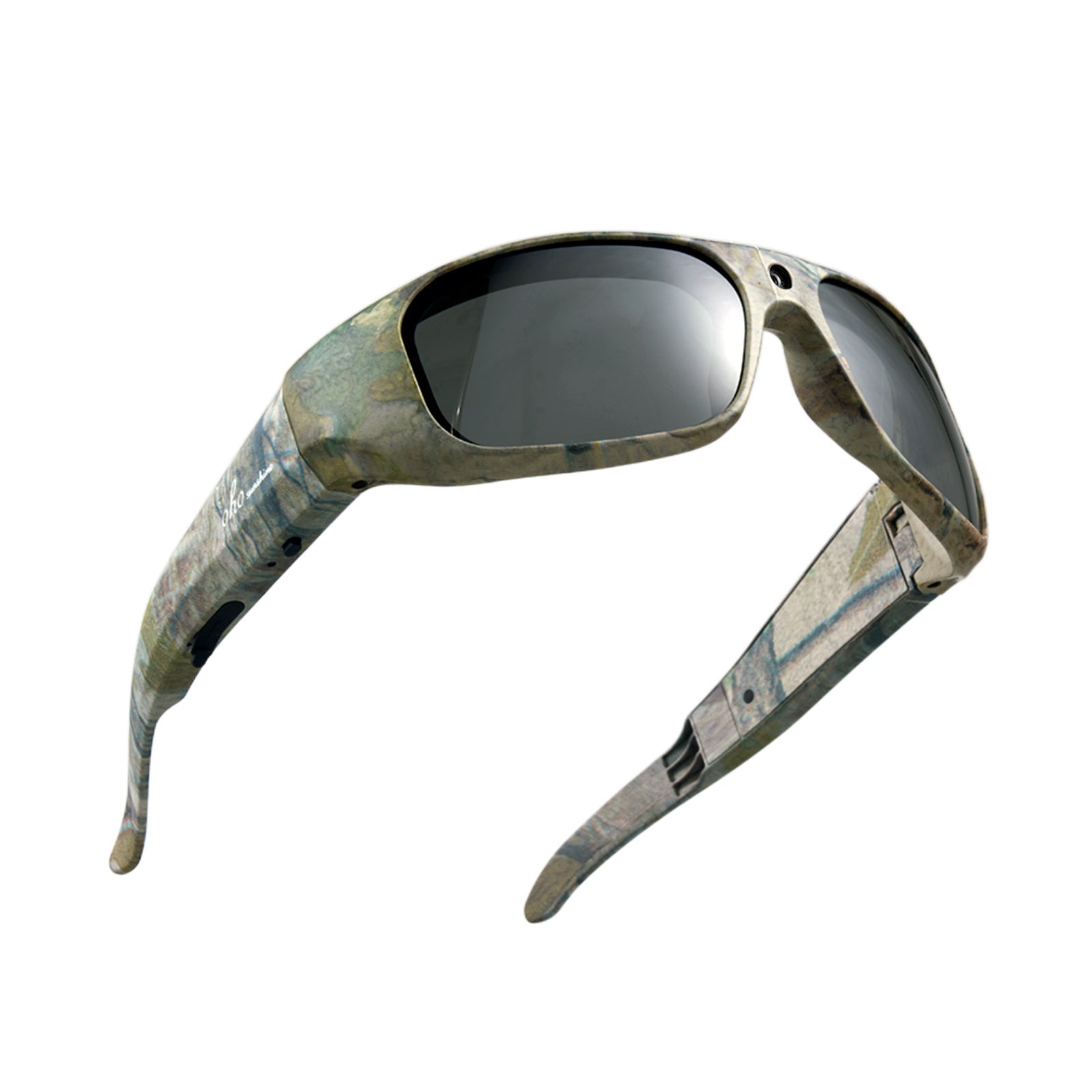


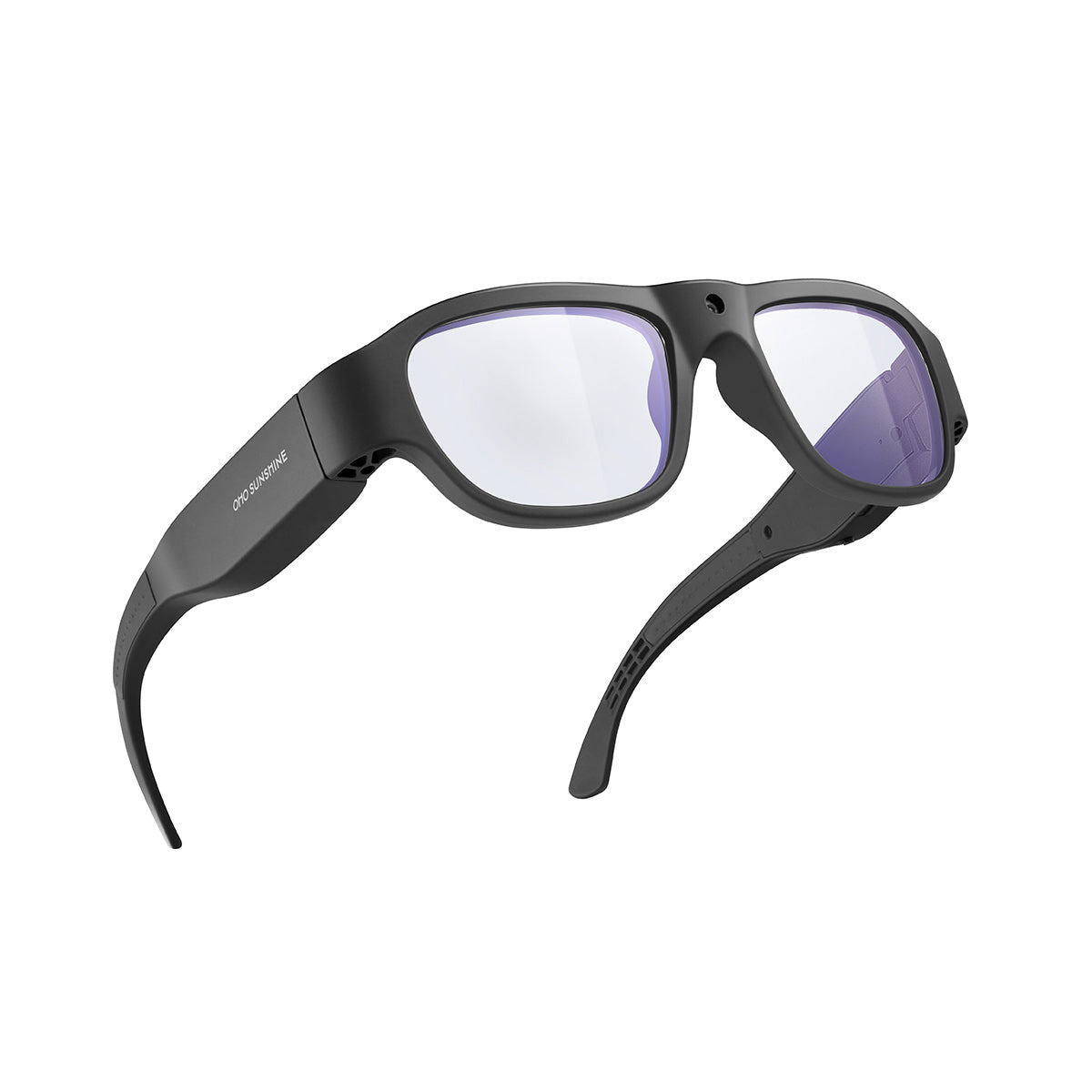

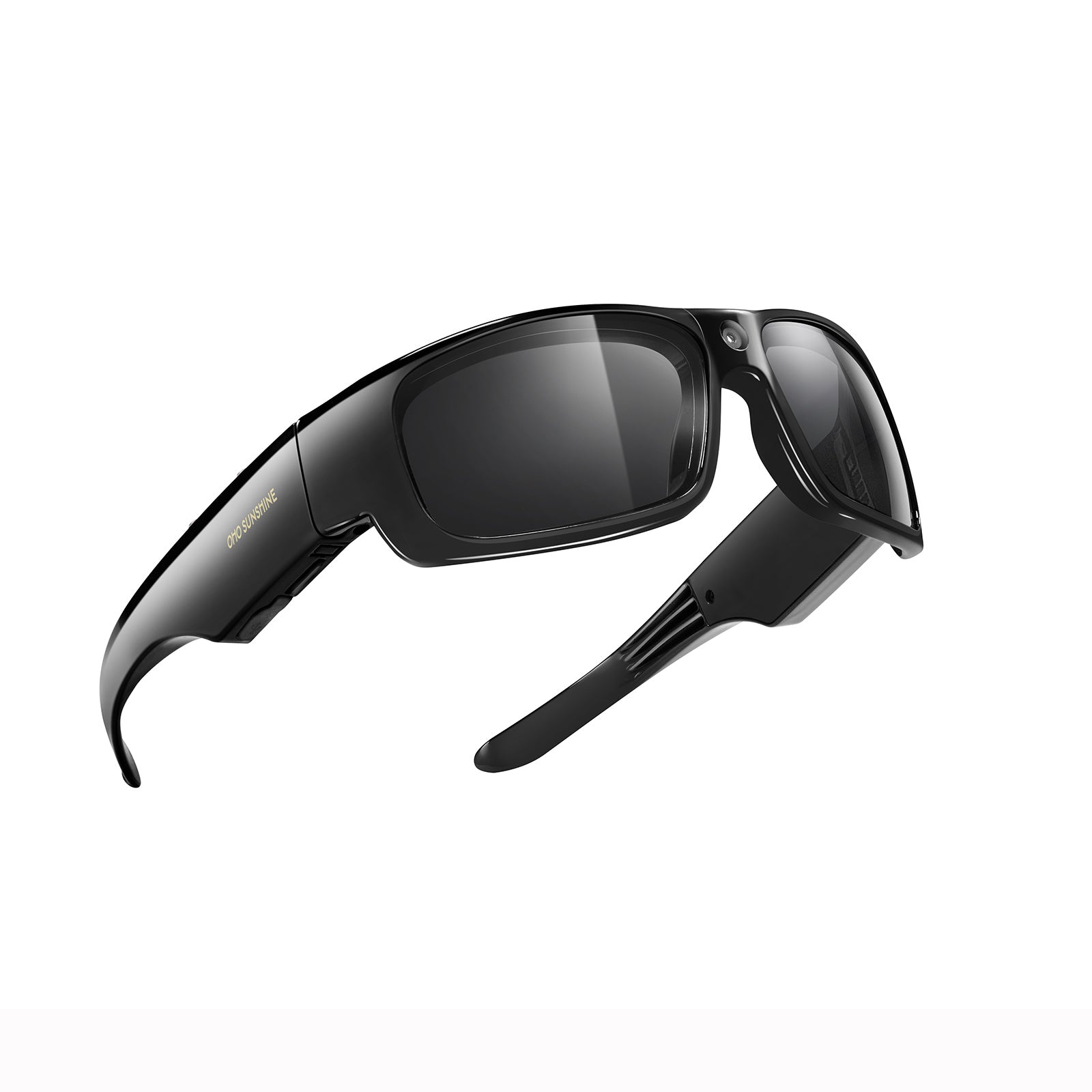


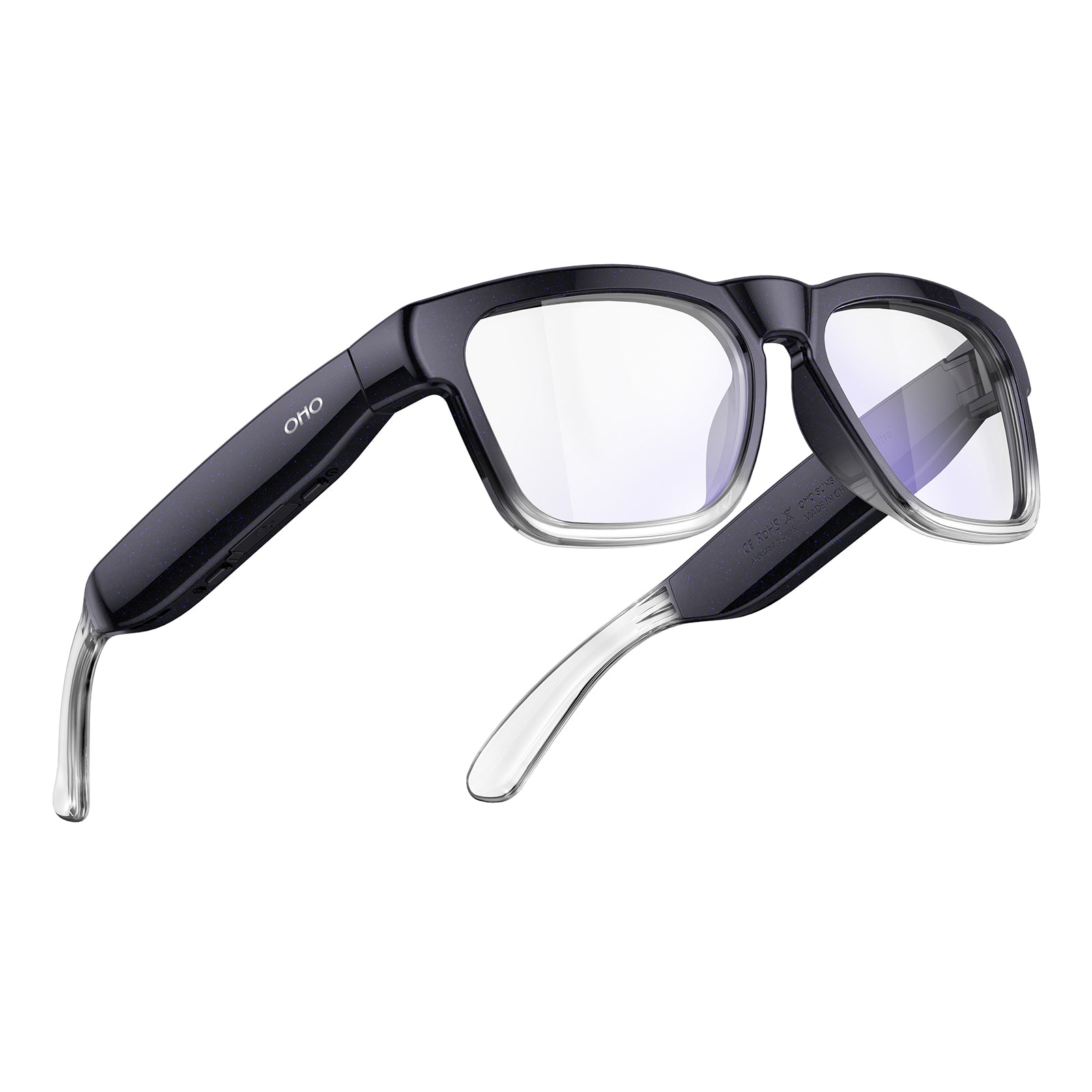


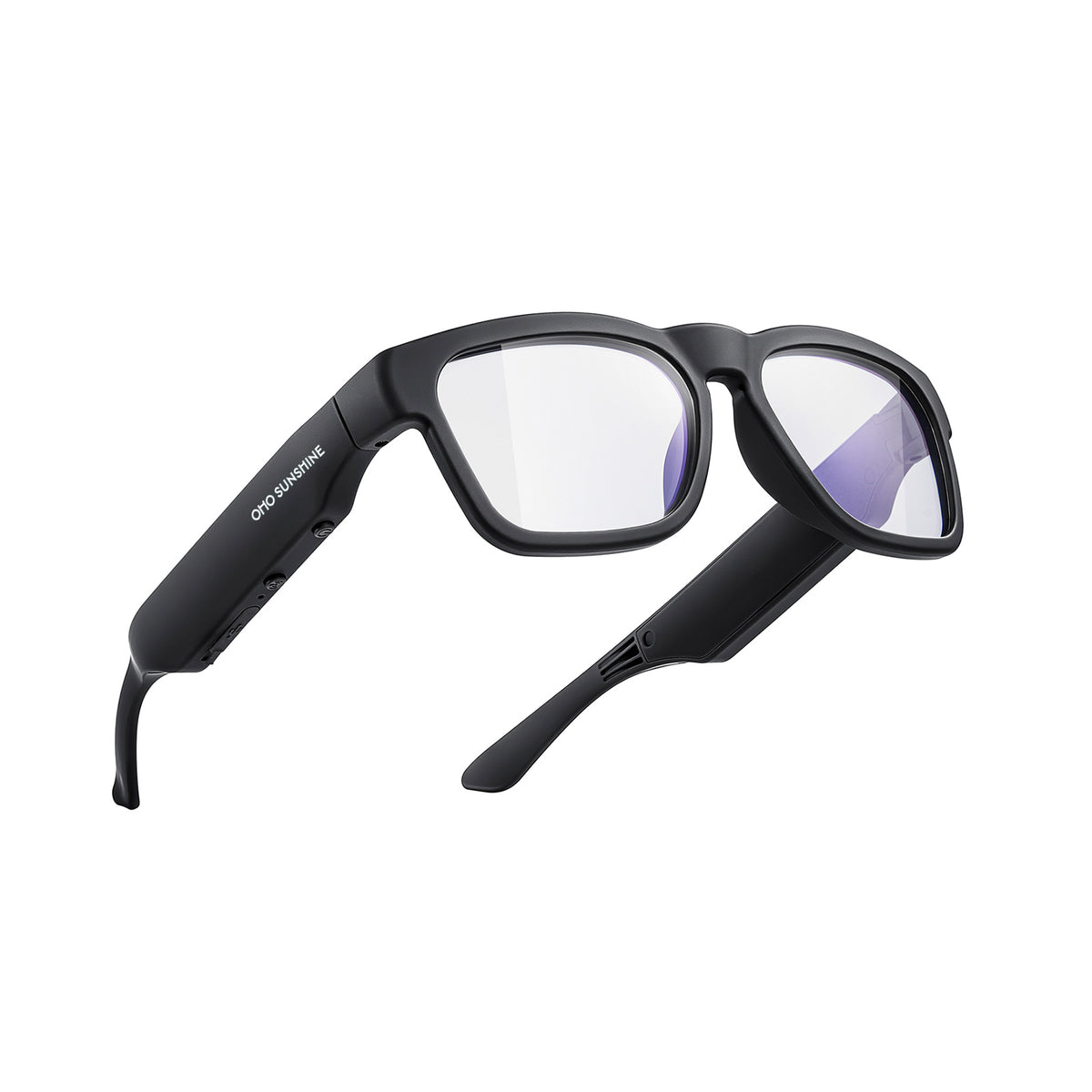





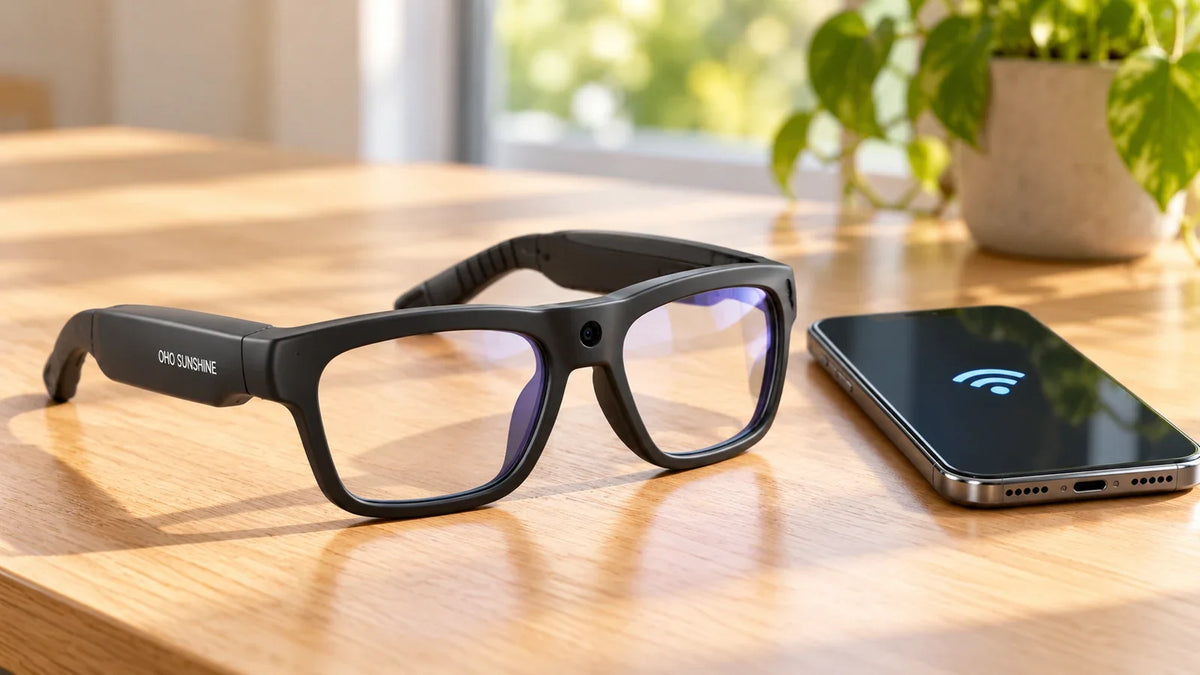
Want to view or transfer recordings from your camera glasses without using a computer? OHO SUNSHINE's Livi Wi-Fi camera glasses let you connect to a compatible smartphone for live preview and wireless file transfer.
How to Connect Livi Camera Glasses via Wi-Fi
Watch the video below for a Wi-Fi hotspot demonstration. The written steps that follow are based on the Livi user guide, as controls and apps may differ between camera glasses models.
Follow these steps to connect your Livi camera glasses:
- Install the app. Download Vizen Cam on your smartphone.
- Turn on the glasses. Power on the glasses. The red LED indicator will flash.
- Enable Wi-Fi mode. Double-press the power/function button. The blue LED will stay on when Wi-Fi is active.
- Connect your phone. Open your phone's Wi-Fi settings and select the network named Sunglasses_xxxx.
- Open Vizen Cam. Launch the app to view the live camera feed and access supported media functions.
Once connected, you can preview footage and use the supported wireless transfer features to save recordings to your phone.
Tips for Smooth Wi-Fi File Transfer
- Charge the glasses before connecting.
- Keep your phone and glasses close during transfer.
- Confirm that your phone is connected to the glasses' Wi-Fi network.
- Transfer a short clip first to check that the file saves and plays correctly.
For other OHO SUNSHINE camera glasses, check the official user guide for the correct connection and file transfer method.


Leave a comment
All comments are moderated before being published.
This site is protected by hCaptcha and the hCaptcha Privacy Policy and Terms of Service apply.