














Need Help With Your Order?
Leave your message and our support team will get back to you soon.
Please include your purchase channel and order number for faster assistance.
Instruction Manual
Brave-4K Camera Glasses
2024-07-23
Edge Pro-Camera & AI Translation Glasses
2026-09-23
Primex EIS-2K & EIS Camera Glasses
2026-04-23
GlobeEarAI Translation Glasses
2026-05-23
Edge-Camera & Bluetooth Glasses
2024-07-23
Vidsoul-Full HD Camera Glasses
2024-07-23
Elite-Bluetooth Audio Glasses
2024-07-23
Pulse-Bluetooth Audio Glasses
2024-07-23
Elingo-AI Translation Glasses
2024-07-23
Focus-Full HD Camera Glasses
2024-07-23
Livi-Full HD Camera Glasses
2024-07-23
Touch-Full HD Camera Glasses
2024-07-23
Ease-Bluetooth Audio Glasses
2024-07-23
Sunblazer-Bluetooth Audio Glasses
2024-07-23
Sunblazer-Bluetooth Audio Glasses
2024-07-23
How-to Videos


Trouble Shooting
If your config.txt file opens as unreadable symbols or mixed languages, it's usually not a problem with the file itself. Notepad sometimes displays the formatting incorrectly.
Try this:
- Open the file with WordPad (Windows) or TextEdit (Mac) instead.
- The content should appear normally.
This is just a display issue — your configuration settings are intact.
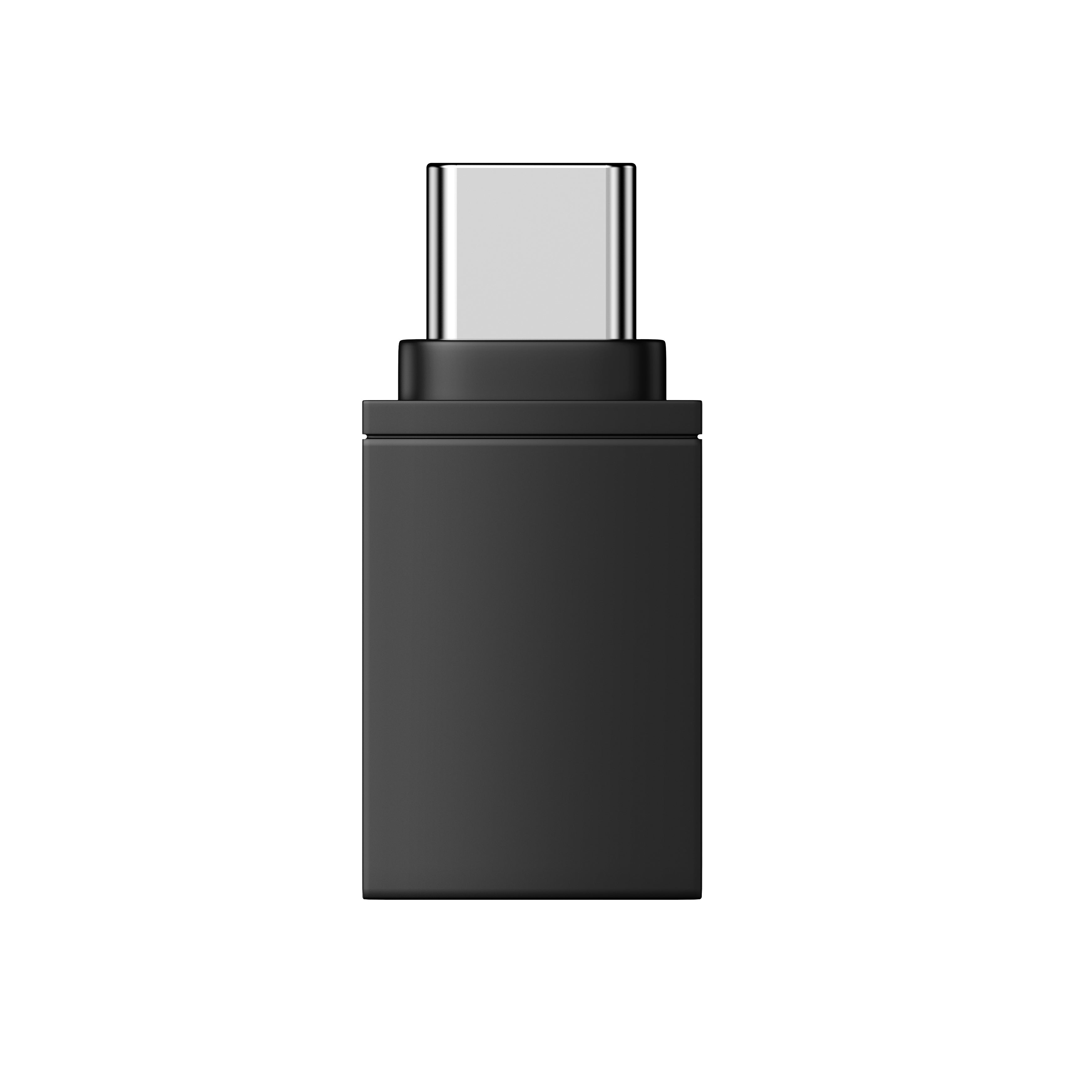
The iPhone 13 Pro Max uses a Lightning port, while our glasses and included cable use USB-C. To connect them, you'll need a Lightning to USB-C OTG adapter — available at most electronics stores or online.
Once you have the adapter:
- Plug the USB-C end of our cable into your glasses.
- Connect the other end to the OTG adapter.
- Plug the adapter into your iPhone.
Your iPhone will recognize the glasses, and you can access your files through the Files app.
If your iPhone or iPad isn't showing your photos and videos, try these steps:
- Make sure your glasses are completely powered off — not just in standby.
- Plug the OTG adapter into your phone's charging port.
- Connect the data cable to the OTG adapter, then fully insert the other end into your glasses.
- Wait a few seconds. Your phone should detect a new external drive.
Once connected, open the Files app to browse and save your footage.
If it still doesn't show up, try a different OTG adapter or cable — some third-party adapters may not be compatible.

The Elite model does not have AI or translation features, so it doesn't need to connect to the OHO app. No pairing code is required.
The OHO app is designed for our AI translation glasses(Elingo, GlobeEar, Edge Pro). If you're using Elite, you can skip the app entirely.
Here is the guide vide.

Your video file isn't corrupted. Our glasses record using a high-efficiency codec (H.265/HEVC) that some default media players — like Windows Media Player or QuickTime — can't decode properly. That's why you hear sound but see only a black screen.
The fix is simple: use VLC Media Player. It's free, works on both Windows and Mac, and handles all common video codecs out of the box.
Download it here: https://www.videolan.org/vlc/
Once installed, open your video with VLC and it should play normally — both picture and sound.
Follow these steps to connect your Livi glasses and stream live video to your phone:
- Download the app — Install Vizen Cam on your phone first.
- Power on — Turn on your glasses. The red LED will flash.
- Enable Wi-Fi — Double-press the power/function button. The blue LED will stay on, meaning Wi-Fi mode is active.
- Connect your phone — Go to your phone's Wi-Fi settings, find a network named "Sunglasses_xxxx", and connect to it.
- Stream — Open the Vizen Cam app. You'll now see a live view from your glasses on your phone.
To correct the time and date on your footage, follow these steps:
- Connect your glasses to your computer using the included USB cable.
- Open the drive named "glasses" and find the file config.txt.
- Open it with a text editor like Notepad.
- Change the first line from N to Y to enable editing mode.
- Update the second line to the correct date and time. Use this format:
YYYYMMDD HHMMSS (Example: 20260115 143000) - Save the file and safely eject the USB drive.
- Turn your glasses off and back on. The correct time will now appear on all new recordings.
- Make sure Bluetooth is enabled on your phone.
- Keep the glasses within 33 ft (10 m) of your device.
- Turn Bluetooth off and back on.
- Restart both your glasses and smartphone.
- Forget the device in your Bluetooth settings and pair again.
Charge the glasses for at least 30 minutes and try again. If they still won't power on, contact Customer Support.
Ensure the speakers are properly positioned above your ears, increase the volume on both the glasses and your phone, and verify that the speaker openings are clean.
Check that the charging cable and adapter are securely connected. Inspect the charging contacts for dirt or debris and try a different USB power source.


