





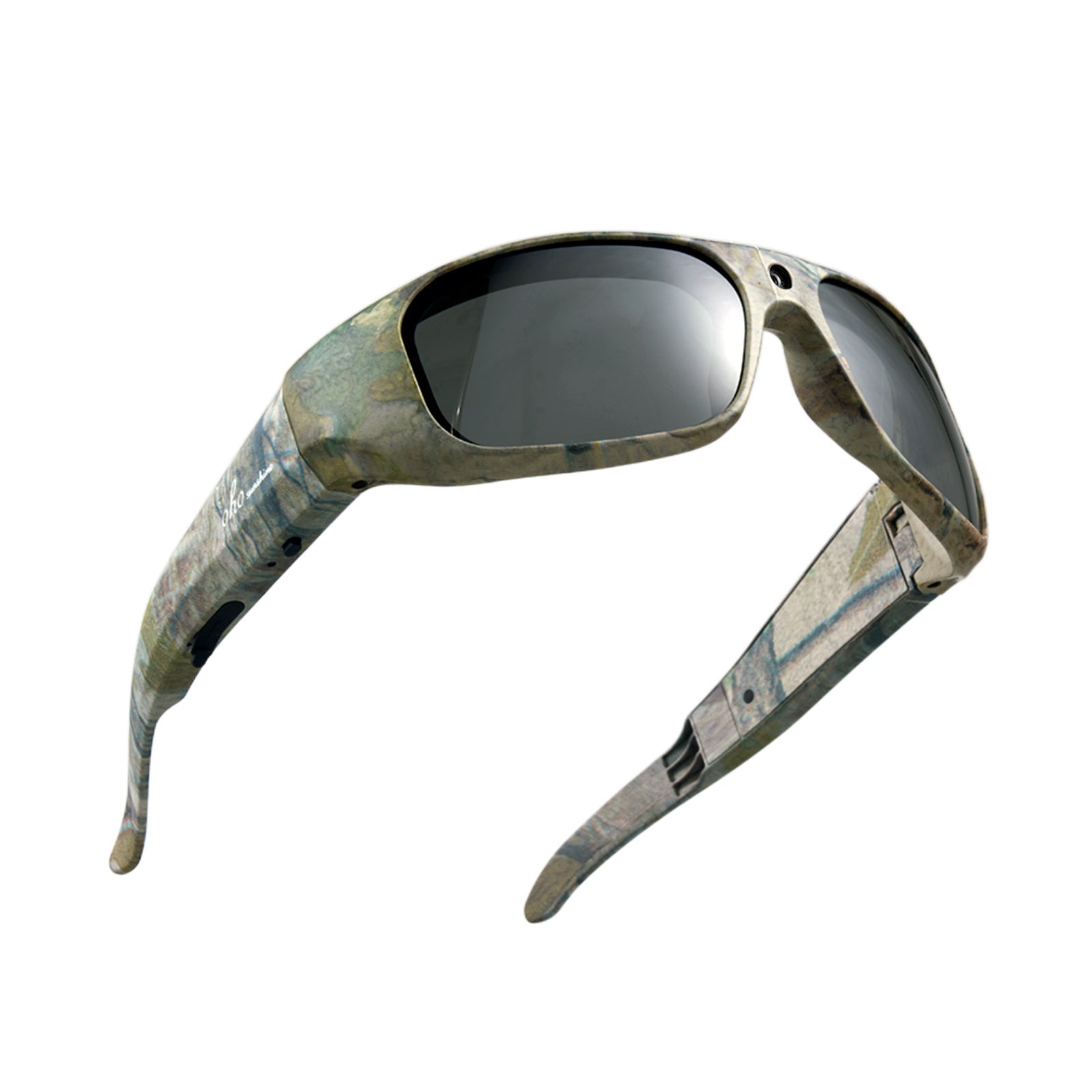


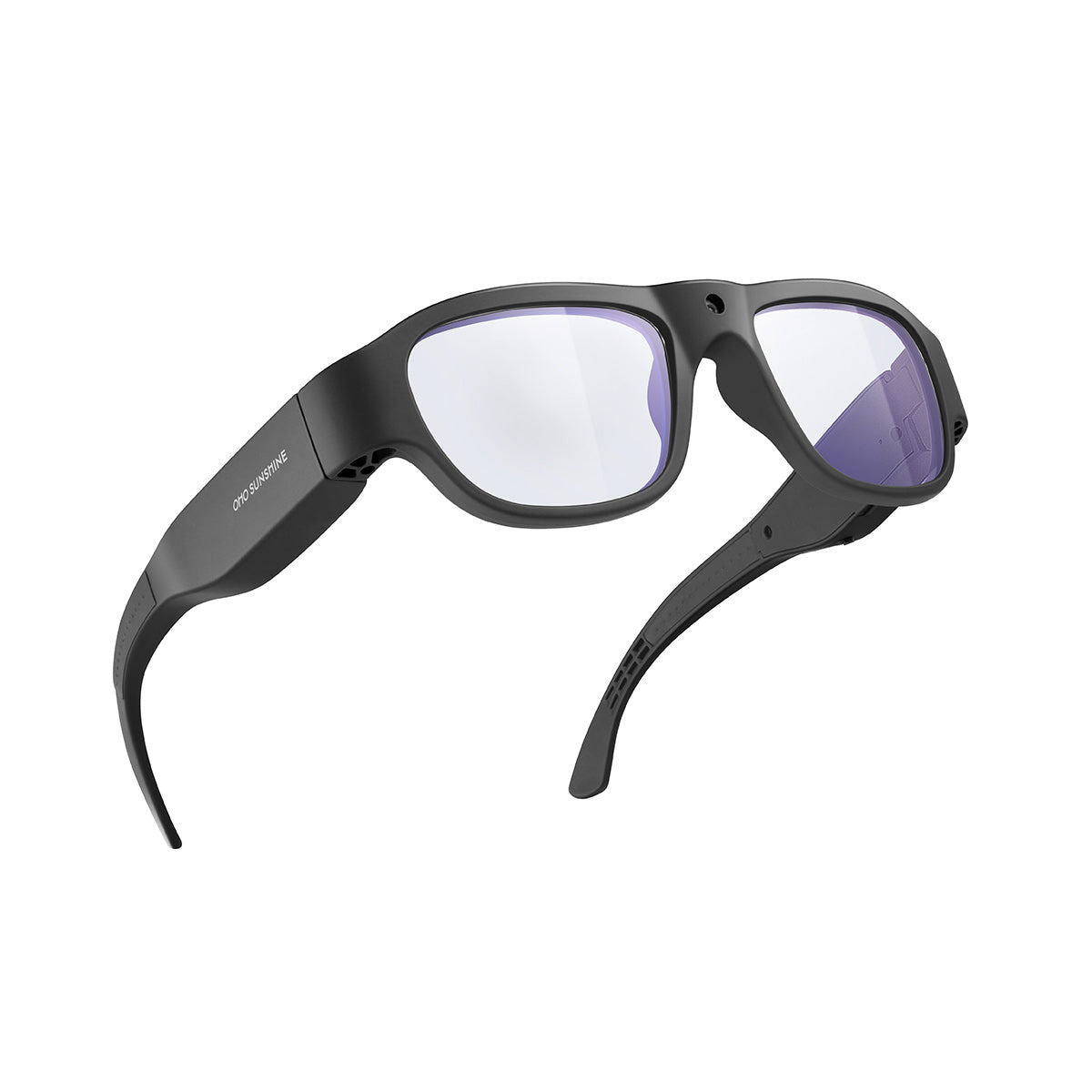

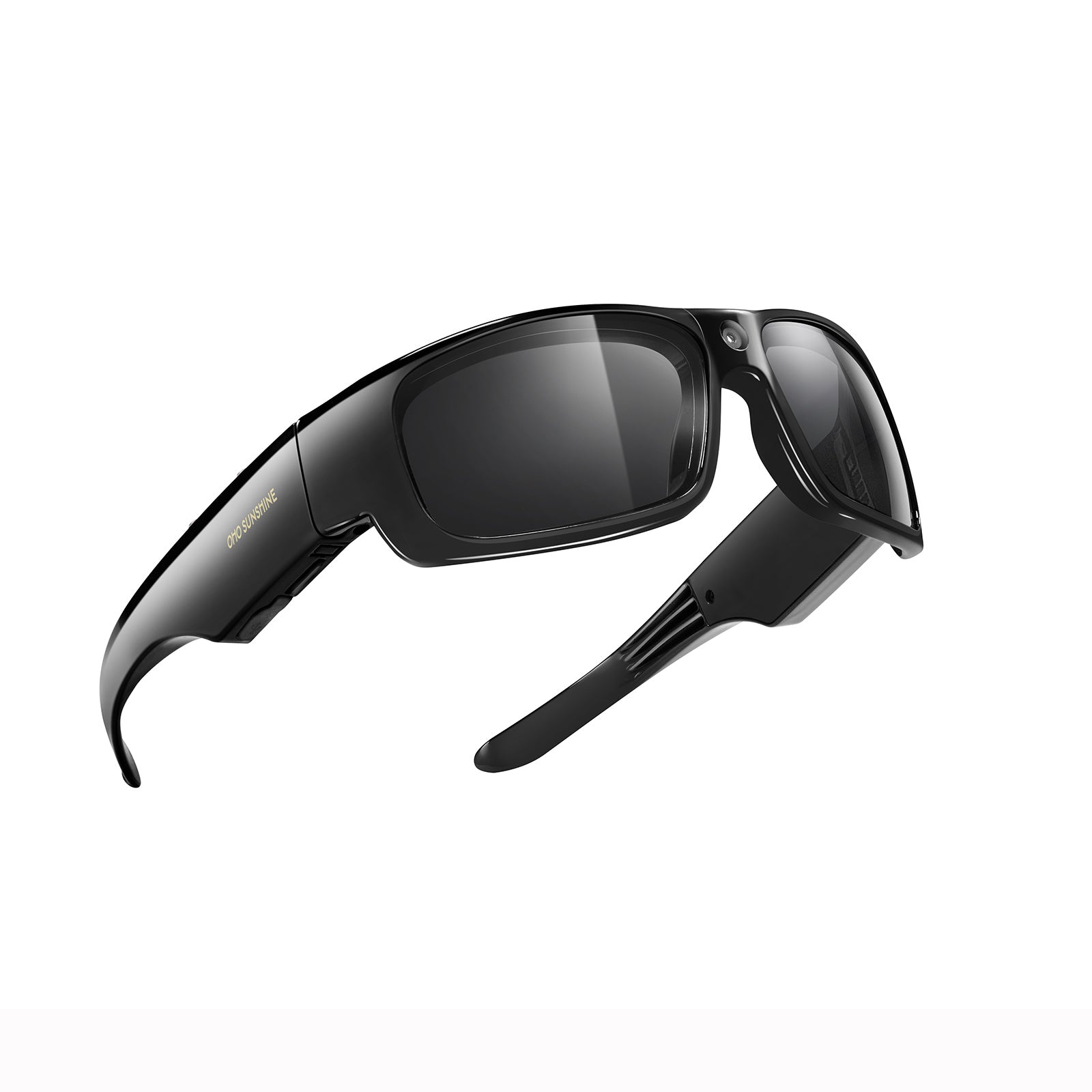


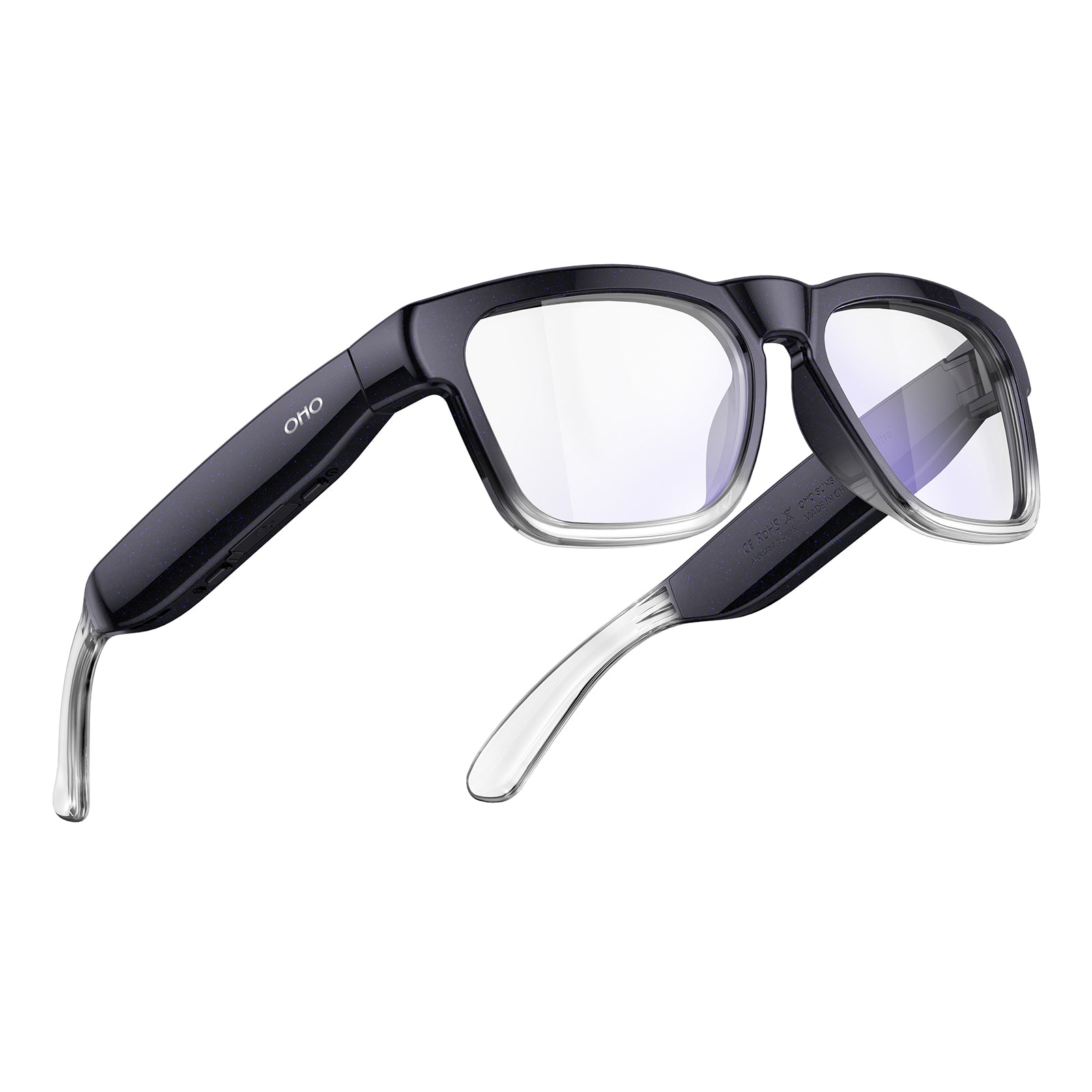







Grazie per aver scelto noi
Guida per l'utente
Prima di iniziare, dedica un momento alla lettura delle istruzioni per il tuo modello specifico. Illustrano la configurazione, l’utilizzo, la cura e la sicurezza, così puoi evitare gli errori più comuni, ottenere le migliori prestazioni e mantenere i tuoi occhiali in ottime condizioni a lungo.
Inizia in pochi minuti
Manuale di istruzioni
Trova a destra il manuale del tuo modello specifico. Tocca la freccia accanto al nome del prodotto per visualizzare il PDF. Se non sei sicuro di quale modello possiedi, controlla la confezione originale o il negozio presso cui l'hai acquistato.
Non riesci a trovare il tuo modello?
Cerca in questa pagina con Ctrl+F (PC) o "Trova nella pagina" (dispositivo mobile).
Occhiali con fotocamera 4K Brave
Edge Pro - Occhiali con fotocamera e traduzione IA
Occhiali per la traduzione GlobeEarAI
Occhiali con fotocamera Primex EIS-2K & EIS
Fotocamera Edge e occhiali Bluetooth
Occhiali con videocamera Full HD Vidsoul
Occhiali audio Bluetooth Elite
Occhiali audio Bluetooth Pulse
Occhiali per la traduzione Elingo-AI
Occhiali con fotocamera Focus-Full HD
- ee
- ee
- ee
Occhiali con fotocamera Livi-Full HD
Occhiali audio Bluetooth Ease
Occhiali audio Bluetooth Sunblazer
Skyshot-4K Occhiale da sci con fotocamera
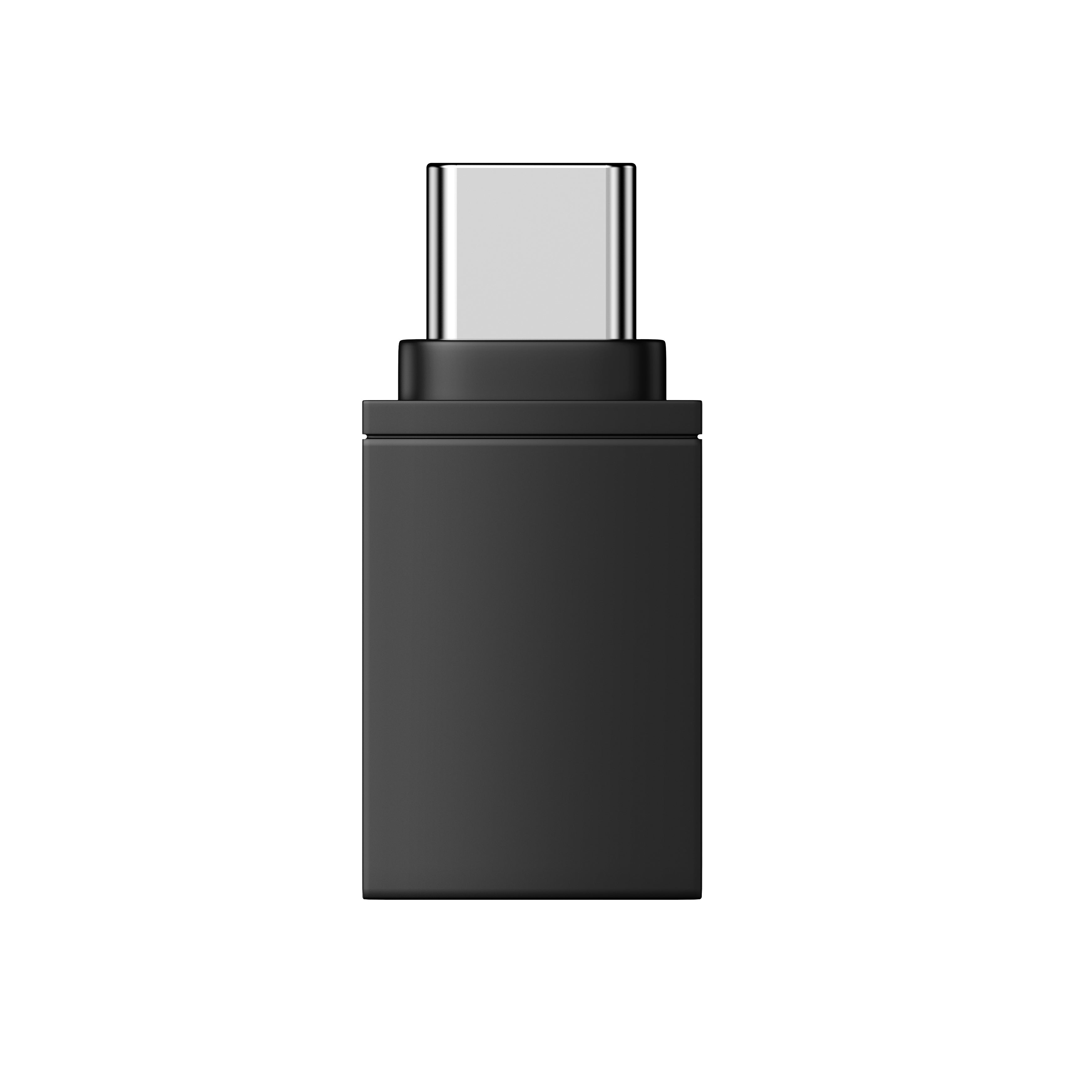
Adattatore OTG per occhiali OHO SUNSHINE
Video dimostrativi
Funzionamento generale


Trova il tuo modello. Guarda e impara.
Guide video per modello
Seleziona il tuo prodotto qui sotto per vedere tutorial video passo passo realizzati appositamente per quel modello. Dalla configurazione alle funzioni avanzate, ogni guida ti mostra tutto ciò che i tuoi occhiali possono fare.


Risoluzione dei problemi
Se il file config.txt si apre mostrando simboli illeggibili o lingue miste, di solito non è un problema del file. A volte Blocco note visualizza la formattazione in modo errato.
Prova così:
- Apri il file con WordPad (Windows) o TextEdit (Mac).
- Il contenuto dovrebbe apparire normalmente.
È solo un problema di visualizzazione - le impostazioni di configurazione sono intatte.
iPhone 13 Pro Max utilizza una porta Lightning, mentre i nostri occhiali e il cavo incluso utilizzano USB-C. Per collegarli, ti servirà un adattatore OTG da Lightning a USB-C, disponibile nella maggior parte dei negozi di elettronica o online.
Una volta procurato l’adattatore:
- Collega l’estremità USB-C del nostro cavo agli occhiali.
- Collega l’altra estremità all’adattatore OTG.
- Collega l’adattatore al tuo iPhone.
Il tuo iPhone riconoscerà gli occhiali e potrai accedere ai tuoi file tramite l’app File.
Gli occhiali OHO Sunshine dispongono di una memoria integrata che consente di acquisire e registrare video senza avere un telefono nelle vicinanze. Per visualizzare e trasferire questi file multimediali, puoi utilizzare la funzione OTG (On-The-Go), che consente al tuo smartphone di leggere gli occhiali come se fossero una normale unità flash USB.
Questo metodo non richiede app, Wi-Fi o computer - sono sufficienti il cavo incluso e uno smartphone compatibile.
Verifica della compatibilità:
Prima di iniziare, assicurati di avere un dispositivo compatibile. Questa funzione è disponibile sugli smartphone Android con USB-C e sui modelli di iPhone 15 o successivi
Istruzioni dettagliate:
1. Collega gli occhialiPrendi il cavo USB-C in dotazione e inseriscilo saldamente nella porta degli occhiali OHO Sunshine.
2. Collega l'adattatore OTGInserisci l'altra estremità del cavo (quella USB standard) nell'adattatore OTG.
3. Collega il telefonoInserisci l'adattatore OTG direttamente nella porta di ricarica dello smartphone. Il telefono dovrebbe riconoscere gli occhiali come memoria esterna e aprire automaticamente un'app di gestione dei file.
4. Accedi ai file multimedialiSe l'app di gestione dei file non si apre automaticamente, apri manualmente l'app File del telefono. Vai alla cartella DCIM, quindi seleziona la cartella Movie. Qui potrai visualizzare, copiare o trasferire i contenuti registrati direttamente sul dispositivo.

Il modello Elite non dispone di funzioni di IA o di traduzione, quindi non deve connettersi all’app OHO. Non è richiesto alcun codice di abbinamento.
L’app OHO è progettata per i nostri occhiali con traduzione tramite IA(Elingo, GlobeEar, Edge Pro). Se utilizzi Elite, puoi evitare completamente l’app.
Ecco la guida video.

Il tuo file video non è danneggiato. I nostri occhiali registrano utilizzando un codec ad alta efficienza (H.265/HEVC) che alcuni lettori multimediali predefiniti, come Windows Media Player o QuickTime, non riescono a decodificare correttamente. Ecco perché senti l'audio, ma vedi solo uno schermo nero.
La soluzione è semplice: usa VLC Media Player. È gratuito, funziona sia su Windows sia su Mac e gestisce tutti i codec video più comuni senza bisogno di configurazioni aggiuntive.
Scaricalo qui: https://www.videolan.org/vlc/
Una volta installato, apri il tuo video con VLC e dovrebbe essere riprodotto normalmente, con immagini e audio.
Segui questi passaggi per collegare i tuoi occhiali Livi e trasmettere video in diretta sul tuo telefono:
- Scarica l'app — Installa prima Vizen Cam sul tuo telefono.
- Accendi — Accendi gli occhiali. Il LED rosso lampeggerà.
- Attiva il Wi-Fi — Premi due volte il pulsante di accensione/funzione. Il LED blu resterà acceso, a indicare che la modalità Wi-Fi è attiva.
- Collega il telefono — Vai alle impostazioni Wi-Fi del telefono, trova una rete denominata "Sunglasses_xxxx" e connettiti.
- Trasmetti — Apri l'app Vizen Cam. Ora vedrai sul telefono la visualizzazione in diretta ripresa dai tuoi occhiali.
Per correggere l'ora e la data delle registrazioni, segui questi passaggi:
- Collega gli occhiali al computer utilizzando il cavo USB incluso.
- Apri l'unità denominata "glasses" e trova il file config.txt.
- Aprilo con un editor di testo come Blocco note.
- Modifica la prima riga da N a Y per abilitare la modalità di modifica.
- Aggiorna la seconda riga inserendo la data e l'ora corrette. Usa questo formato:
YYYYMMDD HHMMSS (Esempio: 20260115 143000) - Salva il file ed espelli in modo sicuro l'unità USB.
- Spegni e riaccendi gli occhiali. L'ora corretta apparirà ora in tutte le nuove registrazioni.
Contattaci
Hai ancora bisogno di aiuto?
Siamo qui per te. Contattaci in qualsiasi momento.


