














Gracias por elegirnos
Guía del usuario
Antes de comenzar, tómate un momento para leer las instrucciones de tu modelo específico. Cubre la configuración, el funcionamiento, el cuidado y la seguridad, para que pueda evitar errores comunes, obtener el mejor rendimiento y mantener sus gafas en excelentes condiciones a largo plazo.
Comience en minutos
Manual de instrucciones
Encuentre el manual de su modelo específico a la derecha. Toque la flecha junto al nombre de su producto para ver el PDF. Si no estás seguro de qué modelo tienes, consulta el embalaje original o la tienda donde lo compraste.
¿No encuentras tu modelo?Busque esta página con Ctrl+F (PC) o 'Buscar en la página' (móvil).
Edge Gafas de traducción Pro-Camera e IA
Gafas de traducción GlobeEarAI
Gafas para cámara Primex EIS-2K y EIS
Edge-Cámara y gafas Bluetooth
Vidsoul-Gafas con cámara Full HD
Elite-Gafas de audio Bluetooth
Pulse-Gafas de audio Bluetooth
Elingo-Gafas de traducción AI
Focus-Gafas con cámara Full HD
- ee
- ee
- ee
Livi-Gafas con cámara Full HD
Ease-Gafas de audio Bluetooth
Sunblazer-Gafas de audio Bluetooth
Skyshot-Gafas de esquí con cámara 4K
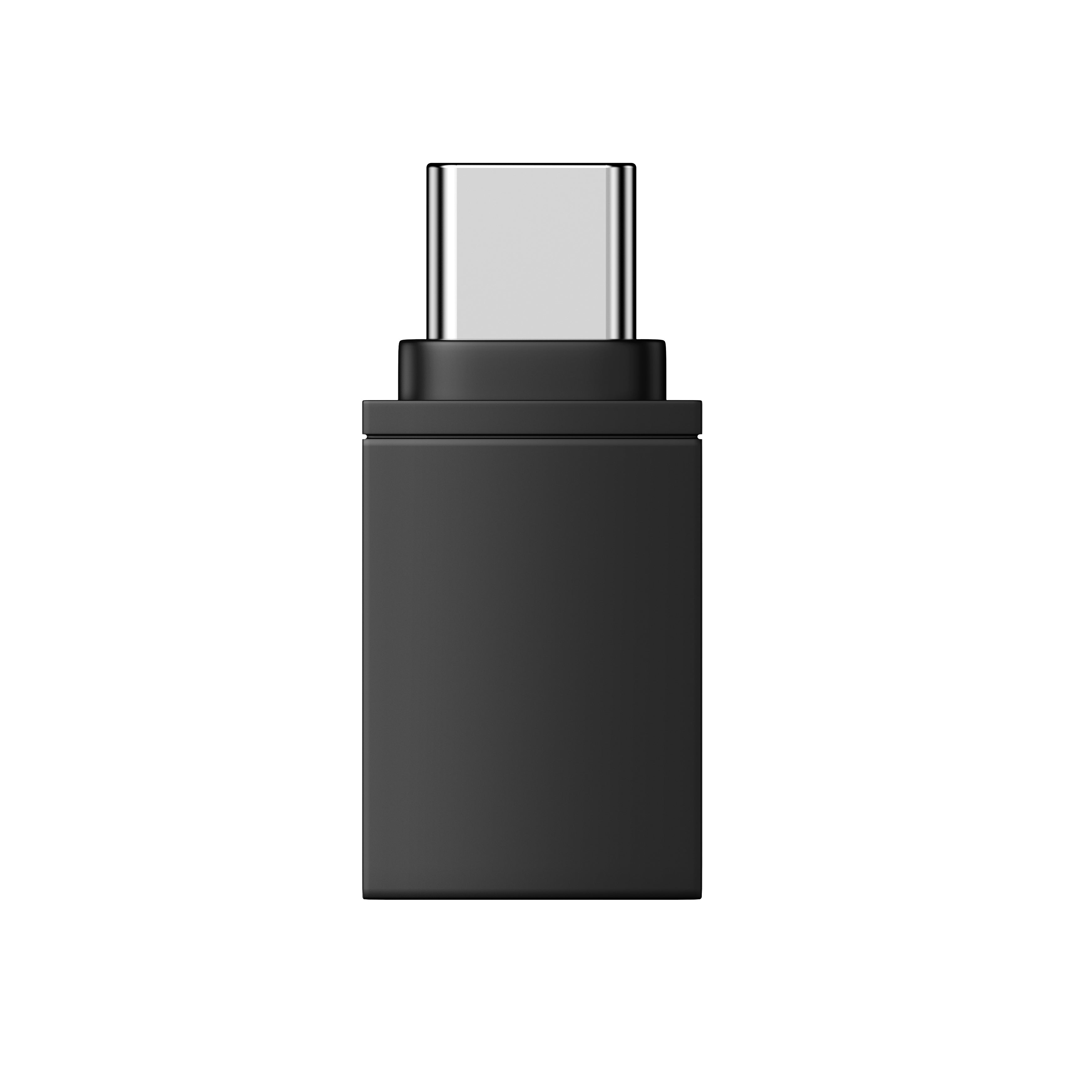
Adaptador OTG para gafas OHO SUNSHINE
Vídeos instructivos
Funcionamiento general


Encuentra tu modelo. Mira y aprende.
Guías en vídeo por modelo
Seleccione su producto a continuación para ver tutoriales en video paso a paso creados específicamente para ese modelo. Desde la configuración hasta las funciones avanzadas, cada guía le explica todo lo que sus gafas pueden hacer.


Solución de problemas
Si tu archivo config.txt se abre con símbolos ilegibles o una mezcla de idiomas, normalmente no es un problema del archivo en sí. A veces, el Bloc de notas muestra el formato incorrectamente.
Prueba lo siguiente:
- Abre el archivo con WordPad (Windows) o TextEdit (Mac).
- El contenido debería aparecer con normalidad.
Es solo un problema de visualización; la configuración permanece intacta.
El iPhone 13 Pro Max utiliza un puerto Lightning, mientras que nuestras gafas y el cable incluido utilizan USB-C. Para conectarlos, necesitarás un adaptador OTG de Lightning a USB-C, disponible en la mayoría de las tiendas de electrónica o en línea.
Una vez que tengas el adaptador:
- Conecta el extremo USB-C de nuestro cable a las gafas.
- Conecta el otro extremo al adaptador OTG.
- Conecta el adaptador al iPhone.
Tu iPhone reconocerá las gafas y podrás acceder a tus archivos mediante la aplicación Archivos.
Las gafas OHO Sunshine cuentan con almacenamiento integrado, lo que te permite capturar y grabar videos sin necesidad de tener un teléfono cerca. Para ver y transferir este contenido, puedes utilizar la función OTG (On-The-Go), que permite que tu smartphone lea las gafas como si fueran una unidad flash USB estándar.
Este método no requiere aplicaciones, Wi-Fi ni computadora: solo el cable incluido y un smartphone compatible.
Comprobación de compatibilidad:
Antes de comenzar, asegúrate de tener un dispositivo compatible. Esta función es compatible con teléfonos Android con USB-C y modelos de iPhone 15 o posteriores
Instrucciones paso a paso:
1. Conecta las gafasToma el cable USB-C proporcionado y conéctalo firmemente al puerto de tus gafas OHO Sunshine.
2. Conecta el adaptador OTGInserta el otro extremo del cable (el extremo USB estándar) en el adaptador OTG.
3. Conecta el teléfonoConecta el adaptador OTG directamente al puerto de carga de tu smartphone. Tu teléfono debería reconocer las gafas como almacenamiento externo y abrir automáticamente una aplicación de exploración de archivos.
4. Accede a tu contenidoSi el explorador de archivos no se abre automáticamente, abre manualmente la aplicación Archivos de tu teléfono. Ve a la carpeta DCIM y, luego, selecciona la carpeta Movie. Allí podrás ver, copiar o transferir el contenido grabado directamente a tu dispositivo.

El modelo Elite no tiene funciones de IA ni de traducción, por lo que no necesita conectarse a la aplicación OHO. No se requiere ningún código de emparejamiento.
La aplicación OHO está diseñada para nuestras gafas de traducción con IA(Elingo, GlobeEar, Edge Pro). Si usas Elite, puedes omitir la aplicación por completo.
Aquí tienes el vídeo de la guía.

Tu archivo de vídeo no está dañado. Nuestras gafas graban con un códec de alta eficiencia (H.265/HEVC) que algunos reproductores multimedia predeterminados, como Windows Media Player o QuickTime, no pueden decodificar correctamente. Por eso oyes el sonido, pero solo ves una pantalla negra.
La solución es sencilla: usa VLC Media Player. Es gratuito, funciona tanto en Windows como en Mac y admite todos los códecs de vídeo habituales sin necesidad de configurarlo.
Descárgalo aquí: https://www.videolan.org/vlc/
Una vez instalado, abre tu vídeo con VLC y debería reproducirse con normalidad, tanto la imagen como el sonido.
Sigue estos pasos para conectar tus gafas Livi y transmitir vídeo en directo a tu teléfono:
- Descarga la aplicación — Instala primero Vizen Cam en tu teléfono.
- Enciende las gafas — Enciende tus gafas. El LED rojo parpadeará.
- Activa el Wi-Fi — Pulsa dos veces el botón de encendido/función. El LED azul permanecerá encendido, lo que indica que el modo Wi-Fi está activo.
- Conecta tu teléfono — Ve a los ajustes de Wi-Fi de tu teléfono, busca una red llamada "Sunglasses_xxxx" y conéctate a ella.
- Transmite — Abre la aplicación Vizen Cam. Ahora verás en tu teléfono la vista en directo de tus gafas.
Para corregir la hora y la fecha de tus grabaciones, sigue estos pasos:
- Conecta tus gafas al ordenador mediante el cable USB incluido.
- Abre la unidad llamada "glasses" y busca el archivo config.txt.
- Ábrelo con un editor de texto como el Bloc de notas.
- Cambia la primera línea de N a Y para activar el modo de edición.
- Actualiza la segunda línea con la fecha y hora correctas. Usa este formato:
YYYYMMDD HHMMSS (Ejemplo: 20260115 143000) - Guarda el archivo y expulsa la unidad USB de forma segura.
- Apaga y vuelve a encender tus gafas. La hora correcta aparecerá ahora en todas las grabaciones nuevas.
Contáctenos
¿Aún necesitas ayuda?
Estamos aquí para ti. Comuníquese en cualquier momento.


