


















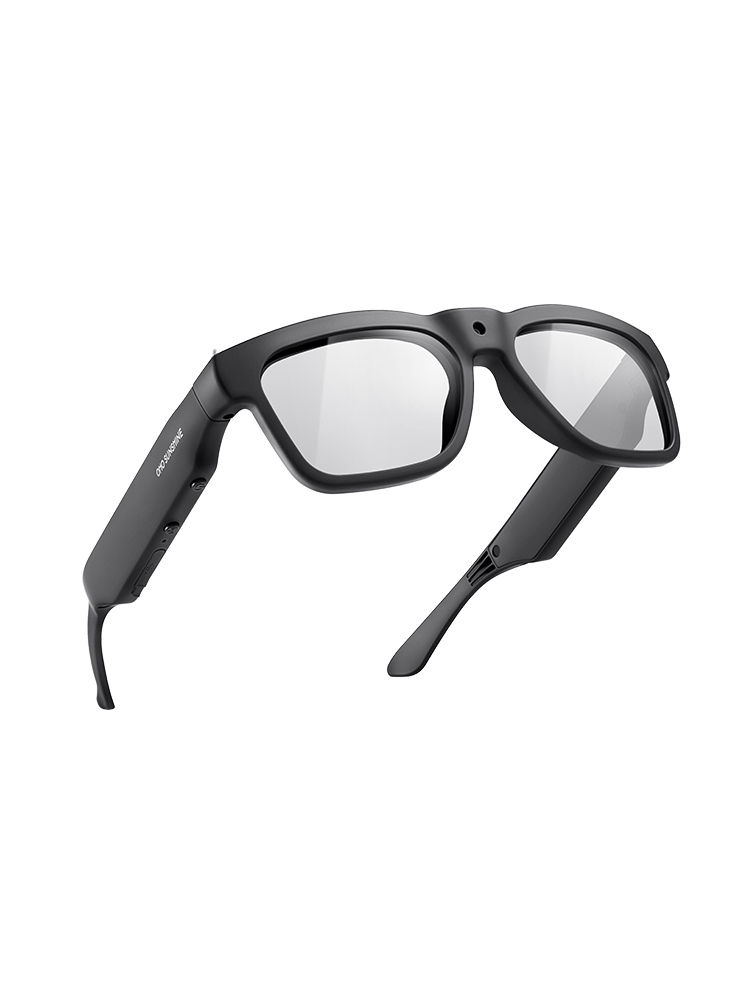

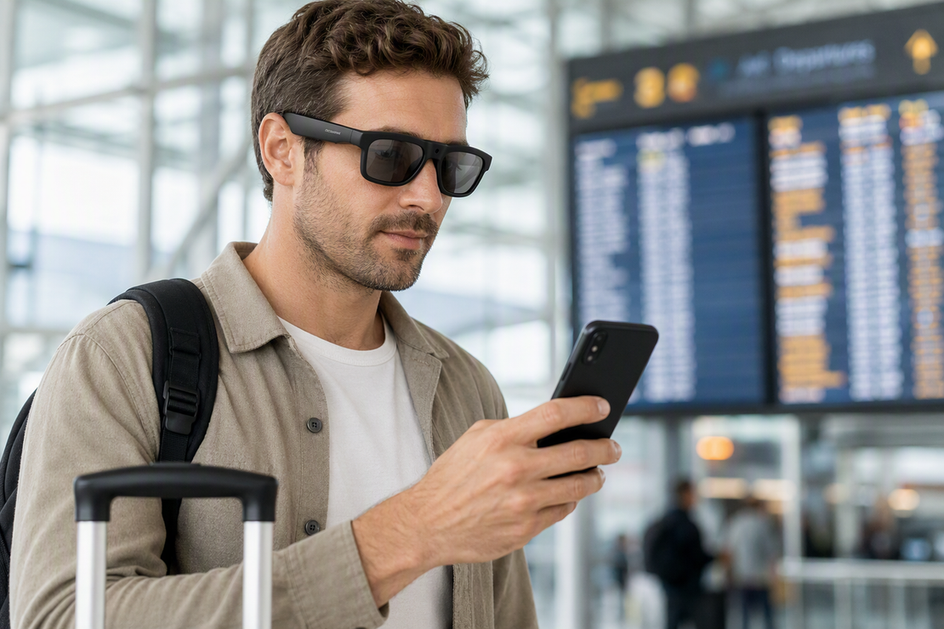
Travelers often assume AI translation glasses work anywhere, but connectivity rules vary by device and language. This guide explains when translation glasses need Wi-Fi, when phone data is enough, and when a true offline language pack is required. You will learn how Bluetooth, companion apps, and cloud services interact, plus a simple way to verify offline readiness before you leave home. The goal is a clear, testable plan so you are never caught without a working translation option mid-trip.
Do AI Translation Glasses Work Without Wi-Fi?
AI translation glasses do not automatically require Wi-Fi. If your phone can reach a translation service through mobile data, the workflow still counts as connected, even without a Wi-Fi network nearby. True no-internet translation is a different claim: it only holds when the exact glasses, companion app, and language have documented offline or local processing that you have tested yourself; Bluetooth, a built-in camera, or a voice-controlled app does not prove it.
The table below sorts the three realistic travel situations so you can match your trip to the right expectation before you pack.
| Connection Path | What It Actually Needs | Travel Fit |
|---|---|---|
| Wi-Fi connected | A network you can join and an online translation service | Good for hotels, cafes, and most indoor stops |
| Phone mobile data | A working data plan or local SIM, glasses paired to that phone | Good for roaming trips where Wi-Fi is spotty |
| No internet, no verified pack | Documented offline/local processing for that exact language and app | Only safe if you tested it at home first; otherwise treat it as unsupported |
If your trip includes stretches with no Wi-Fi and unreliable mobile data, do not lean on an offline claim you have not confirmed. Carry a phone-based backup and a short list of saved phrases so a dead connection never leaves you stuck.
How Translation Glasses Connect: Phone, App, Bluetooth, and Data
Pairing is only the first layer. The next two sections break down what your phone and app actually need to do, since each one can quietly require an internet connection even after the glasses are paired.
Bluetooth Is Not the Same as Internet Access
Bluetooth describes the short-range link between your glasses and your phone, not whether translation itself needs the internet. A Bluetooth version number or an open-ear speaker spec tells you about audio and pairing, not about where the actual translation processing happens. Some glasses use that Bluetooth link only to send audio to a phone app, which then reaches an online service to do the translating. Others may process more locally. You cannot tell which is true from the Bluetooth spec alone, so check the manual or the app's own setup flow for a direct statement about the translation feature, not just about calls or music.
The Phone and Companion App May Be Part of the Translation Loop
Before you travel, confirm these four things with your specific glasses and phone:
- Whether the phone is needed only during initial setup, or stays required every time you translate, including for displaying text and downloading languages.
- Whether your phone's operating system, app version, and any required account or permissions are all current and installed.
- Whether the translation feature specifically, not just the app in general, opens and runs when you test it.
- Whether mobile data can substitute for Wi-Fi during your intended task, since some services behave differently on cellular networks.
Running through this list once, using our smart glasses connection checklist, catches most surprises before departure rather than mid-trip.
Cloud, Offline, and Hybrid Translation Compared
Most translation-glasses features fall into one of three modes, and each one comes with a different travel limitation. Compare them before you decide how much connectivity you actually need.
| Mode | Internet Path | What to Verify | Travel Limitation |
|---|---|---|---|
| Cloud-based | Wi-Fi or phone mobile data reaching an online service | That the app can reach the service on your intended network | Least workable assumption for trips with no dependable signal |
| Offline/local | None once the language pack is downloaded | That the exact language and direction have a documented download option | Coverage is language-specific, not guaranteed by a total language count |
| Hybrid | Some tasks local, others still need a connection | Which specific languages or features fall on each side | Behavior can differ by language, so test the one you need |
A large advertised language count usually describes connected coverage, not offline coverage. If a product page lists total languages without separately naming which ones download for offline use, treat that number as a cloud-mode figure and verify offline support on its own.
How to Verify Offline Language Packs Before Travel
Run this four-step check before you rely on any glasses for a no-internet task.
- Name the exact source and target language, the direction you need, and whether you need single-phrase or full conversation translation.
- Look at the current manual or app documentation for that model and confirm it states the feature works without internet for your language, rather than assuming it from a general spec sheet.
- Confirm your phone, app version, and any required account are ready, then test the intended workflow at home with Wi-Fi on, and again with Wi-Fi and mobile data both turned off.
- Score the result: ready if the offline test passed, connected-only if it needs a network, or not verified if documentation is silent or the test failed.
For a documented fallback rule, Google confirms that downloaded languages can work offline on a phone, and any language without a download option cannot be used offline. That rule applies to phone-based translation apps directly; it does not by itself confirm offline support for any translation glasses, so keep your model-specific test as the deciding factor.
Why Live Translation Stops Working or Feels Delayed
A stalled translation can come from several layers even while the glasses still have power and stay paired. Work through the network path first, then the app and language settings, before assuming anything is broken.
Check the Connection Path First
- Confirm your phone actually has the Wi-Fi or mobile-data path you expect, and that airplane mode or a roaming limit is not quietly blocking it.
- Check that the glasses are still paired to that same phone, not a different device nearby.
- Retry the translation task once the data path is restored, instead of changing several settings at once.
Then Check the App, Language, and Service
- Confirm the companion app is open, updated if required, and set to the language direction you actually need.
- Check whether the feature you selected is one that needs an online service, since some modes depend on it more than others.
- If translation does not recover quickly, switch to your prepared phone-based translator or saved phrases rather than continuing to troubleshoot in the moment.
What to Do When Translation Fails While Traveling
When the glasses or your connection let you down, work through this sequence in order:
- Open your phone's translation app and try the same task there.
- If you verified a downloaded offline language pack in advance, switch to that pack instead of waiting on a signal.
- Show saved key phrases or written destination details for the specific situation.
- Use gestures, writing, or a translation card as a last resort when digital tools stall.
- Return to the glasses only once your connection is confirmed stable again.
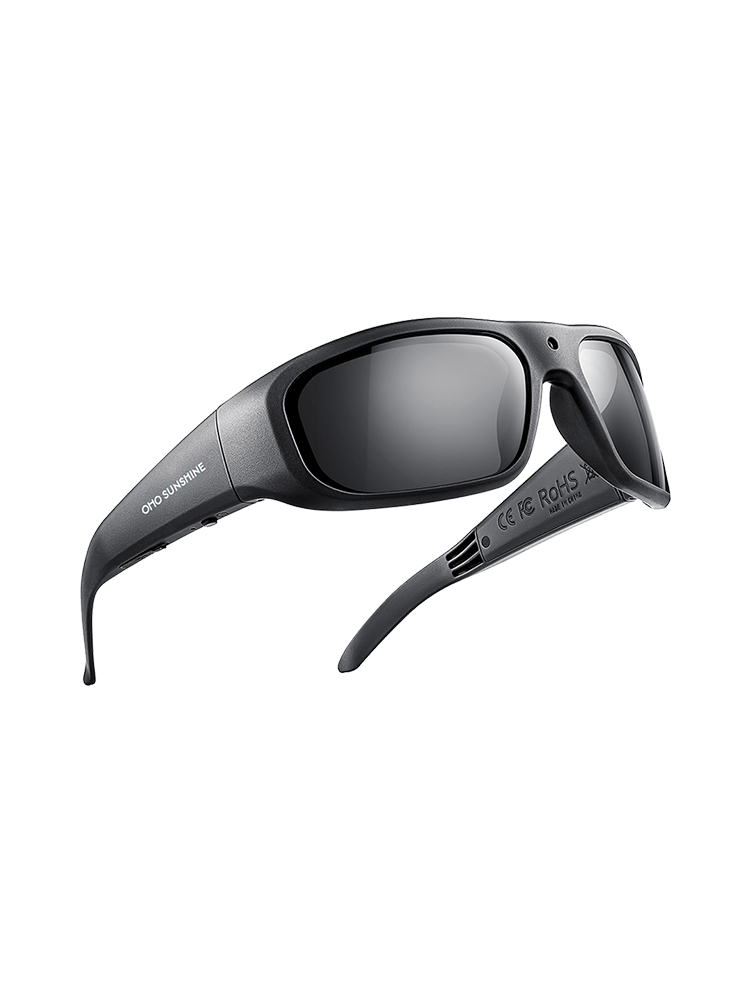
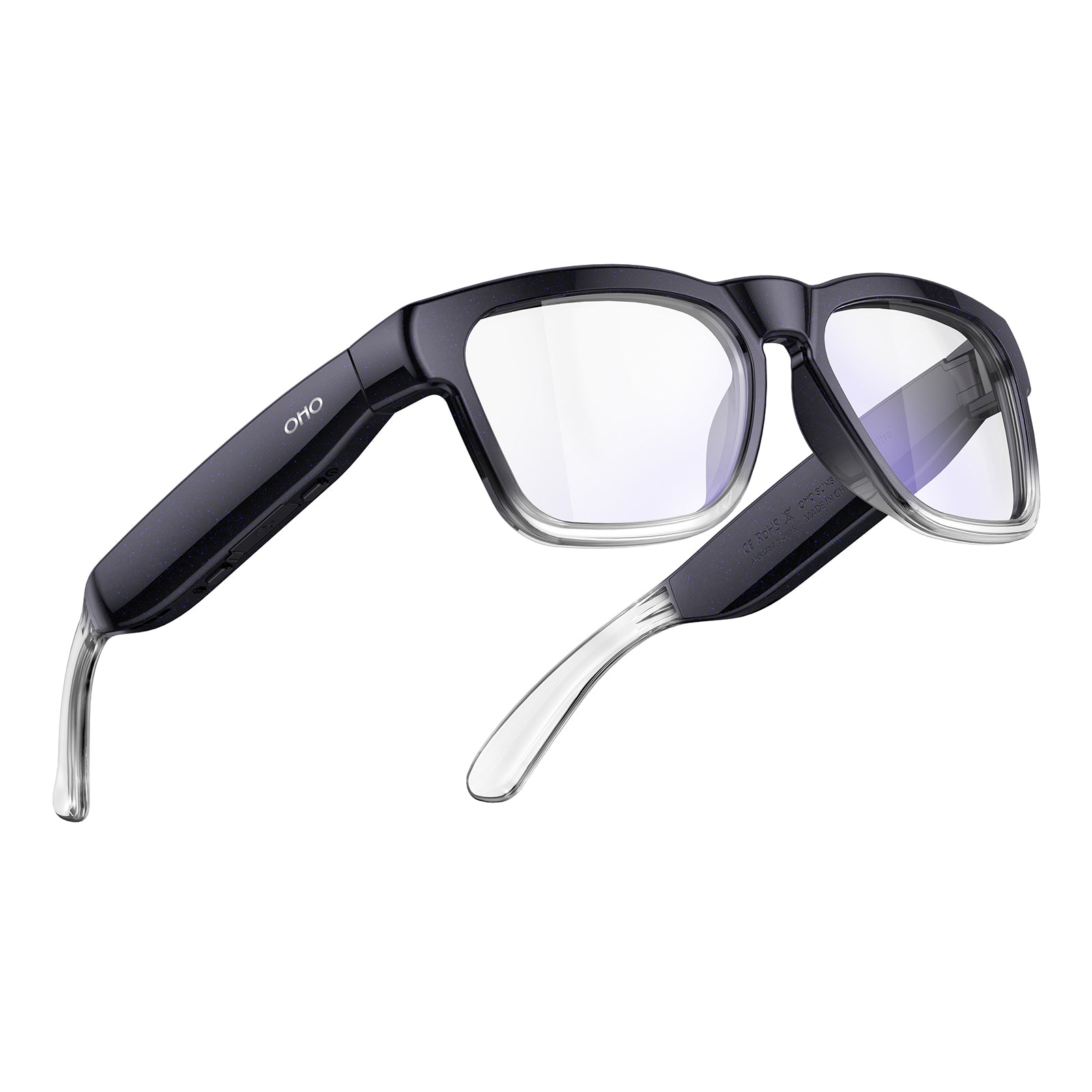
For travelers who expect steady Wi-Fi or mobile data and want a hands-free connected option, our Edge Pro translation glasses listing states real-time, two-way translation and Bluetooth 5.3, along with app control and a 4K camera for capturing the trip. Choose it for connected use, not for an unverified off-grid translation task. If you want to compare connected options side by side, our translation glasses collection lists the current Bluetooth and camera configurations we carry.
FAQs
Do AI translation glasses work without Wi-Fi?
Before departure, turn off Wi-Fi and mobile data on the intended phone, open the translation task, and try the language direction you plan to use. If the glasses stop at setup or request a connection, treat them as a connected tool for that trip.
Do translation glasses need a phone or mobile data?
On the intended phone, review the app's listed system requirements and permissions, then open the translation feature rather than testing only calls or music. This confirms whether your planned phone can support the task before you leave.
How do I know whether translation glasses support offline language packs?
If the offline test passes, keep the same phone, language direction, and app setup together for travel. If it fails or the documentation is silent, add a phone-based translator and saved phrases to your packing list instead of relying on the glasses alone.
Why does live translation stop working or feel delayed?
Give the setup one recovery attempt by restoring the expected connection, reopening the app, and reselecting the language. If translation still does not return, stop troubleshooting in the moment and switch to your prepared phone or phrase fallback.



Dejar un comentario
Este sitio está protegido por hCaptcha y se aplican la Política de privacidad de hCaptcha y los Términos del servicio.