



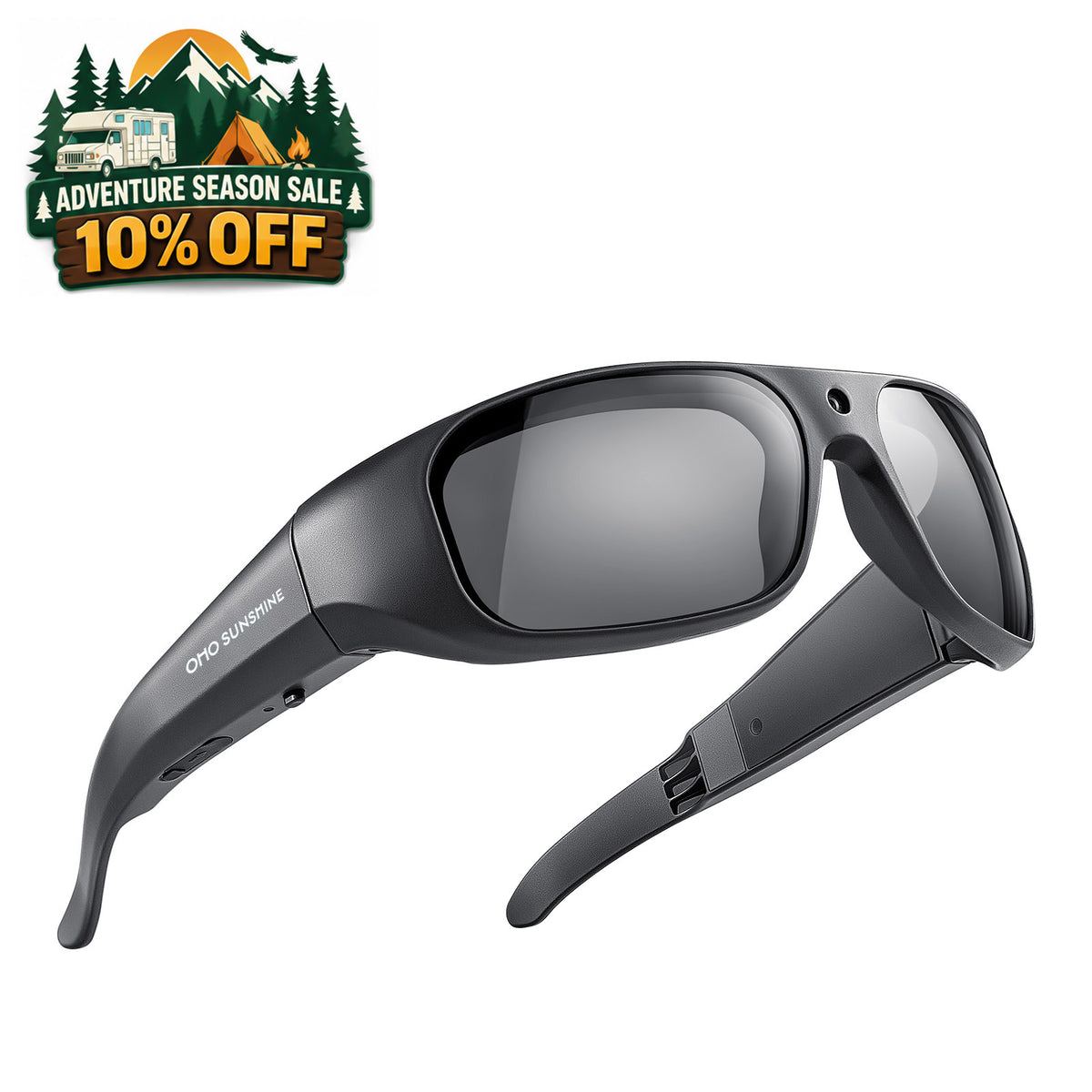


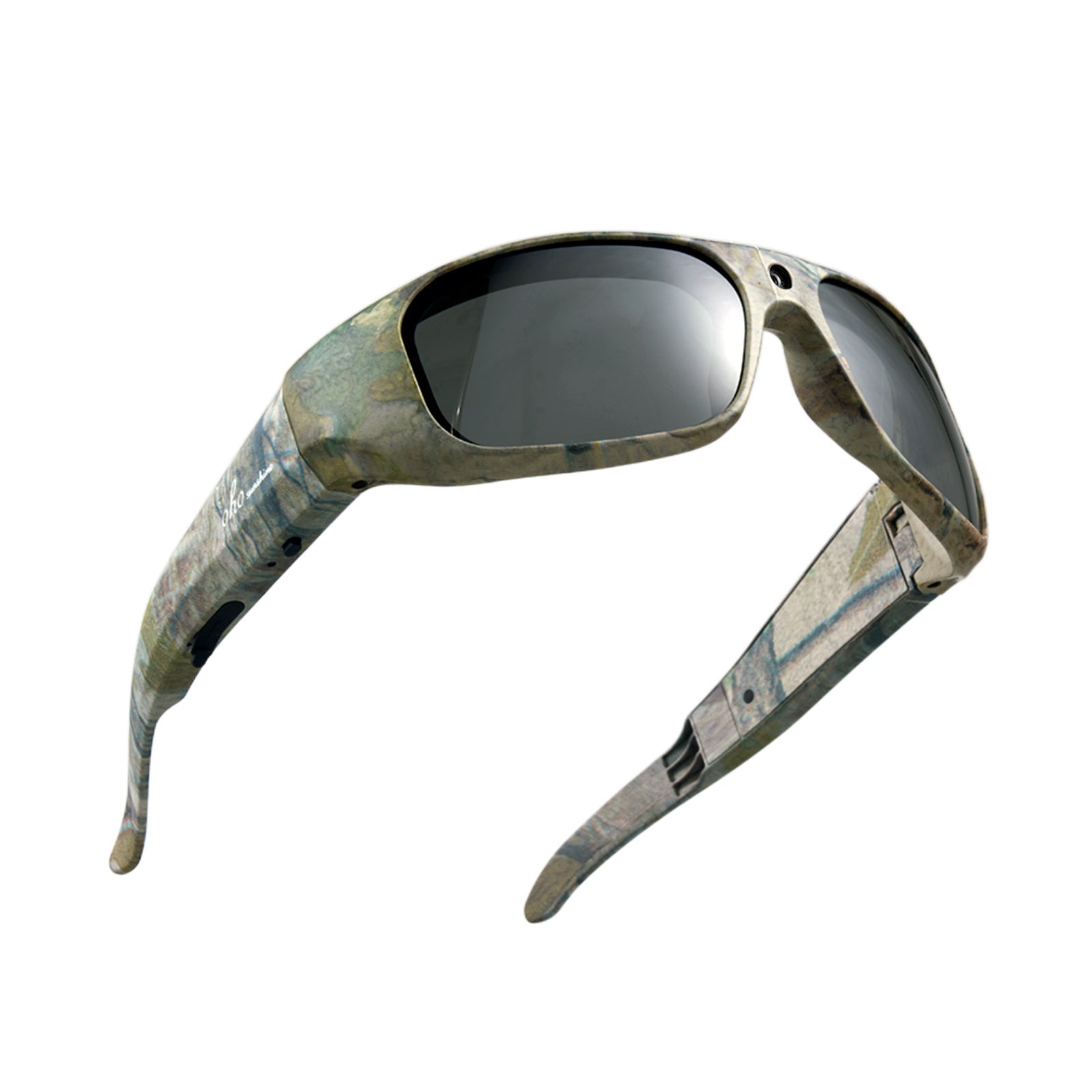


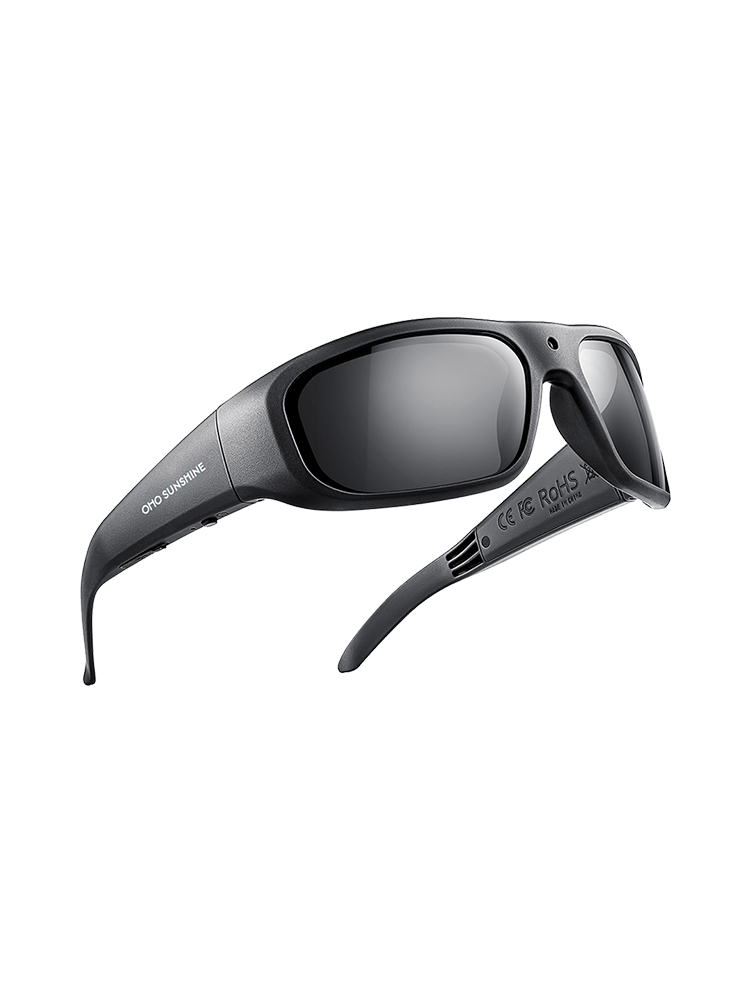


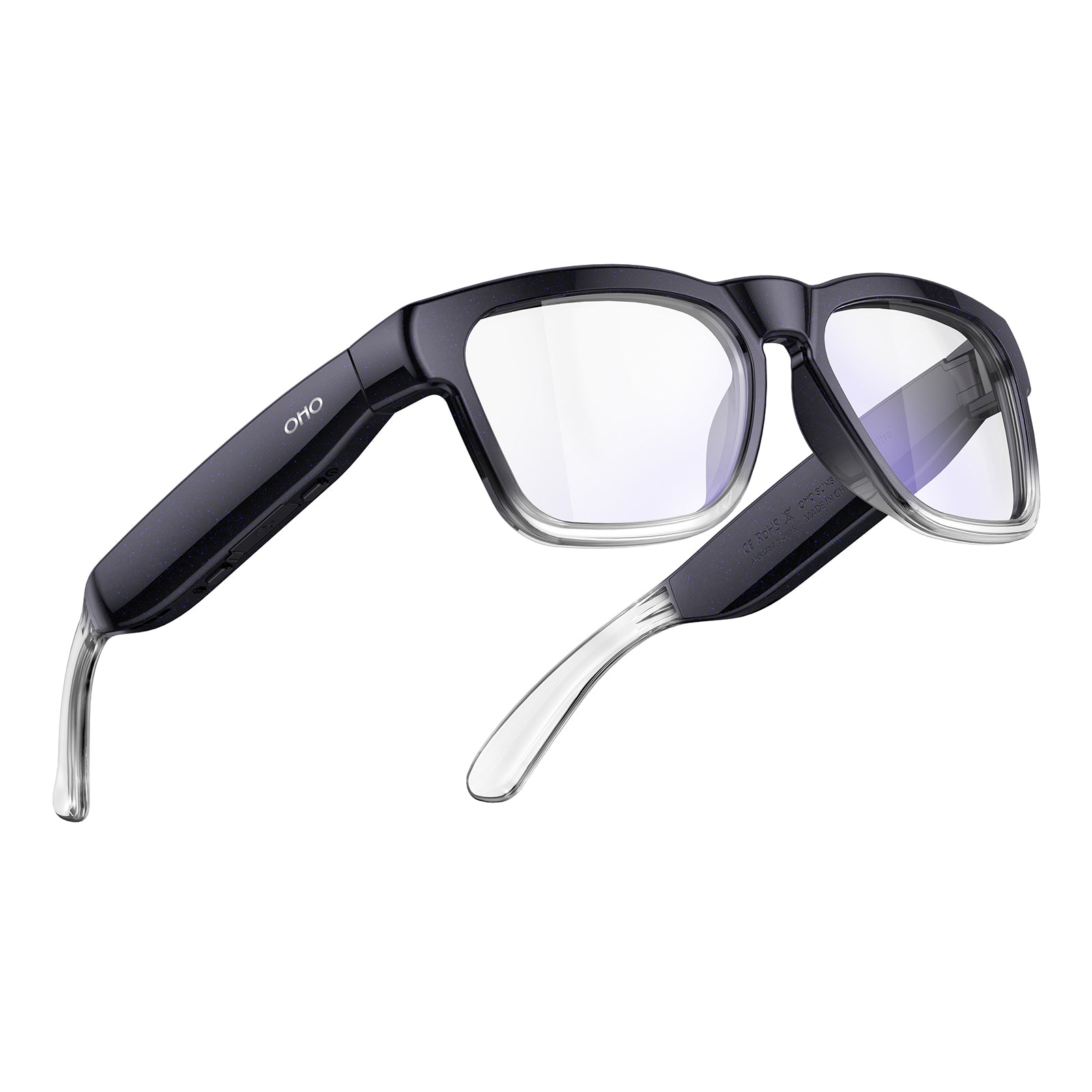

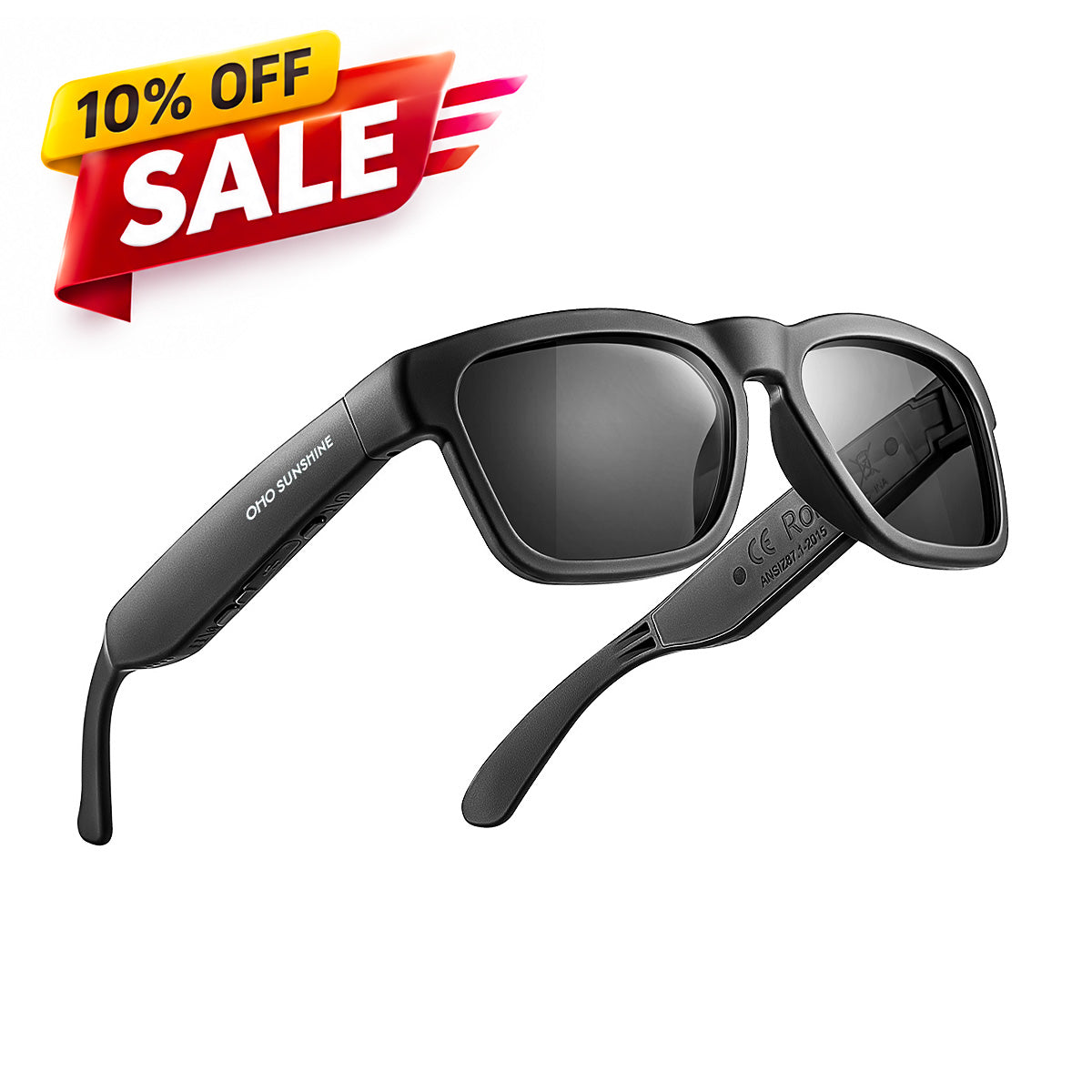


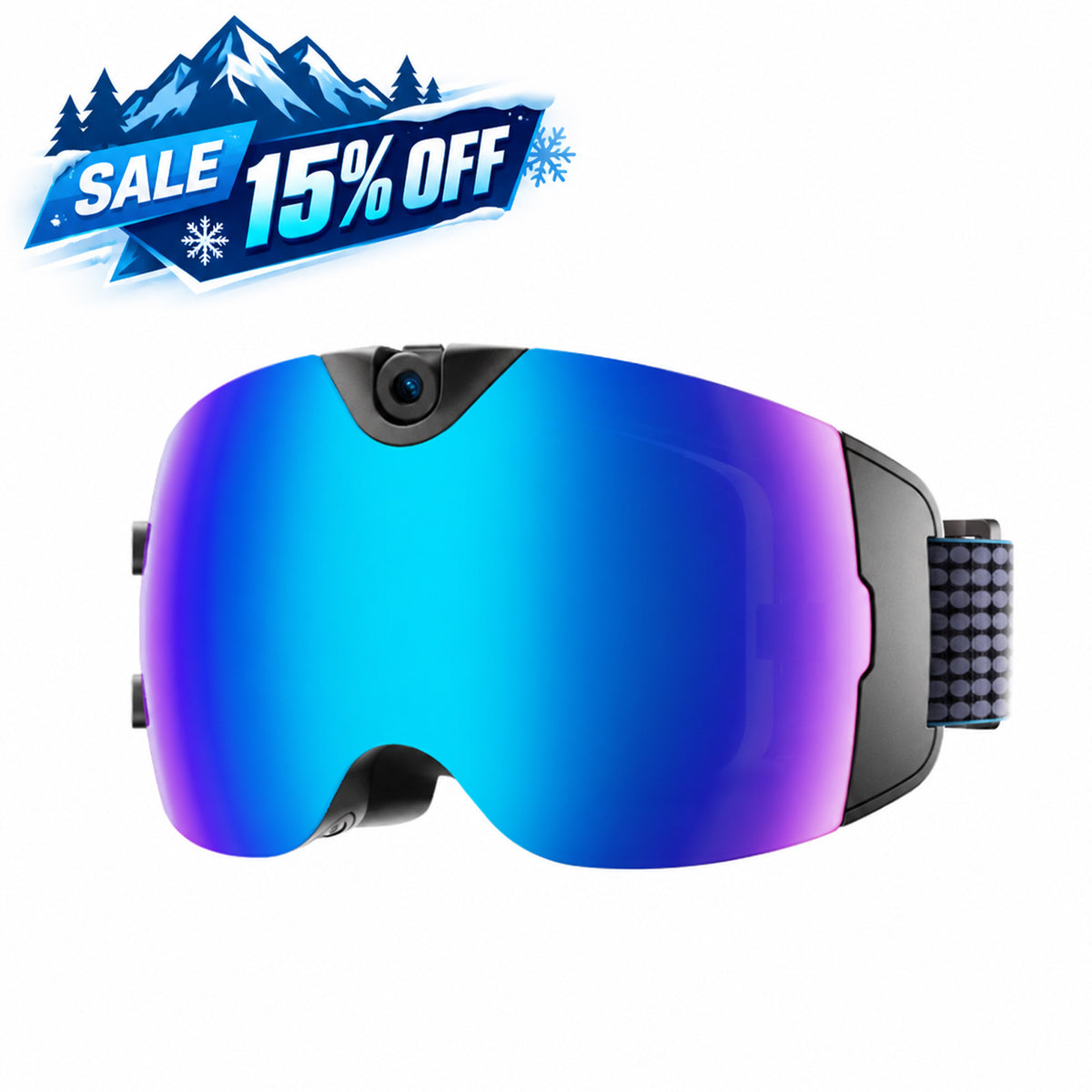
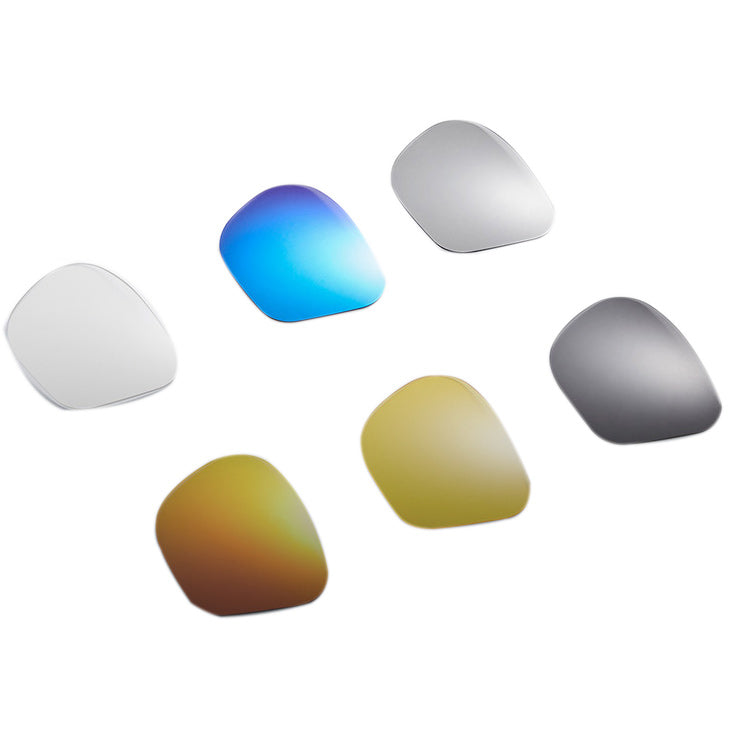
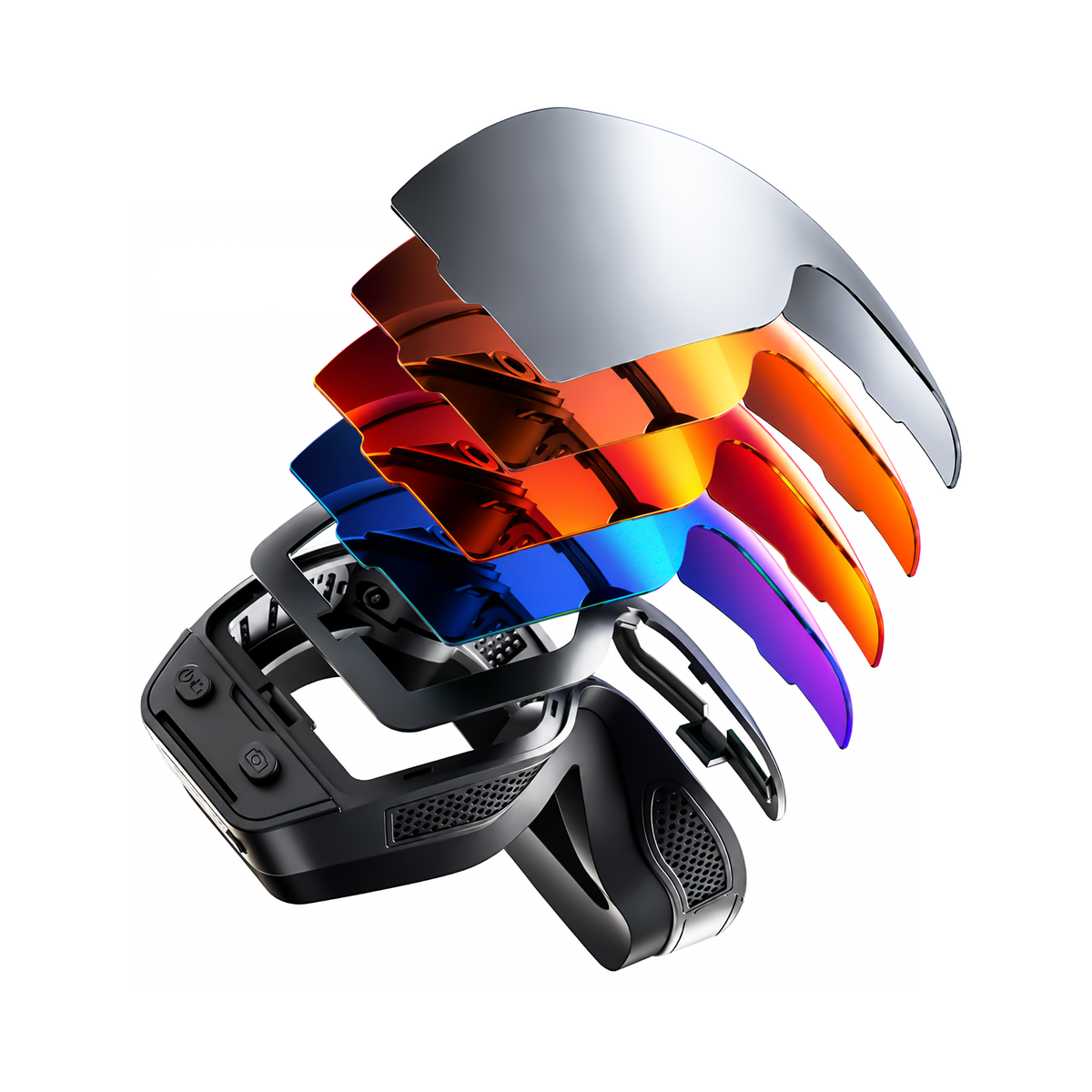



The fastest reliable method is route, record, replay, transfer, and label. Walk the property in a fixed order, film the boundary or condition tied to each proposed task, then replay the clip on the spot before you move on. Video from cell phone video glasses supplements your measurements and written notes for the proposal; it does not replace them, and the phone-export path needs testing before you rely on it at a paying job.
Film the Estimate in a Repeatable Property-Walkthrough Sequence
Treat the walkthrough as a fixed route with a scope check at every stop, not a free-form recording. The footage only earns its place in the proposal when the boundary or condition you need is still visible after you replay it.
Plan the Route and Scope Before Recording
Set the same order every time so nothing gets skipped and the client can follow the footage later.
- Confirm the client or site allows recording, and skip or stop filming if people, windows, or private areas that aren't part of the estimate enter the shot.
- Walk the property in a fixed order: arrival and general context, then each work area such as lawn, planting beds, hardscape, drainage, and access routes.
- At each area, capture the existing condition and the boundary that affects the proposed work, such as a bed edge, a slope, or a gate.
- Keep your tape measure, notes, or sketch pad running alongside the camera. A formal landscaping estimate site visit should still capture the measurements and visible conditions that drive the estimate, and video works best as a supplement to that written record rather than a stand-in for it.
- Note or say the area name at the start of each clip so it's easy to match to a proposal line item later.
Frame Each Area and Review Shade-to-Sun Transitions
A clip earns its keep only when the intended edge or condition is still identifiable on replay, especially after the light changes. Start each clip with enough context to place the area, then hold steady or move slowly across the exact boundary, drainage line, or access point that affects your quote. This matters most when your route crosses from a shaded side yard into direct sun, or from a bright driveway into a shadowed side gate.
Before you leave each stop, replay the clip and check whether the relevant detail is still visible once the camera has adjusted to the new light. If a bed edge disappears in glare or a drainage line goes dark in shadow, retake that section or add a closer clip and a written note instead of trusting the file as-is. This same review habit also protects footage quality generally; our guide on stable POV video covers pacing and steadiness checks that pair well with this light test. Because you're recording on someone's property, it's also worth running through our privacy consent checklist before the first job so consent and scope stay consistent across every walkthrough.

Transfer Clips to Your Phone and Judge Camera-Glasses Fit
Getting clips onto your phone is a compatibility workflow, not an automatic Bluetooth feature. Confirm the glasses' actual app, storage, or cable route first, then use your phone's built-in fallback if needed.
Use the Supported Export Path for iPhone or Android
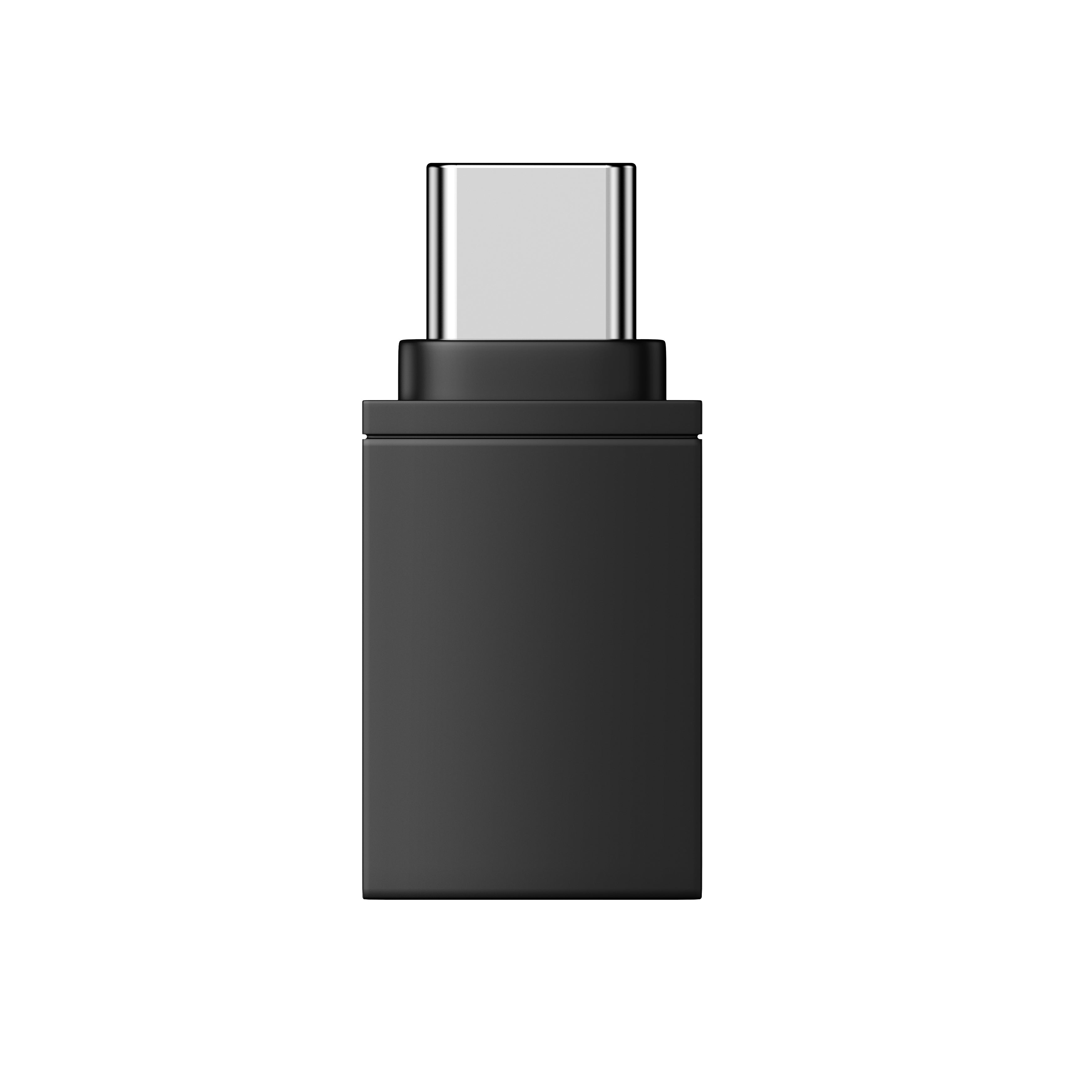
Start with whatever app, cable, or storage method the glasses actually document instead of assuming your phone can browse the files directly. On iPhone, Apple supports transferring files from an iPhone using external storage, a computer, a file server, or a cloud service such as iCloud, and an adapter may be required to connect certain storage devices. Use this as your fallback when the glasses save to removable storage rather than pushing clips straight to your phone.
On Android, if a computer-mediated transfer is required, the documented Android File Transfer steps are to unlock the phone, connect it by USB, choose File Transfer from the USB notification, then drag the clips over in the window that opens on your computer. Whichever platform you use, test the complete path once before a real job so you're not troubleshooting a transfer while a client is waiting on a quote.
Match 1080P, Storage, and Connectivity to the Job
Set a neutral buyer test before shopping: the glasses need to record the boundaries you rely on, stay usable through your route's light changes, and complete the phone handoff you actually use. A 1080P spec on its own only confirms resolution, not field of view or how footage holds up crossing from shade into sun.
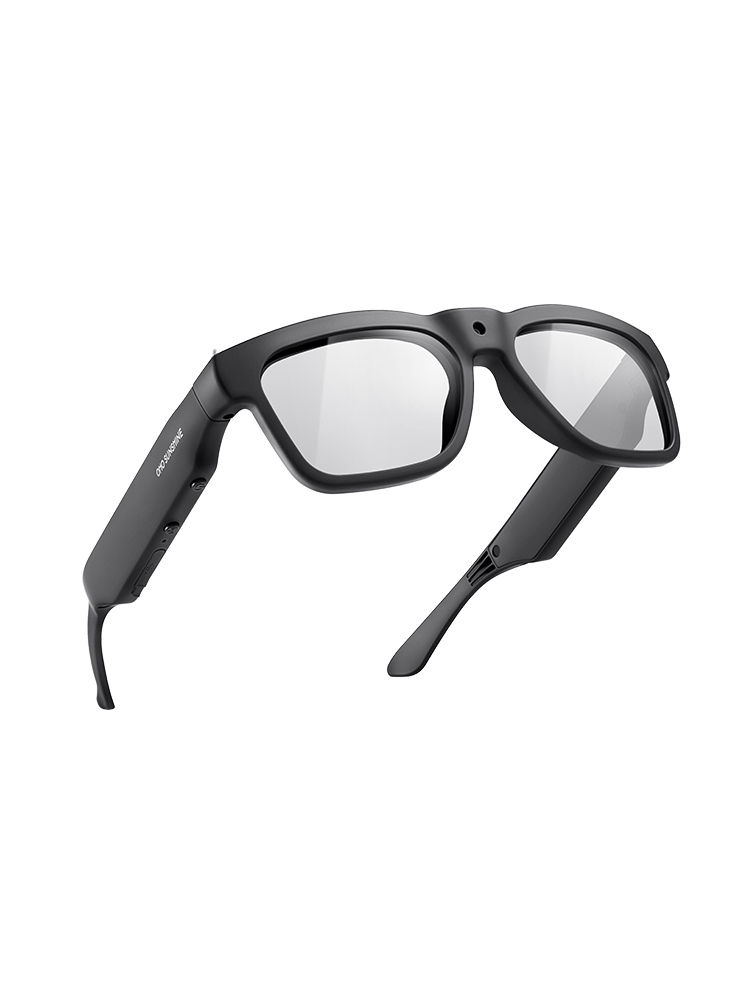
Once those criteria are clear, our Edge camera glasses are a reasonable candidate to check against them. The Edge 1080P camera glasses record 1080P Full HD video at 30 fps, include built-in Bluetooth 5.3, and offer 64GB, 128GB, or 256GB storage options, which covers the resolution requirement and gives you room to choose capacity based on how many estimate clips you shoot per day. Bluetooth 5.3 supports the glasses' calling and audio features, but it doesn't by itself prove direct video export to a phone, so run through the phone and app checks and confirm your actual storage or app route before you count on them for a job. Treat the Edge, or any 1080P camera glasses you're weighing, as a fit only after a real test clip clears your framing and shade-to-sun check and the transfer lands cleanly on your phone.
FAQs
Can camera-glasses video replace measurements in a landscape estimate?
No. Keep your tape measurements, written notes, and sketches as the core estimate inputs. Use the recorded clip to preserve visual context for those numbers, such as showing the exact bed edge or drainage line a measurement refers to, rather than treating footage as a substitute for the estimate data itself.
How do I know a shaded-to-sunny estimate clip is usable?
Replay the clip right after the camera crosses from shade into direct sun and confirm the boundary or existing condition you need is still identifiable. If glare washes out an edge or shadow hides a drainage line, retake that section on the spot instead of trusting the file to hold up later in the proposal review.
Can Bluetooth send camera-glasses video straight to my phone?
Not automatically. A Bluetooth 5.3 connection supports features like calls and audio, but it doesn't by itself guarantee direct video export. Confirm the glasses' actual app, storage, cable, or computer-based transfer route, and run one full test transfer before you depend on it during a client job.
Use this workflow only once a test clip clears the framing and shade-to-sun check and a full transfer lands cleanly on your phone; if either step fails, fix the route or the transfer method before you film a paying estimate.


Leave a comment
This site is protected by hCaptcha and the hCaptcha Privacy Policy and Terms of Service apply.