














Your phone can edit video from camera ski goggles only when the exact file, your phone's operating system, and your editing app all support it. There is no single yes or no answer for every phone. Support depends on the clip's codec and settings and on what your chosen app can do with them.
To find out for your own setup, identify the file's details, check phone and app support, and then run one original clip through import, a simple edit, and export. Only a finished, playable export counts as a pass.
Can Your Phone Edit Camera Ski Goggle Video?
It can, but only for a setup you have confirmed yourself. Count your phone and editor as ready for ski goggle video editing after one original clip imports into the app, accepts a simple edit such as a trim, and exports a file that plays.
A clip that plays in your phone's gallery or video player has only passed playback. That doesn't prove the editor can open, cut, or save it.
The result also has limits. A pass applies to the file, phone, operating system, and app you tested. If you switch editors, update to a different phone, or change the recording settings on your goggles, treat the new combination as untested. The next three sections split the job into separate checks: the file, the phone, and the app.
What File Details Should You Check First?
Start with four properties of the actual recording. Pull them from the goggles' spec sheet, the user manual, or the file information your phone shows. Don't guess from the product category, since ski goggles with camera features are not all documented the same way.
- Container: the file wrapper, shown by the extension, such as .MP4. An MP4 label alone doesn't settle editing support, because the video inside can use different codecs.
- Codec: the method used to compress the video. This is the detail most likely to decide whether a phone or app can read the file. The Library of Congress describes the HEVC H.265 codec family, so a support page that says "HEVC" is talking about the same codec as a spec sheet that says "H.265."
- Resolution: the frame size, such as 1080p or 4K.
- Frame rate: frames per second (fps), such as 30 fps or 60 fps.
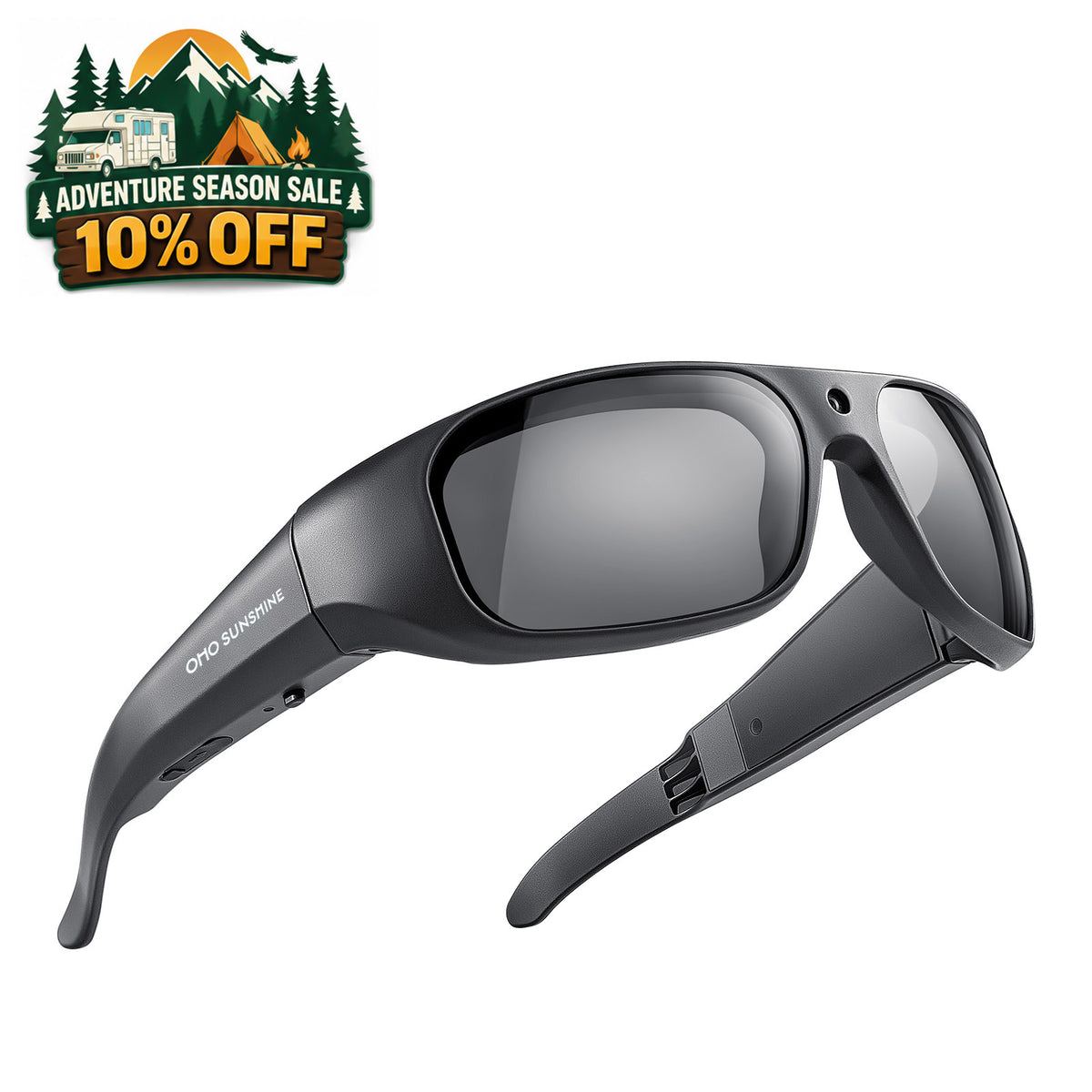
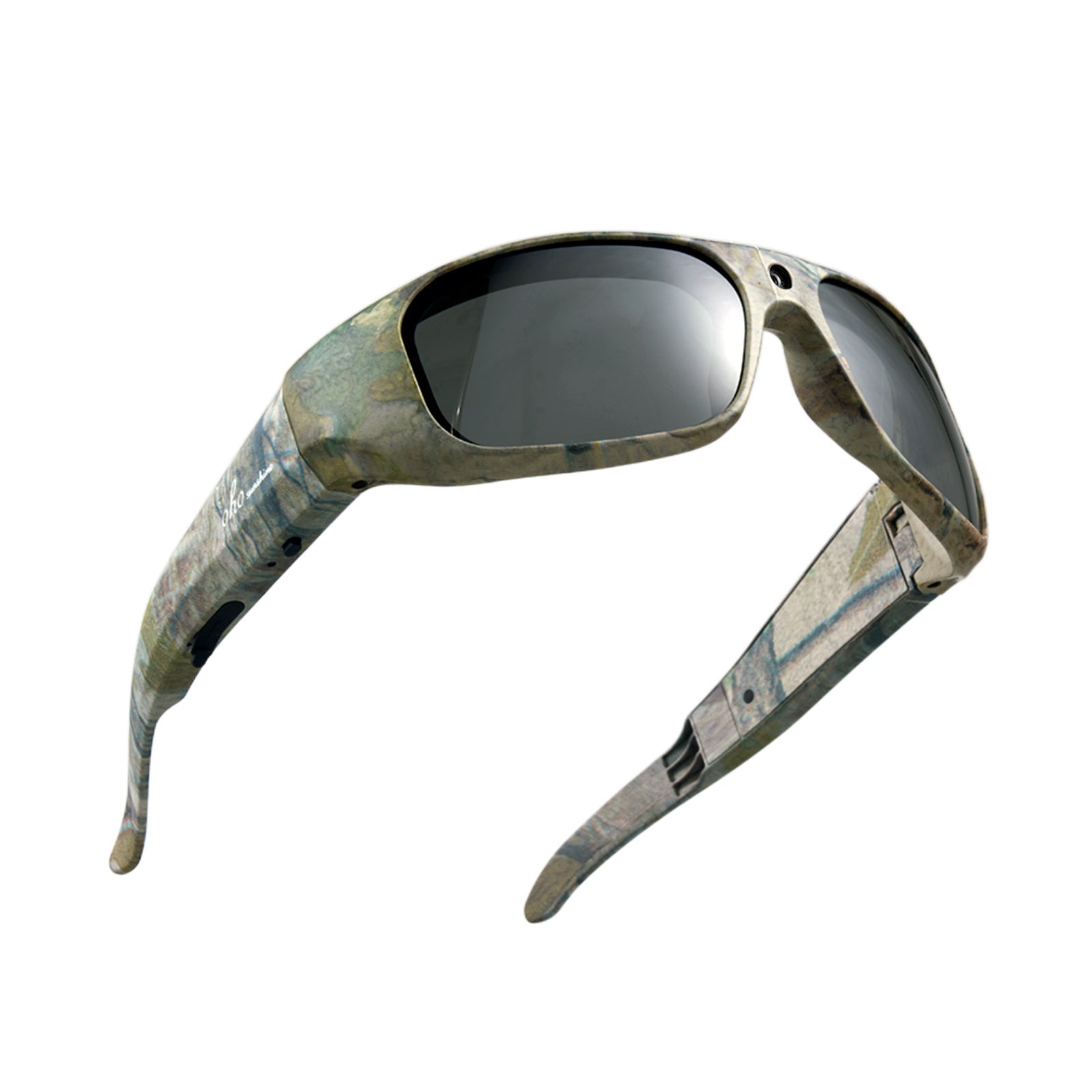
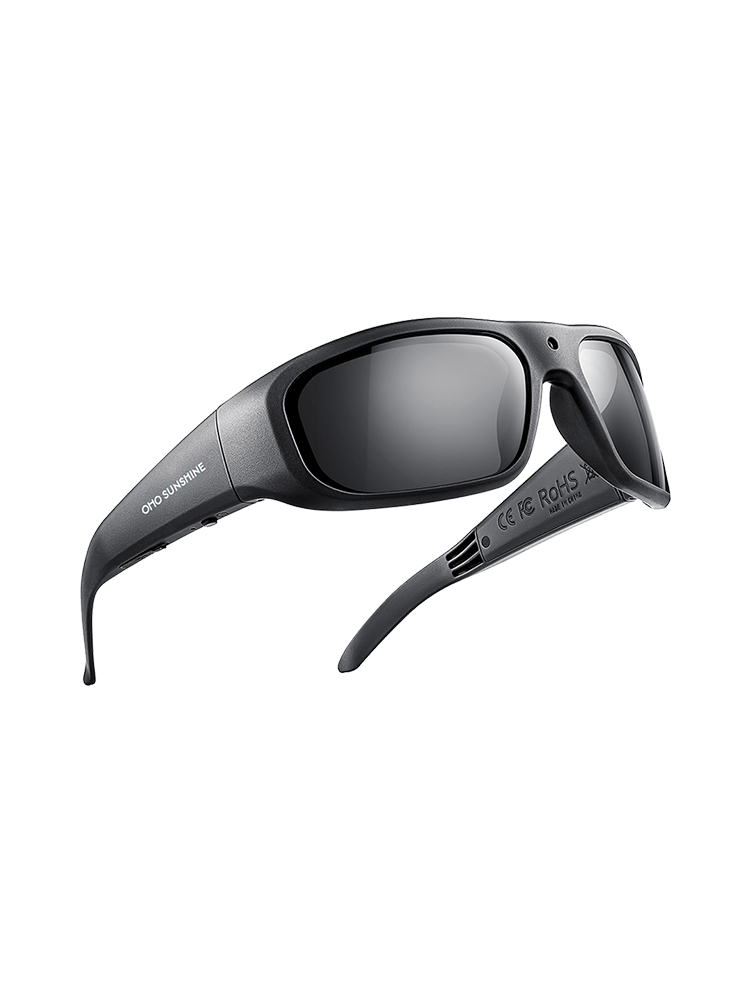
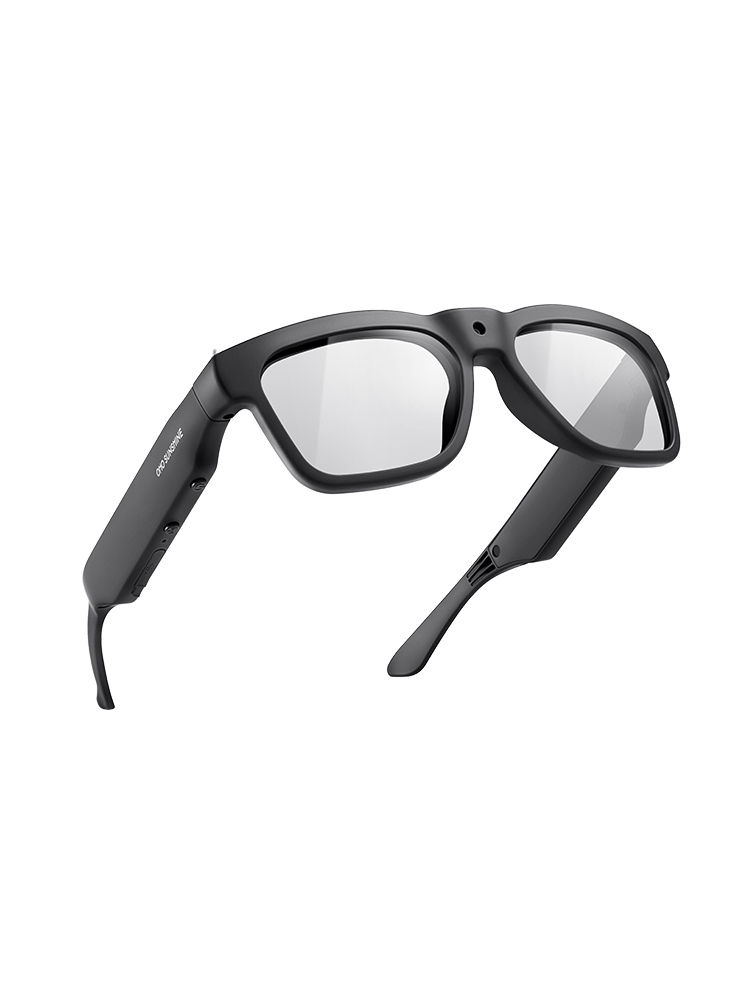
Here is one real example. Our Skyshot camera ski goggles are listed as recording 4K video at 30 fps in MP4 with H.265 encoding. Those details describe that model only, and they give you the terms to look for in your phone and app documentation. If you are comparing 4K snow goggle cameras before you buy, write down each model's listed codec, resolution, and frame rate the same way. Owners of our eyewear can also look for recording details in our smart eyewear user manuals.

How to Check Your Phone and Editing App's Support
Phone support and app support are two separate questions. Check each one against the codec, resolution, and frame rate you wrote down.
Check the Phone's Operating-System Guidance
Compare your file's details with the documentation from your phone's operating-system maker. For iPhone, Apple's HEVC support guidance says HEVC support is built into iOS 11 and later. Apple also says you can view, edit, and duplicate this media in apps that support those features. On some older devices, HEVC support is affected by the video's resolution and frame rate. Apple says 1080p or lower and 60 fps or lower are more broadly compatible with older devices, so a 4K clip deserves a closer look on an older iPhone.
On Android, the platform's supported media formats table lists H.265 HEVC decoding from Android 5.0 and MPEG-4 (.mp4) as a container. It also lists Main Profile Level 3 for mobile devices. That is a platform-level reference, not a promise that your handset or app handles your file.
Check the Editing App Separately
Next, look at what your chosen editor documents. Search its help pages for supported import formats, the codecs it can edit, and its export options. OS-level support means the phone can decode the video. It doesn't mean every editor on that phone will import it, let you cut it, and save the result.
If the app's documentation names your codec and settings, you have a good reason to run the test below. If it says nothing about them, your setup is still unverified. Don't count it as supported or unsupported until the test shows you which one.
Run a Short Test With an Original Clip
This is a test you run yourself, and it gives you a result for your exact setup. Use one untouched clip, straight from the goggles, and go through each stage in order:
- Get the original file onto the phone. If it isn't there yet, transfer ski goggle videos first. Keep another copy of the original on the goggles or a card until testing is done.
- Import it into the editor you plan to use. Pass: the clip shows up in the app's media browser or library. Fail: it is missing, grayed out, or triggers an error.
- Play it inside the editor. Pass: the preview shows picture and sound. A clip that plays only in the phone's own player has not passed this step.
- Make a simple edit. Trim the start or end of the clip. In iMovie, Apple's clip-editing steps show how to preview a clip in the media browser, then add the whole clip or trim it before adding it to a project. Other editors use different controls, so follow your app's own trim tool.
- Export the edited clip. Use the settings you would normally choose. Pass: the app finishes saving without an error.
- Open the exported file. Play it in another app, such as the phone's gallery. Pass: it plays with your trim applied.

Write down the first stage that fails. That single note tells you which fix to try next, and it saves you from treating every problem as a codec issue.
What to Try if a Step Fails
Match your next move to the stage that failed. Whatever you try, keep the original file untouched and work only on copies.
- Import fails: Look for an editor or device whose documentation lists your codec, resolution, and frame rate, then test there. You can also convert a copy to a format your target setup documents. HandBrake's official device presets include 1080p30 options for Android and Apple devices that use H.264 in MP4.
- In-editor playback fails or stutters: On an older iPhone, resolution and frame rate can matter. Try a converted copy at a lower resolution, or try a device documented for your clip's settings.
- The edit fails: The app can open the file but can't work with it. Try an editor whose documentation covers editing your codec.
- Export fails, or the export won't play: Try the app's other export settings, then open the new file again.
A different app, device, or converted copy is only a candidate until it passes. Run the full test again from import through the exported file before you rely on it for a full day of runs.
Conclusion
Your answer comes from your own checks and test, not a general rule. If your original clip made it through import, a trim, and a playable export, mark that phone, app, and recording setting as verified for ski goggle video editing.
If it stopped earlier, record it as failed at that named stage. Test one short untouched clip now to confirm your setup before your next trip on the snow.
FAQs
If my goggle clip plays on my phone, can I skip the editor test?
No. Playback shows the phone can decode the file, but Apple notes that editing depends on apps that support those features. Your editor still has to import the clip, let you trim it, and export it before you can count on it.
Should a converted copy replace my original goggle file?
Keep the original. A converted copy is only a working file for one tested app or device. You may want to try a different editor later that handles the original directly, and that only works if you still have it.
Does one passing clip cover all my snowboard goggles footage?
It covers clips recorded with the same settings on the same phone and app. If you change the resolution or frame rate on your snowboard goggles, run a new clip through the test. Apple's guidance shows resolution and frame rate can affect HEVC support on some older devices.
Can I edit on a tablet if my phone fails the test?
Yes, as long as the tablet and its editor pass the same import, edit, and export test. If you plan to use an iPad, see how to move camera-glasses video to an iPad without a computer. Then check the tablet's documentation for your codec and settings before you test.


Zostaw komentarz
Ta strona jest chroniona przez hCaptcha i obowiązują na niej Polityka prywatności i Warunki korzystania z usługi serwisu hCaptcha.