



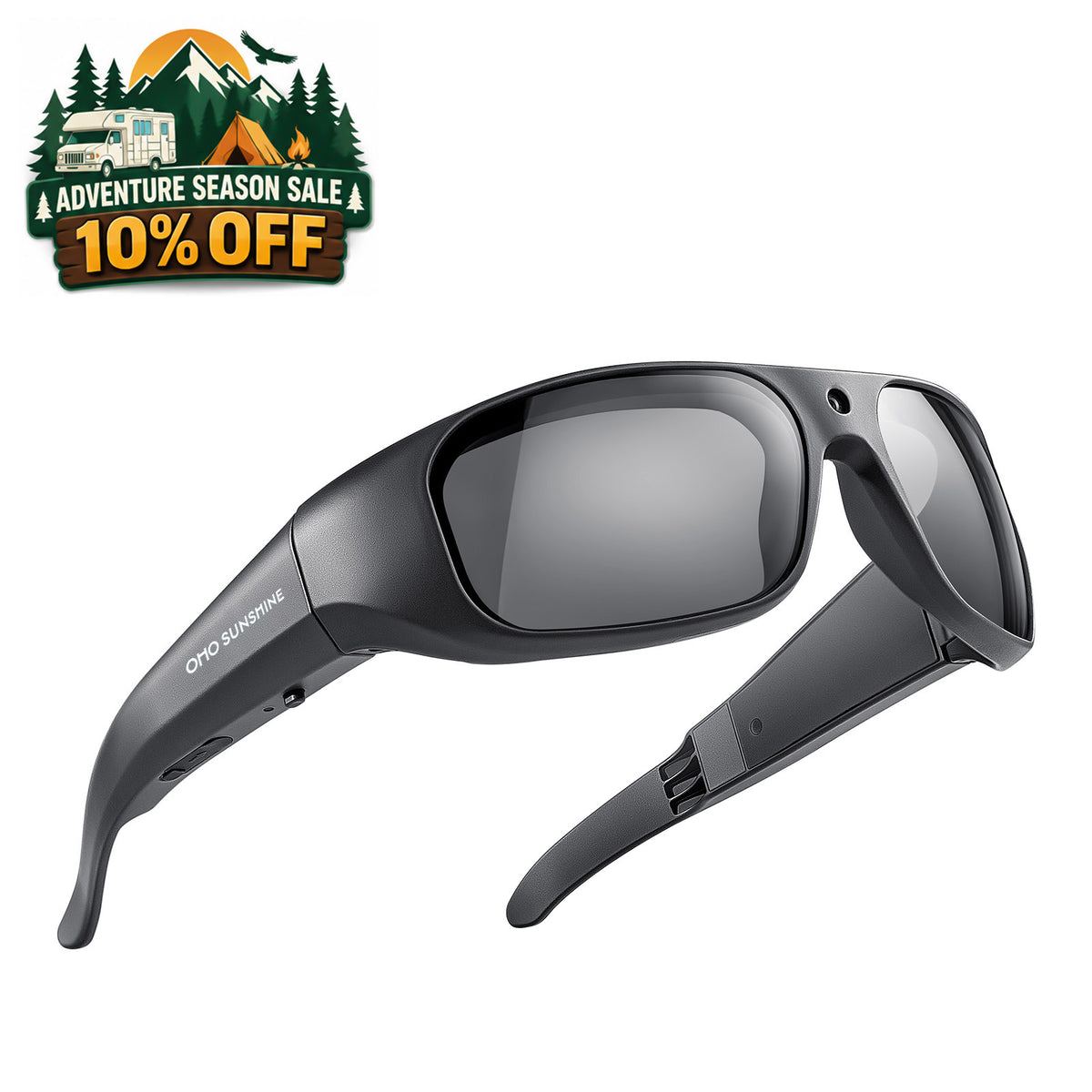


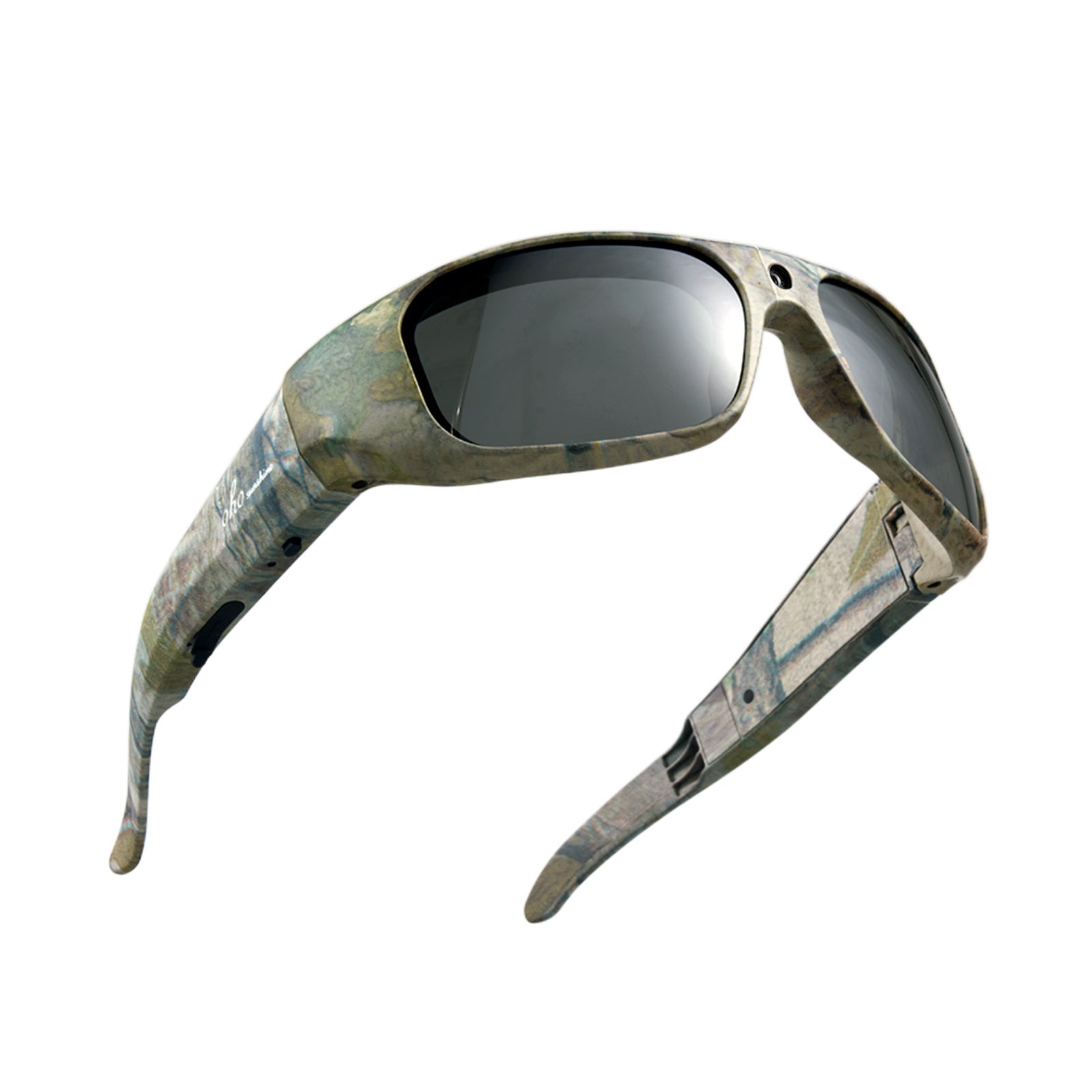


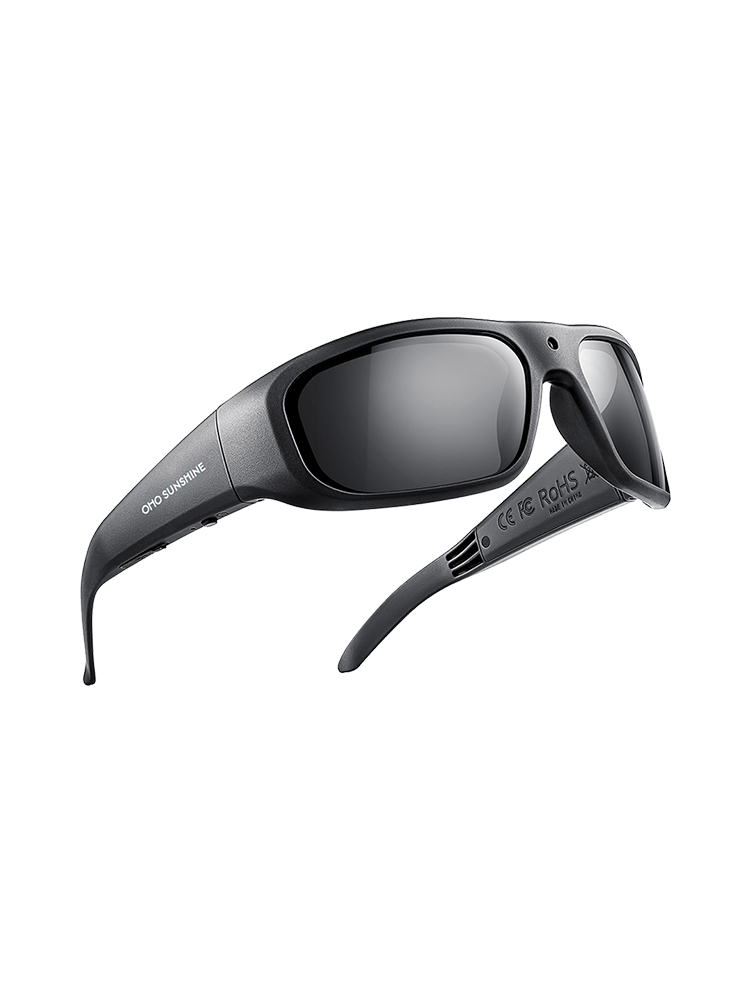


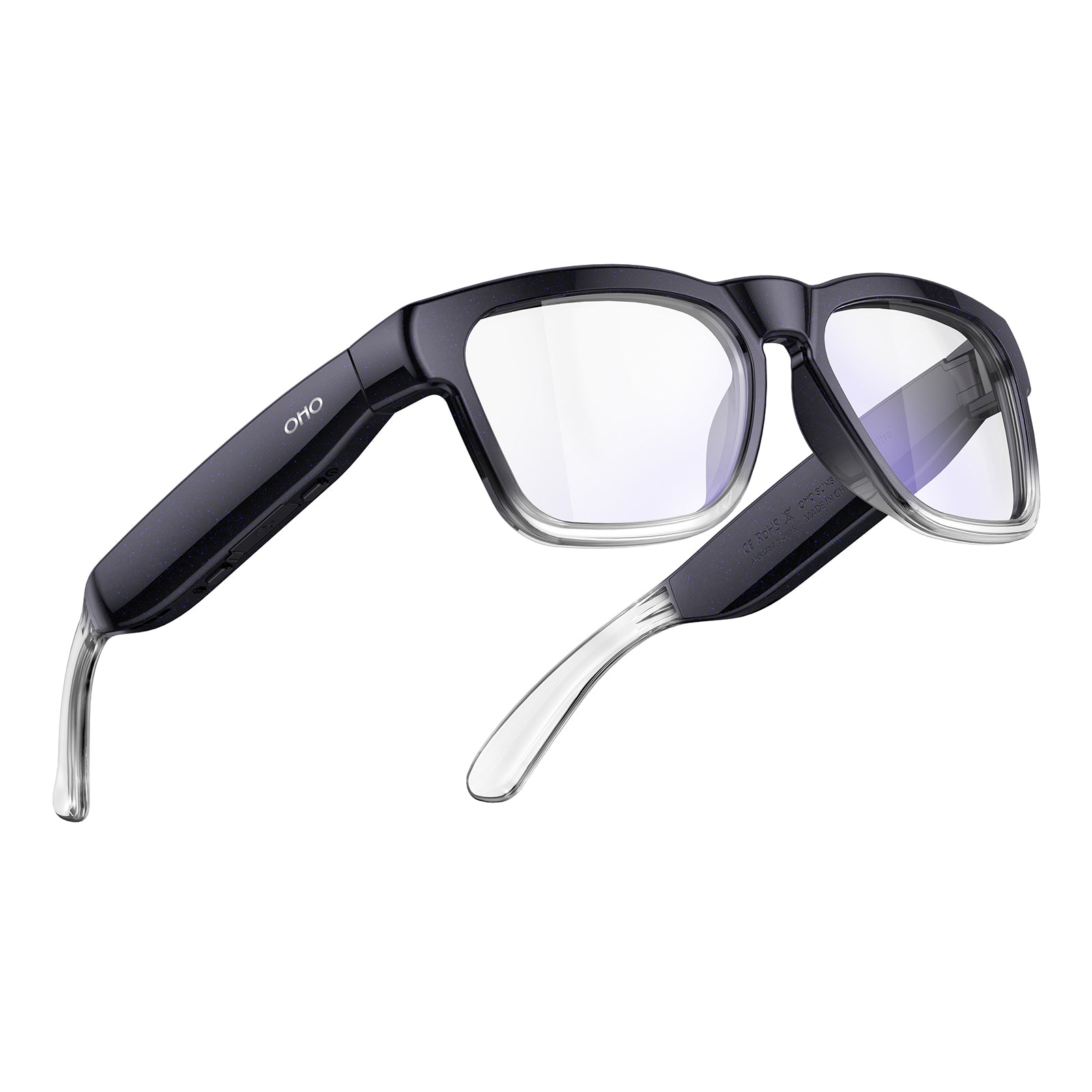





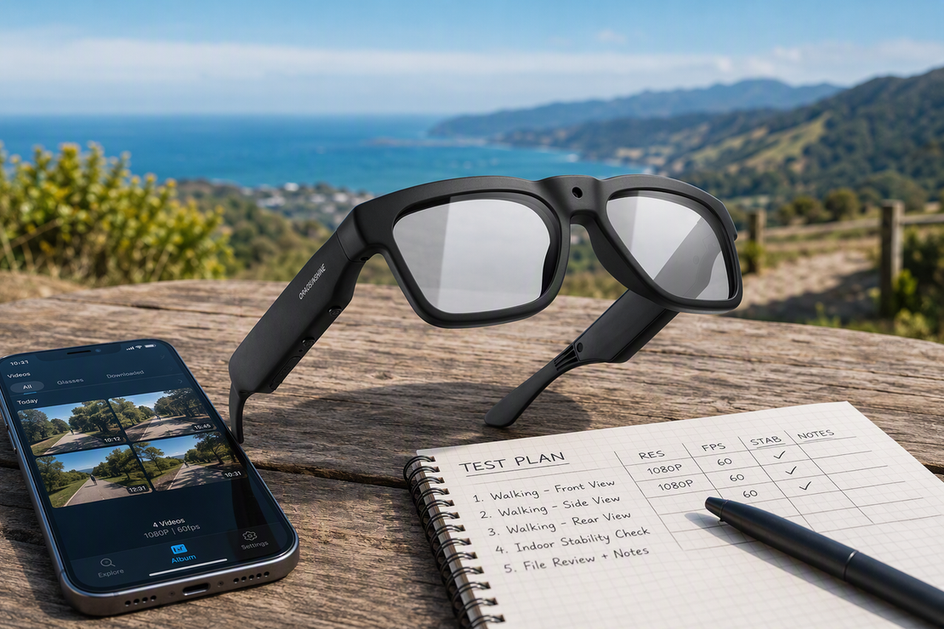
4K camera glasses promise sharp footage, but a resolution label alone does not prove how a pair performs in real use. This guide walks through a repeatable testing process covering motion, low light, heat, battery limits, and file size before you trust any 4K claim. Following these steps in order helps you spot the first weakness that could affect your recordings, so you can decide whether 4K footage actually fits your workflow instead of relying on marketing specs alone.
Start with a repeatable 4K camera-glasses test
Test 4K camera glasses in a fixed order: confirm what the resolution label actually promises, then run motion, low-light, heat-and-battery, and file-workflow checks under conditions you can repeat. Write down the first result that breaks the way you plan to record, and let that failure point drive your decision instead of the 4K number alone.

- Create a simple results log with columns for scene, settings, elapsed time, file size, and pass or fail.
- Charge the glasses, confirm storage is cleared or noted, and read the current manual for recording, charging, and storage limits.
- Check what the 4K label does and does not establish before you test anything else.
- Record one daylight motion clip using the same route and subject each time.
- Record one low-light clip in a repeatable dim scene.
- Run the bounded endurance check described in the heat and battery section.
- Measure one fixed-length clip's file size, then time a transfer to your phone or computer.
- Compare every result against your actual use case and choose 4K, 1080p, or another priority.
If you want the wider purchase checklist that covers fit, lens type, warranty, and returns outside these performance tests, our broader 4K buying checklist walks through those separately.
What the 4K label establishes—and leaves unproven
A 4K label tells you the frame size the camera can record, not whether the footage will look good in your hands. Treat it as one input to a buying decision, not the verdict.

What the label tells you
4K, also marketed as UHD, is a frame-resolution claim. It commonly means each frame holds 3840 by 2160 pixels, four times the pixel count of 1080p. Frame rate is a separate specification that describes how quickly those frames are captured and played back, so a device can be 4K and still vary widely in how smooth or choppy its motion looks.
What you still need to measure
The label leaves these questions open, and each one gets its own test later in this guide:
- Whether motion stays sharp and stable, not just a single paused frame
- Whether framing holds up when you or your subject are moving
- How the camera performs in low light, including noise, exposure, and shadow detail
- How long the device records before heat or battery limits interrupt a session
- How large the resulting files are and whether your storage and transfer workflow can handle them
Test motion and framing before paying for extra detail
4K only pays off in motion if the footage stays sharp and steady when you or your subject move. A short, repeatable daylight test tells you that faster than reading a spec sheet.
Use the same route and subject
- Pick a daylight path with a moving subject, a readable sign, or fine detail at a distance you can repeat.
- Record the same movement speed and direction on every take.
- Keep camera settings identical across takes so you are only testing the footage, not changing variables.
Judge usable detail, not just sharp still frames
Watch the full clip in motion, not a paused frame, and log what you see:
- Passes for your scene: detail stays readable, framing stays on the subject, and blur or wobble does not interfere with the shot
- Fails because of blur, framing, or instability: the subject is unreadable in motion, the frame drifts off target, or footage looks unusable even though a paused frame looks sharp
If motion is the first thing that fails, prioritize stabilization or frame rate over resolution for your next pick.
Test low-light footage where resolution matters least
Resolution does not establish how a camera handles darkness. Exposure, noise, and shadow detail depend on the sensor and processing, so you need a separate low-light test even after 4K footage passes in daylight.
Repeat one dim scene
- Choose one indoor, evening, or otherwise dim location that matches how you plan to use the glasses.
- Include a face, sign, or textured object only if that detail actually matters for your recording plans.
- Keep the same movement and playback setup you used for the daylight test.
Record the first low-light failure
Review the clip at normal viewing size and note the first unacceptable result:
- What became unusable: heavy noise, washed-out highlights, lost shadow detail, shifted color, or motion blur that daylight footage did not show
- Which capability should take priority: if the scene fails here, a stronger low-light sensor or better lighting control matters more than extra resolution
Test heat, battery, and recording endurance safely
Endurance testing is about whether the glasses finish your intended session, not whether they hit an advertised maximum. Follow the manual's stated limits and stop the moment something looks abnormal.
Run a bounded endurance test
- Read the current manual for charging, recording, and operating limits before you start.
- Charge the glasses according to that manual, then choose a session length that matches how you actually plan to record.
- Start recording and check in at regular intervals rather than waiting until the end.
- Stop immediately if you notice a warning, unusual heat, an unexpected shutdown, or any behavior the manual does not describe. General recording guidance from camera manufacturers notes that heat warnings can interrupt recording. It also notes that a camera may power off automatically. This source is for a camera, not eyewear, so follow the glasses' own manual for its limits.
Log battery, heat, and interruptions
Use a simple log instead of chasing a single runtime number:
| Check | Elapsed time | Device behavior | Next action |
|---|---|---|---|
| Start | 0:00 | Normal | Begin timed recording |
| Mid-session | your measured time | Note warmth, warnings, or none | Continue or stop |
| End or stop point | your measured time | File completed, interrupted, or shut down | Compare to your intended session length |
The elapsed time at your first warning, shutdown, or interrupted file is the number that matters, not the device's listed maximum.
Measure file size, storage, transfer, and playback friction
You cannot predict a 4K file's size from the resolution label alone. Bitrate and frame rate can affect it, so measure one clip directly before planning your storage and transfer routine.
Measure one fixed-length clip
- Record one clip at a fixed length, using the resolution and frame rate you actually intend to use.
- Stop recording, then check the file size on the device or after copying it off.
- Note bitrate, codec, or container format only if the device or app exposes that information.
Turn the result into a storage and transfer decision
Use this formula with your own numbers: estimated session storage equals measured file size multiplied by your intended session length, divided by the measured clip length. Then compare the result against what you actually have available.
| Measured value | Your result | Compare to | Decision |
|---|---|---|---|
| File size for the fixed clip | your measurement | available storage on the device or card | fits or doesn't fit |
| Transfer time to phone or computer | your measurement | how long you're willing to wait | fits or doesn't fit |
| Playback or editing smoothness | your observation | your phone or computer's ability to handle the file | fits or doesn't fit |
If the file is too large to move or edit comfortably, that friction can outweigh the extra detail 4K provides.
Choose 4K or 1080p from your measured result
Run a same-scene comparison before choosing: record the same subject, movement, lighting, and framing at 4K and 1080p, then review both at the same playback size. Use the settings you intend to compare and log the result for each resolution.
| Decision axis | Choose 4K when... | Choose 1080p when... |
|---|---|---|
| Retained scene detail | The 4K clip preserves detail that the 1080p clip does not, and you need that difference for cropping, large-screen viewing, or editing. | The 1080p clip is already detailed enough for the finished video, so extra resolution does not change the result you need. |
| File workflow | The measured 4K file fits your available storage, transfer-time, playback, and editing limits. | The measured 4K file creates unacceptable storage, transfer, playback, or editing friction, while 1080p remains usable. |
Choose 4K only when its measured detail advantage matters and the rest of your tests pass. Choose 1080p or another capability when it meets the scene need with less workflow burden, or when another test is the first failure point.
Apply the results to a documented store option
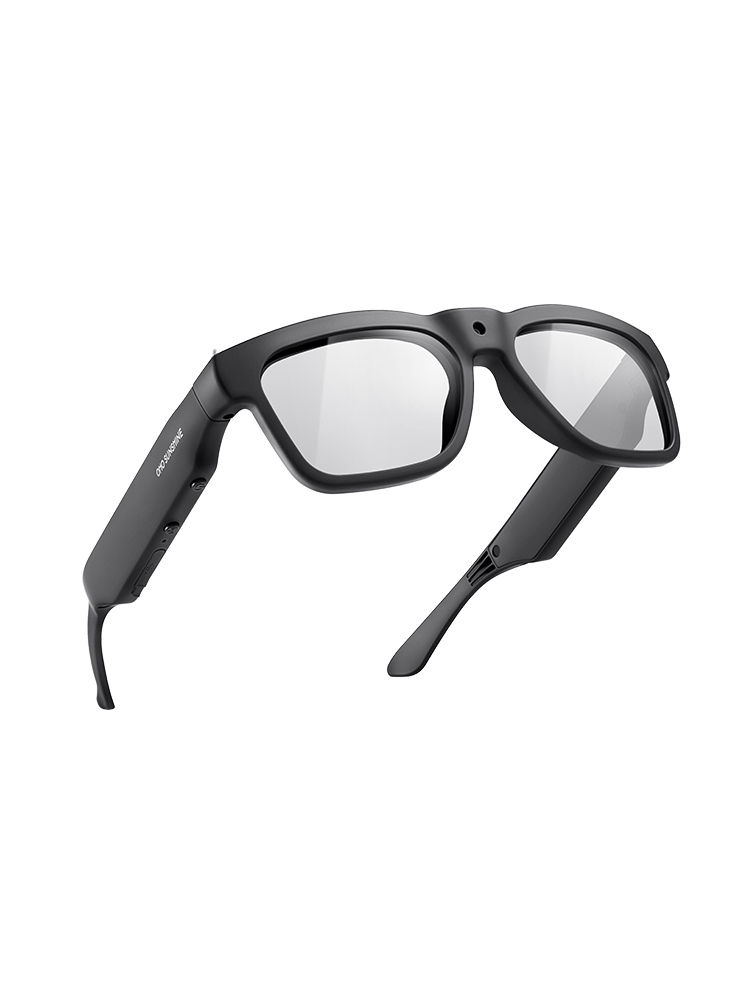
If your tests point to a real need for 4K detail and manageable file sizes, our Edge Pro 4K camera glasses are a documented store-side option to review for that scenario. The fit is conditional on your results, not on the resolution label alone.
The Edge Pro records 4K video at 30 fps and offers 64GB, 128GB, and 256GB storage choices. Choose a capacity that matches the session length you measured. We list it for outdoor sports, cycling, running, and hiking, so it fits buyers whose tested use matches those activities and who want documented 4K resolution with selectable storage. Its listed 1.5 to 20-hour battery range is a specification, not a verified 4K recording time. Use your own endurance test to confirm whether it suits your conditions. If you want to compare more 4K options with the same criteria, you can browse our 4K camera glasses collection.
FAQs
What does 4K mean in camera glasses?
4K refers to frame resolution, commonly 3840 by 2160 pixels per frame. It does not guarantee smooth motion, strong low-light performance, long battery life, or manageable file sizes. Those need their own tests.
Are 4K camera glasses better than 1080p?
It depends on your results, not the label. Choose 4K when its same-scene detail advantage matters and the file workflow fits your limits. Choose 1080p when it already looks sufficiently detailed or creates less storage, transfer, playback, or editing friction.
How long can 4K camera glasses record?
Recording time varies by model, settings, battery condition, heat, and storage speed, so there is no single trustworthy number. Check the current manual for stated limits, then run your own fixed-condition endurance test to see how long a specific pair actually lasts for your session length.
Do 4K camera glasses overheat?
They can become unusually hot or interrupt recording under some conditions, but the 4K label does not establish how a specific device will behave. Stop at the first warning or unusual heat and use the full stop rule in the endurance section.



Lämna en kommentar
Denna webbplats är skyddad av hCaptcha och hCaptchas integritetspolicy . Användarvillkor gäller.