
















Vielen Dank, dass Sie sich für uns entschieden haben
Benutzerhandbuch
Bevor Sie beginnen, nehmen Sie sich einen Moment Zeit, um die Anleitung für Ihr spezifisches Modell zu lesen. Sie behandelt Einrichtung, Bedienung, Pflege und Sicherheit - damit Sie häufige Fehler vermeiden, die beste Leistung erzielen und Ihre Brille langfristig in einem hervorragenden Zustand halten können.
In wenigen Minuten loslegen
Bedienungsanleitung
Finden Sie rechts die Anleitung für Ihr spezifisches Modell. Tippen Sie auf den Pfeil neben Ihrem Produktnamen, um das PDF anzuzeigen. Wenn Sie nicht sicher sind, welches Modell Sie haben, sehen Sie auf der Originalverpackung nach oder wenden Sie sich an das Geschäft, in dem Sie das Produkt gekauft haben.
Sie finden Ihr Modell nicht?
Durchsuchen Sie diese Seite mit Strg+F (PC) oder „Auf Seite suchen“ (Mobilgerät).
Brave-4K-Kamerabrille
Edge Pro-Kamera & KI-Übersetzungsbrille
GlobeEarAI-Übersetzungsbrille
Primex EIS-2K & EIS Kamera-Brillen
Edge-Kamera & Bluetooth-Brille
Vidsoul-Full-HD-Kamerabrille
Elite-Bluetooth-Audiobrille
Pulse-Bluetooth-Audiobrille
Elingo-AI-Übersetzungsbrille
Focus-Full-HD-Kamerabrille
- ee
- ee
- ee
Livi-Full-HD-Kamerabrille
Ease-Bluetooth-Audiobrille
Sunblazer-Bluetooth-Audiobrille
Skyshot-4K-KamerasKibrille
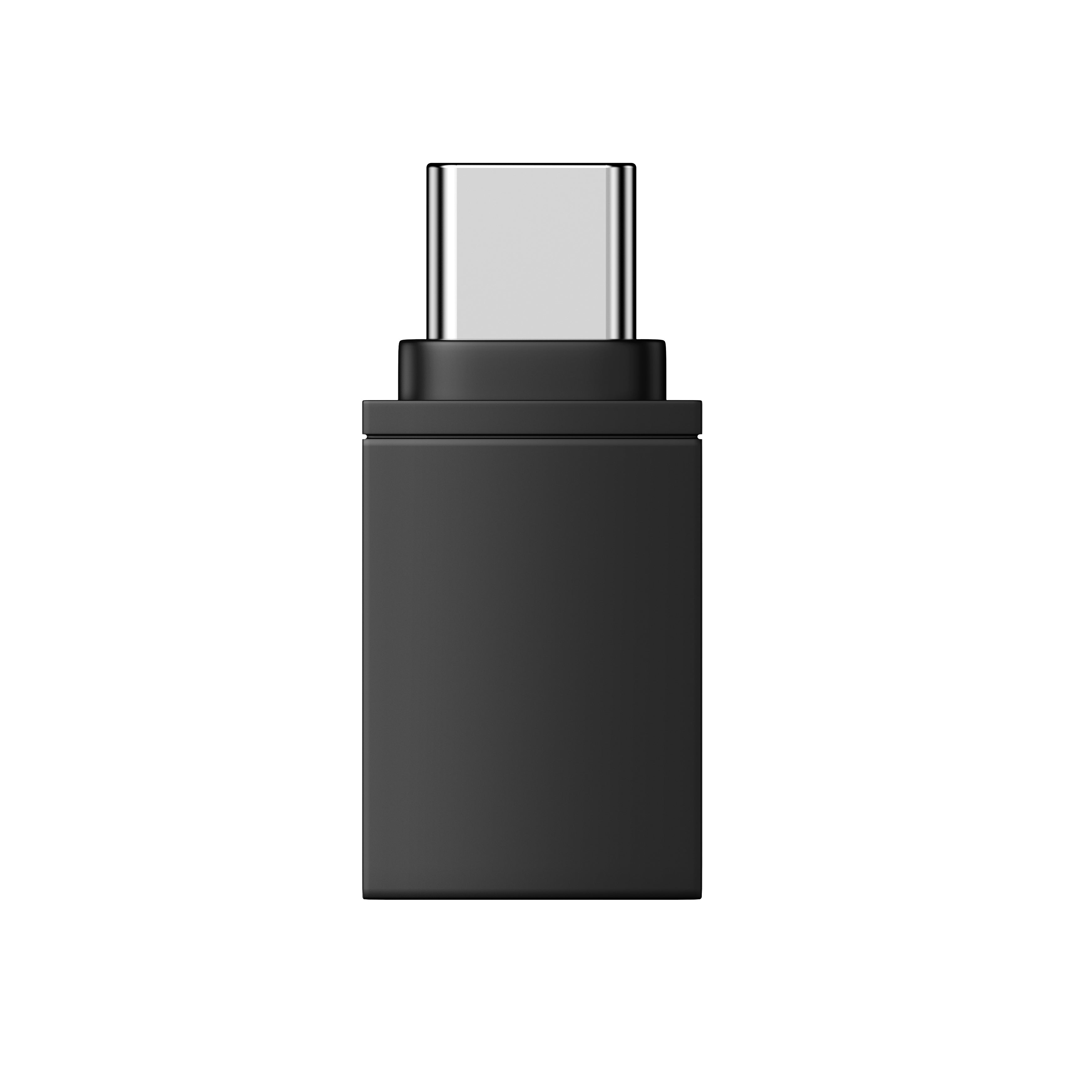
OTG-Adapter für OHO SUNSHINE-Brillen
Anleitungsvideos
Allgemeiner Betrieb


Finden Sie Ihr Modell. Anschauen und lernen.
Videoanleitungen nach Modell
Wählen Sie unten Ihr Produkt aus, um Schritt-für-Schritt-Videoanleitungen speziell für dieses Modell zu sehen. Von der Einrichtung bis hin zu erweiterten Funktionen führt Sie jede Anleitung durch alle Möglichkeiten Ihrer Brille.


Fehlerbehebung
Wenn Ihre config.txt-Datei als unleserliche Symbole oder in einer Mischung aus Sprachen angezeigt wird, liegt das normalerweise nicht an der Datei selbst. Notepad stellt die Formatierung manchmal falsch dar.
Versuchen Sie Folgendes:
- Öffnen Sie die Datei stattdessen mit WordPad (Windows) oder TextEdit (Mac).
- Der Inhalt sollte normal angezeigt werden.
Dies ist lediglich ein Darstellungsproblem - Ihre Konfigurationseinstellungen sind intakt.
Das iPhone 13 Pro Max verwendet einen Lightning-Anschluss, während unsere Brille und das mitgelieferte Kabel USB-C verwenden. Um sie zu verbinden, benötigen Sie einen Lightning-auf-USB-C-OTG-Adapter – erhältlich in den meisten Elektronikgeschäften oder online.
Sobald Sie den Adapter haben:
- Stecken Sie das USB-C-Ende unseres Kabels in Ihre Brille.
- Verbinden Sie das andere Ende mit dem OTG-Adapter.
- Stecken Sie den Adapter in Ihr iPhone.
Ihr iPhone erkennt die Brille, und Sie können über die Dateien-App auf Ihre Dateien zugreifen.
Die OHO Sunshine-Brille verfügt über integrierten Speicher, sodass du Videos aufnehmen und speichern kannst, ohne dass sich ein Telefon in der Nähe befinden muss. Zum Anzeigen und Übertragen dieser Medien kannst du die OTG-Funktion (On-The-Go) verwenden. Damit kann dein Smartphone die Brille wie ein gewöhnliches USB-Flash-Laufwerk lesen.
Für diese Methode sind keine Apps, kein WLAN und kein Computer erforderlich - nur das mitgelieferte Kabel und ein kompatibles Smartphone.
Kompatibilitätsprüfung:
Stelle vor dem Start sicher, dass du ein kompatibles Gerät besitzt. Diese Funktion funktioniert mit Android-Telefonen mit USB-C-Anschluss sowie mit iPhone-Modellen ab dem iPhone 15
Schritt-für-Schritt-Anleitung:
1. Brille anschließenNimm das mitgelieferte USB-C-Kabel und stecke es fest in den Anschluss deiner OHO Sunshine-Brille.
2. OTG-Adapter anschließenStecke das andere Ende des Kabels (den standardmäßigen USB-Anschluss) in den OTG-Adapter.
3. Mit deinem Telefon verbindenStecke den OTG-Adapter direkt in den Ladeanschluss deines Smartphones. Dein Telefon sollte die Brille als externen Speicher erkennen und automatisch eine Datei-Explorer-App öffnen.
4. Auf deine Medien zugreifenWenn der Datei-Explorer nicht automatisch geöffnet wird, öffne manuell die Dateien-App deines Telefons. Navigiere zum DCIM-Ordner und wähle anschließend den Movie-Ordner aus. Dort kannst du deine aufgenommenen Inhalte direkt auf deinem Gerät ansehen, kopieren oder übertragen.

Das Modell Elite verfügt weder über KI- noch über Übersetzungsfunktionen und muss daher nicht mit der OHO-App verbunden werden. Es ist kein Kopplungscode erforderlich.
Die OHO-App wurde für unsere KI-Übersetzungsbrillen entwickelt(Elingo, GlobeEar, Edge Pro). Wenn Sie Elite verwenden, können Sie vollständig auf die App verzichten.
Hier ist das Anleitungsvideo.

Ihre Videodatei ist nicht beschädigt. Unsere Brille nimmt mit einem hocheffizienten Codec (H.265/HEVC) auf, den einige standardmäßige Mediaplayer - wie der Windows Media Player oder QuickTime - nicht korrekt dekodieren können. Deshalb hören Sie den Ton, sehen aber nur einen schwarzen Bildschirm.
Die Lösung ist einfach: Verwenden Sie den VLC Media Player. Er ist kostenlos, funktioniert unter Windows und Mac und unterstützt alle gängigen Videocodecs direkt nach der Installation.
Laden Sie ihn hier herunter: https://www.videolan.org/vlc/
Öffnen Sie Ihr Video nach der Installation mit VLC. Es sollte dann normal abgespielt werden - mit Bild und Ton.
Folge diesen Schritten, um deine Livi-Brille zu verbinden und Live-Videos auf dein Telefon zu übertragen:
- App herunterladen — Installiere zuerst Vizen Cam auf deinem Telefon.
- Einschalten — Schalte deine Brille ein. Die rote LED blinkt.
- WLAN aktivieren — Drücke die Ein-/Funktions-Taste zweimal. Die blaue LED leuchtet dauerhaft, was bedeutet, dass der WLAN-Modus aktiv ist.
- Telefon verbinden — Öffne die WLAN-Einstellungen deines Telefons, suche nach einem Netzwerk namens "Sunglasses_xxxx" und verbinde dich damit.
- Streamen — Öffne die Vizen Cam-App. Jetzt siehst du die Live-Ansicht deiner Brille auf deinem Telefon.
Um die Uhrzeit und das Datum in Ihren Aufnahmen zu korrigieren, befolgen Sie diese Schritte:
- Verbinden Sie Ihre Brille mit dem mitgelieferten USB-Kabel mit Ihrem Computer.
- Öffnen Sie das Laufwerk mit dem Namen "glasses" und suchen Sie die Datei config.txt.
- Öffnen Sie sie mit einem Texteditor wie Notepad.
- Ändern Sie die erste Zeile von N zu Y, um den Bearbeitungsmodus zu aktivieren.
- Aktualisieren Sie die zweite Zeile mit dem korrekten Datum und der richtigen Uhrzeit. Verwenden Sie dieses Format:
YYYYMMDD HHMMSS (Beispiel: 20260115 143000) - Speichern Sie die Datei und werfen Sie das USB-Laufwerk sicher aus.
- Schalten Sie Ihre Brille aus und wieder ein. Die korrekte Uhrzeit wird nun auf allen neuen Aufnahmen angezeigt.
Kontaktieren Sie uns
Benötigen Sie noch Hilfe?
Wir sind für Sie da. Melden Sie sich jederzeit bei uns.


